Create and send an email campaign to your audience
To email the registered users of your Videas channel, open Communication → Campaigns, click New campaign, fill in the Content tab (subject, sender, body, content to feature), choose your recipients in the Targeting tab, check everything with Preview & test, then click Send now. It all happens inside Videas, with no third-party tool.
This guide covers building a campaign from end to end. The Communication section appears as soon as your channel has users (authentication enabled — see Configure authentication and sign-up).
Open the campaigns screen
In your channel menu, open Communication → Campaigns (“Create and send personalized emails to your users”). The list shows your campaigns with the columns Name, Status, Type (One-off / Recurring), Recipients, Last send and Next send. At the top: a search box, a Filter by status and Filter by type control, and the New campaign button.
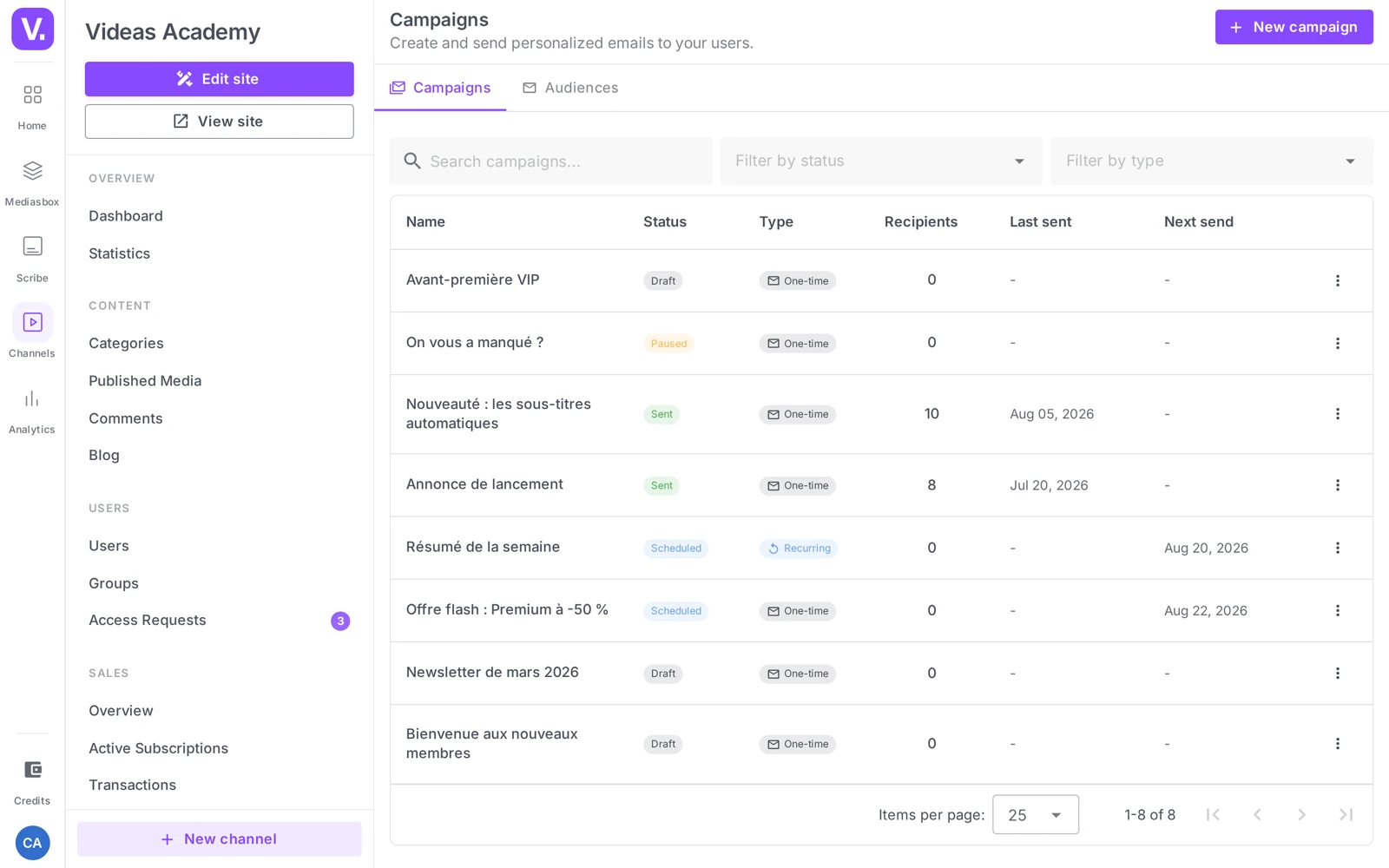
Click New campaign. The campaign opens on the Content tab; the Targeting, Scheduling and History tabs stay locked (“Save the campaign first”) until you have entered a subject — the save button is disabled without one.
The Content tab
Email content
- Subject (required) — the line shown in the inbox. It is the single biggest driver of your open rate: keep it short and clear (40-60 characters).
- Sender name — the name shown as the sender (placeholder “e.g. The MySite team”). Prefer a human name over an anonymous address.
- Reply-to email — the address that will receive replies. Use a real address that someone monitors.
Content type
Two ways to feature content:
- Custom content — you pick the items yourself. The Add content button opens a search across your catalog; confirm with Add selection (N). Ideal for a targeted announcement.
- Latest published content — Videas pulls the last N items automatically at send time. Set the Number of items to include (1 to 20, default 3) and a Filter by category (All categories by default). Ideal for a newsletter.
Email body
The Email body field is a simple rich-text editor (headings, bold, italic, lists, links). Deliberately not a block builder: you write the message, and Videas applies the template at send time (header with your channel logo and color, cards for the featured content, footer with an unsubscribe link).
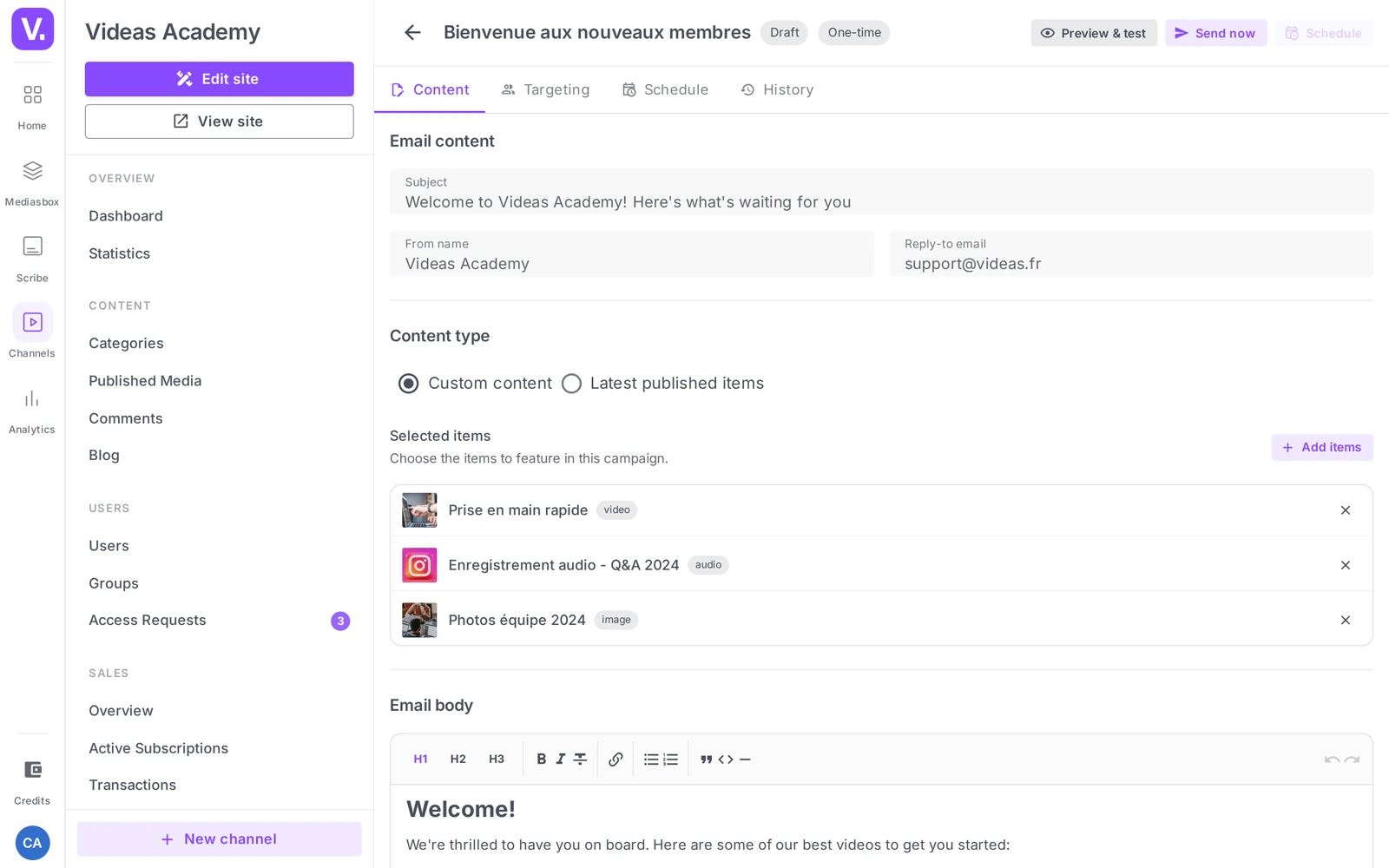
Good to know: as soon as the subject is filled in, save to unlock the other tabs. A campaign stays editable for as long as it is a Draft.
The Targeting tab
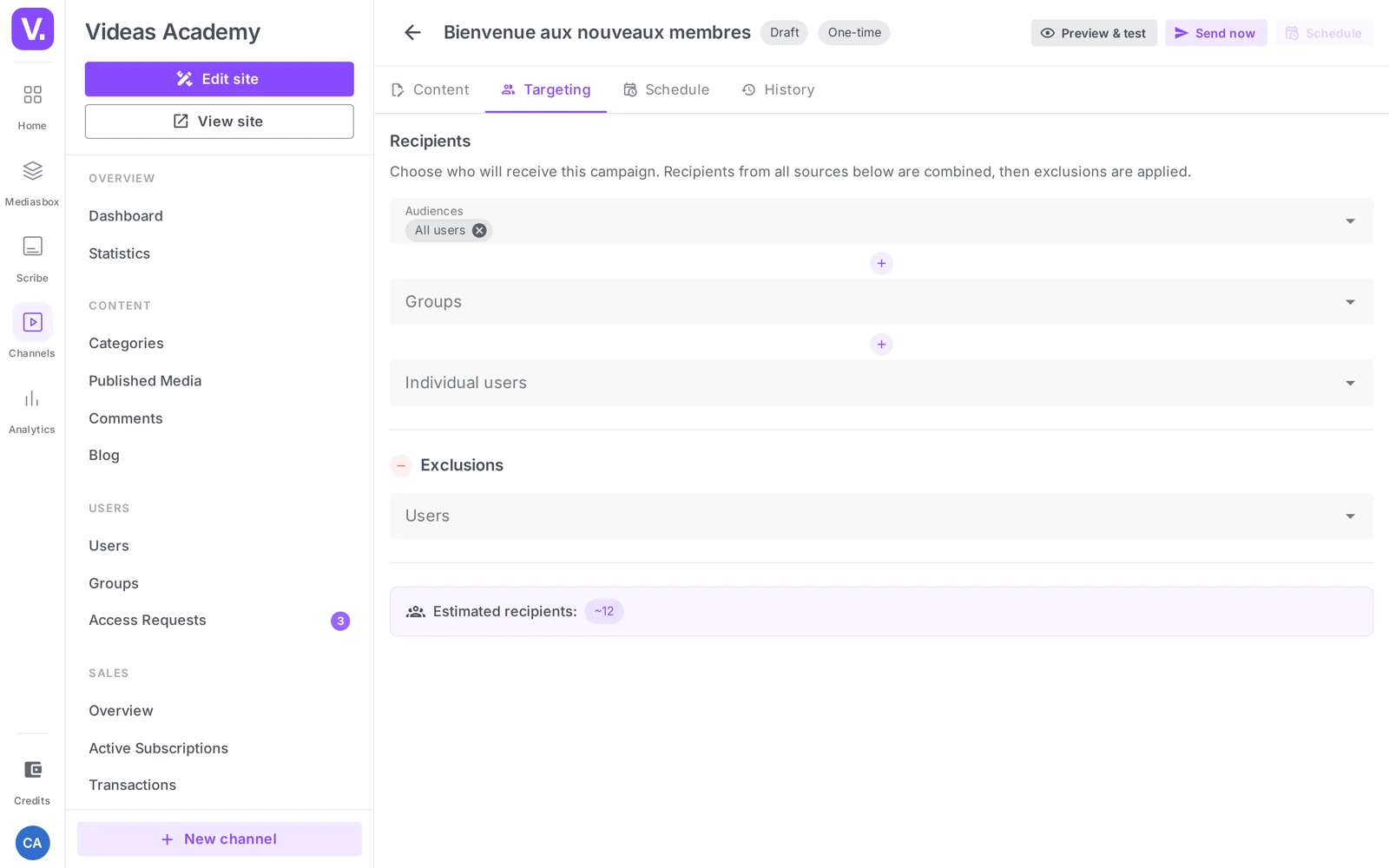
The Targeting tab defines who receives the campaign. The Recipients section combines several sources (union / OR), then applies the exclusions:
- Audiences — one or more audiences (the selector shows their names).
- Groups — one or more access groups.
- Individual users — users picked one by one.
Then comes the Exclusions field: a picker where you search for users by name to take them out of the count, even when they belong to a targeted audience or group. There is no automatic filter on inactive accounts: exclusions are always people you name yourself.
Below the selectors, an Estimated recipients counter shows ~N (an estimate; the exact count is calculated at send time).
Preview & test
Before sending, click Preview & test (at the top of the campaign). The Email preview window offers a multi-device preview (desktop, tablet, mobile) and a field to send a test to an address of your choice. Check the header, the featured content, mobile readability and the Unsubscribe link in the footer.
Send
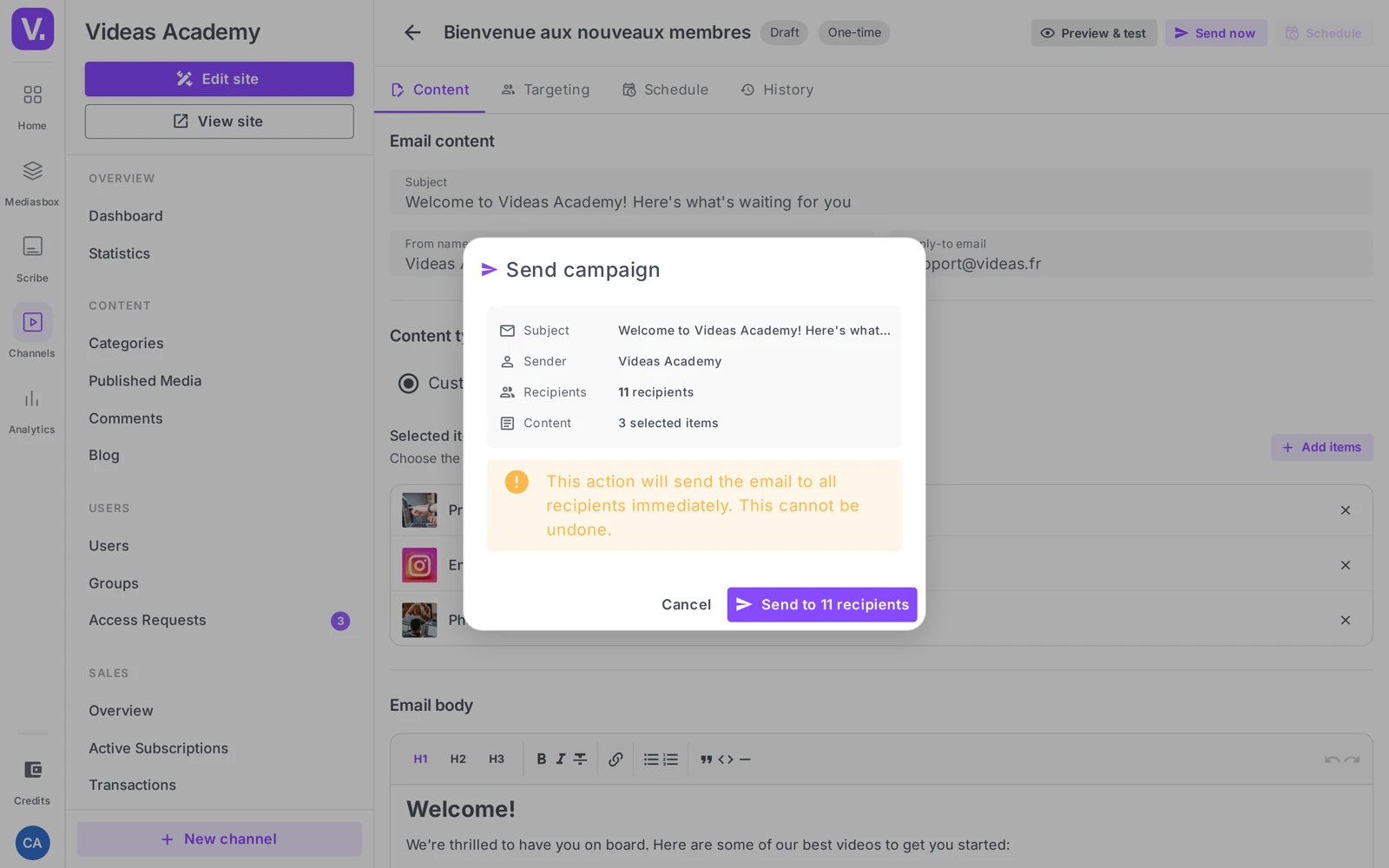
Click Send now. The Send campaign window recaps the Subject, Sender, Recipients (counted by the server) and Content:
- 0 recipients → a blue (info) alert: the campaign cannot go out, so go back to Targeting.
- N recipients → an orange alert: the action cannot be undone.
The confirmation button reads Send to N recipients. Once clicked, the status changes to Sending (processed in the background) and then to Sent. A toast confirms “Campaign sent successfully”.
Scheduling: the Scheduling tab sets a dated or recurring send — daily, weekly, every 2 weeks or monthly, at the time and in the zone you choose. The campaign then moves from Draft to Scheduled, and the list’s Next send column shows the next occurrence. Send now is still there for an immediate dispatch. Automatic sends — frequencies, content pulled in dynamically, an audience that grows on its own — are covered in Schedule emails that send themselves.
Track the send
Once sent, the History tab logs every dispatch (date, status, sent/total, failed). The detail is covered in Track your campaign sends.
Best practices
- Work on the subject line: short, clear, no shouty capitals or garish emoji (bad for spam filters).
- Always send a test before dispatch: 30 seconds that save you a typo seen by hundreds of people.
- Segment rather than blast: a targeted audience converts better than “all users”.
- Keep the frequency reasonable: a weekly or fortnightly newsletter is well accepted; beyond that, unsubscribes climb.
Good to know
- No per-recipient personalization: the content is identical for everyone (no dynamic
{{first name}}). - A sent campaign is frozen: to send again, duplicate it as a draft and adjust.
- The recipient estimate is approximate: the exact count is the server’s, at the moment of sending.
Why are the Targeting and Scheduling tabs locked?
Because the campaign is not saved yet, and it cannot be saved without a subject. The message is explicit — “Save the campaign first” — and the save button stays disabled while the Subject field is empty.
So enter the subject first, save, and the other three tabs open. The campaign stays editable as long as it is in Draft.
How are audiences, groups and users combined?
As a union — an OR, not an AND. Anyone present in one of the audiences, one of the groups, or the list of individual users receives the campaign.
Exclusions then apply on top: you name users there explicitly, and they are removed from the count even if they belong to a targeted audience. There is no automatic filter for inactive accounts — exclusion is always a deliberate act.
Is the recipient count exact?
No, it is an estimate, shown as ~N. The exact count is calculated by the server at send time, and that is the figure shown in the confirmation window.
The gap comes from dynamic audiences recalculating continuously: sign-ups or status changes can occur between the moment you prepare the campaign and the moment you send it.
Can I personalise the email with the recipient’s first name?
No. The content is identical for everyone: there is no dynamic variable such as {{firstname}}.
Personalisation therefore comes from targeting, not from the text. A well-cut audience with a message written for it beats a generic send decorated with a first name.
Can I resend a campaign that has already gone out?
No, a sent campaign is frozen. To send a message again, duplicate it as a draft, adjust what needs adjusting, and send the copy.
That is also what makes the test send important: the Preview & test button offers a multi-device preview and sends a copy to an address of your choice. Thirty seconds of checking prevents a mistake seen by hundreds of people.
Should I choose “Custom content” or “Latest published content”?
Custom content for a targeted announcement: you choose the featured content yourself, and it will not change.
Latest published content for a newsletter: Videas automatically pulls the last N items at send time, with a count adjustable from 1 to 20 and a category filter. That is the mode that makes a newsletter fill itself.
What is the reply address for?
To receive your recipients’ replies — and there are always some. Put a real, monitored address there: an unattended address turns every reply into a lost message.
Look after the Sender name in the same way: a human name such as “The MySite team” is better received than an anonymous address, and it weighs on open rates almost as much as the subject.
In summary
- Campaigns are managed in Communication → Campaigns; use the New campaign button (the subject unlocks the other tabs).
- Content: Subject, Sender name, Reply-to email; Content type (Custom content / Latest published content); rich-text body.
- Targeting: union of Audiences + Groups + Individual users minus the Exclusions field (users you name one by one); Estimated recipients ~N.
- Preview & test (multi-device + test send), then Send now → the Send to N recipients dialog; status Sending then Sent.
- The History tab logs every send; the Scheduling tab supports a dated or recurring send.
Related articles
Screenshots were taken on Videas Academy, an example channel built for this help center. It belongs to a fictional customer, not to Videas: your own channel carries your name, your branding and your prices.