Invite and keep track of your channel members
To manage the users of your Videas channel, open the Users section — the Users & Groups page. The Users tab lists your registered users; the Invite button opens an invitation by email (or by shareable link); and every user has a profile in three tabs (Information, Access, Analytics) where you manage their access, their subscriptions and their expiry.
This guide covers the list, invitations, the user profile and the actions available. The user base is specific to each channel.
The Users & Groups page
From your channel navigation, open Users. The Users & Groups page (“Manage the users and groups of your site”) has three tabs: Users, Groups (see Create access groups) and Invitations.
The Users tab shows the columns User (avatar, name and email), Groups, Registered on and Last activity. Row badges flag Owner, Staff, Inactive or Registration incomplete. A search box (name or email) and the Status (Active / Inactive) and Group filters help you find an account.
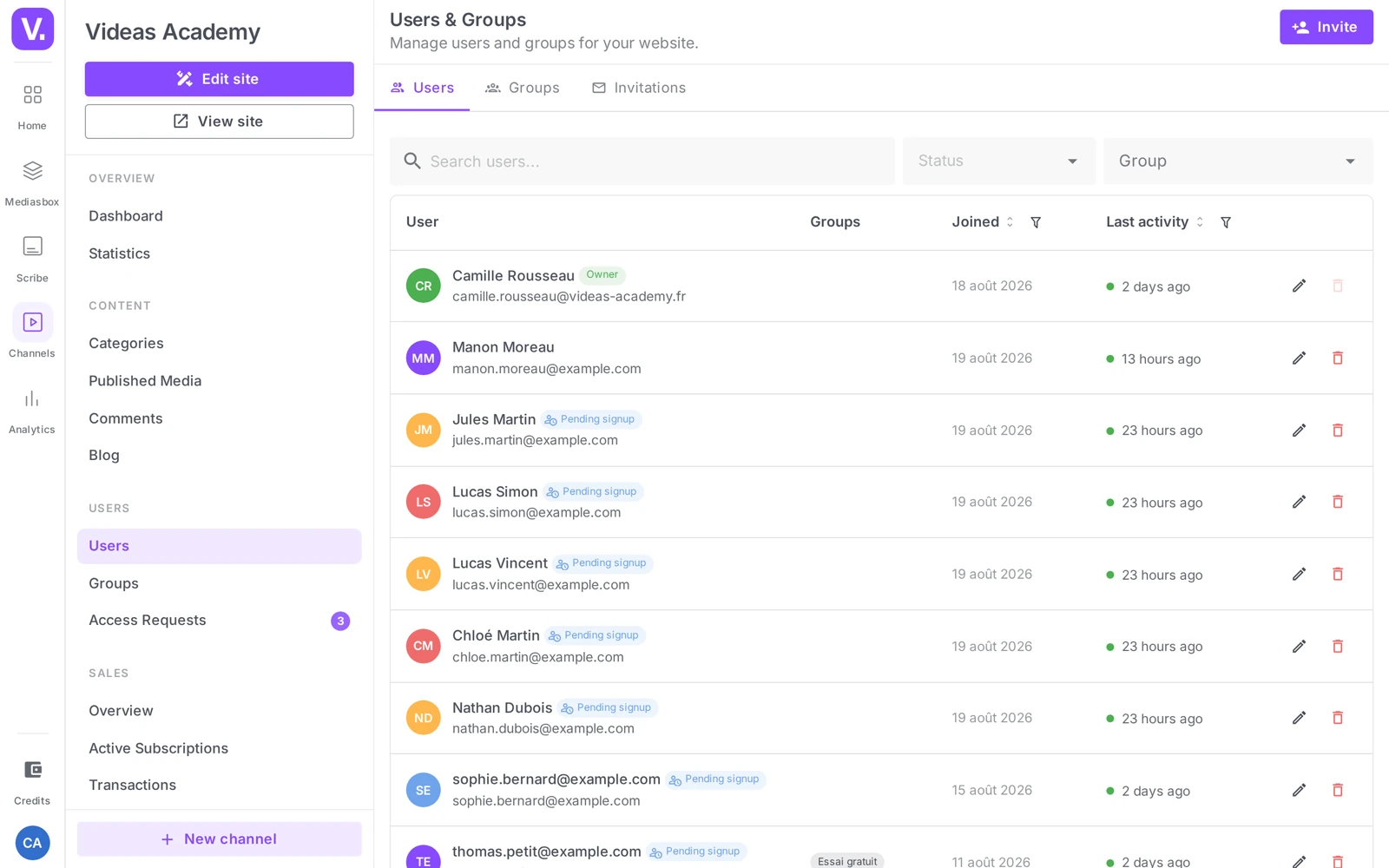
You are already on the list: when the channel is created, Videas automatically creates a user account for you, the Owner, with the email address of your Videas account (your login email). You do not have to invite yourself. That account carries the Owner badge and cannot be deleted (the Delete button is disabled for it). If you named someone else as the owner at creation, your own account is added as Staff.
Invite users
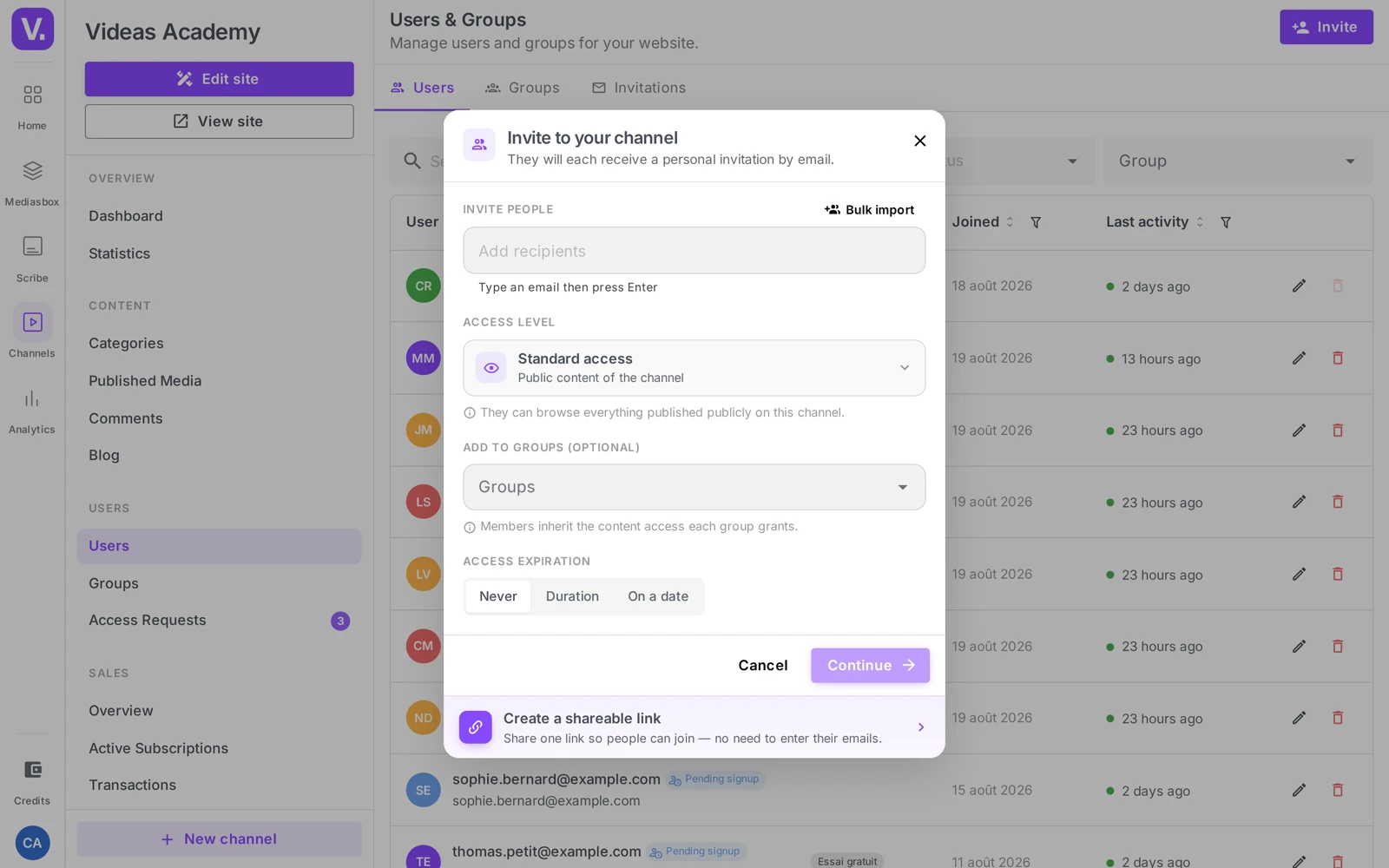
Click Invite (top right). The Invite to your channel dialog opens (“Each person will receive a personal invitation by email”).
By email (the default mode)
- Enter one or more email addresses.
- Choose the Access level: Standard access (“Public content on the channel”) or Full access (“All content, including restricted”).
- Optionally add the guests to groups and set the Access expiry (Never, Duration, or On a date).
- Check the review screen, then click the final button, which counts your recipients: Send {count} invitations (“Send 1 invitation” for a single address). Videas sends a personalized email to each address and confirms “N invitation(s) sent”.
By shareable link
Switch to Create a shareable link to generate a reusable sign-up link (ideal for a cohort). Set the Link name (optional), the Usage limit (Unlimited, 1, 5, 10, 25, 50, 100) and the Validity period (Never, 1 d, 7 d, 15 d, 30 d), then click Generate link. You then distribute that link through whatever channel you like.
Track invitations
The Invitations tab of the Users & Groups page brings together the Pending email invitations and the Invitation links. There you can Resend or Cancel an email invitation, and Copy, Enable / Disable or Delete a link (statuses Active / Inactive / Exhausted).
View and edit a user
Click a user to open their profile. A status banner shows Active, Registration pending, Disabled, Expired or Group expired (and Owner / Staff where relevant). Three tabs: Information, Access, Analytics.
The Information tab
- The account’s Email and Name.
- Send a reset link — sends the user a link to set a new password (only visible if they have already set one).
- Preferences → Newsletter (toggle).
- Custom fields — fields defined by your organization (badged “Admin only”) to segment your user base.
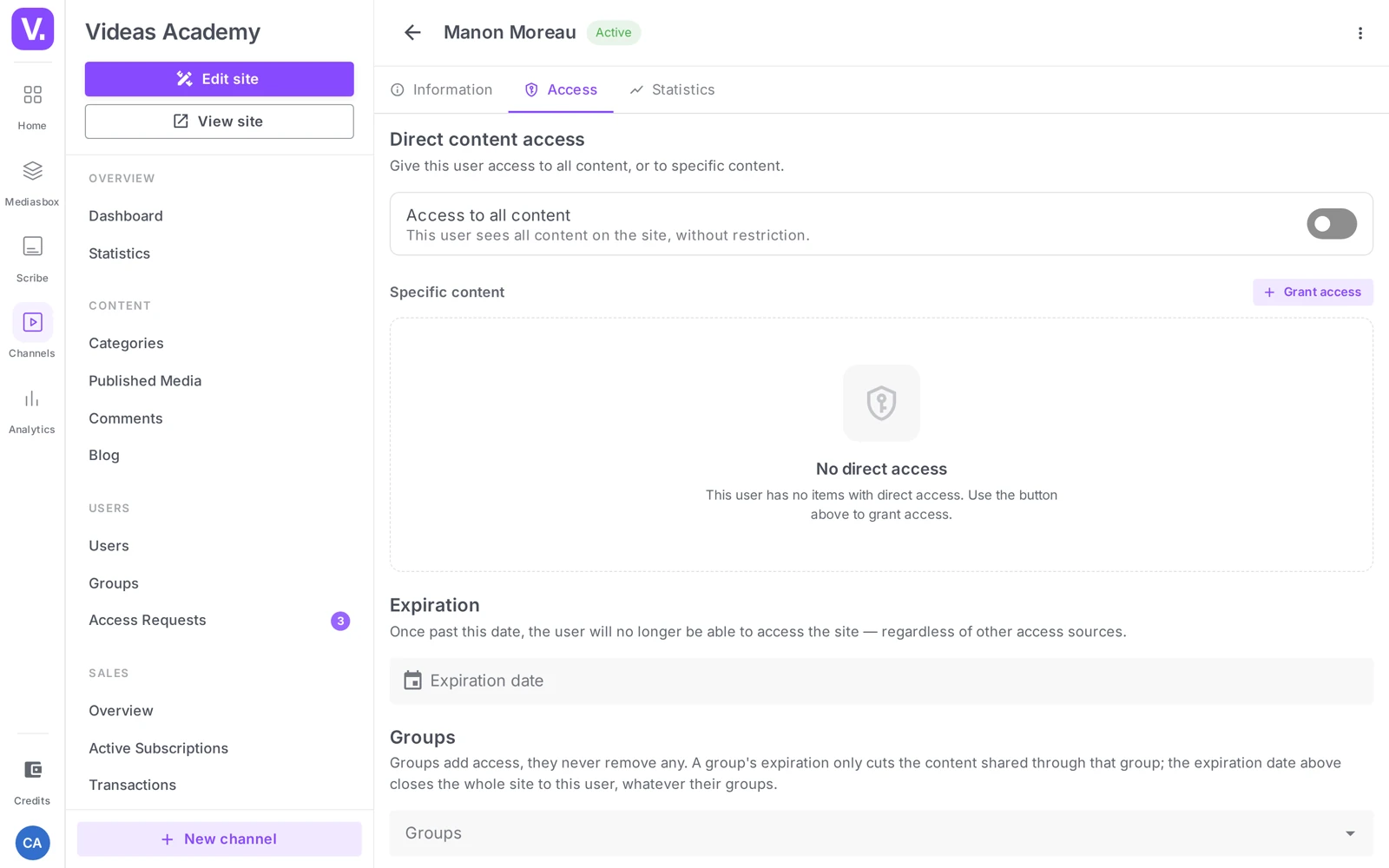
The Access tab
This is where the user’s access is managed:
- Direct content access — the Access to all content toggle opens the whole catalog to this user; the Specific content sub-section plus Grant access lets you give them particular items.
- Expiry — the Expiry date field sets an end date for the account’s access (ideal for a time-limited course).
- Groups — the user’s groups (see Create access groups).
- Subscriptions — with Gift a subscription (a free subscription, no payment) and Cancel subscription.
- Purchases and Rentals — the user’s commercial history.
- Access via groups — a read-only view of the content reachable through their groups (to change it, act on the group).
The Analytics tab
The user’s Last activity, Registration date and Groups.
Actions on an account
The actions menu on the profile offers:
- Reactivate — restores access for an inactive account (only offered when the account is deactivated).
- Deactivate account — offered on an active account. Videas confirms: “{name} will no longer be able to sign in or reach any content. The account, its groups and its access are kept — you can reactivate it at any time.”
- Delete — permanent deletion (with confirmation). The Owner account cannot be deleted (protection against locking yourself out).
Tip: to cut off access without losing the history, use an Expiry date (Access tab) rather than deleting. Keep deletion for explicit GDPR erasure requests.
Best practices
- Name your invitation links clearly (“Training cohort March”, “Webinar #4”): that is your only record of where each registration came from.
- Combine expiry and courses: set the Expiry date right from the invitation for a time-limited course — access cuts off on its own at the deadline.
- Reset rather than recreate: if there is a password problem, send a reset link; recreating an account loses all of its history.
- Fill in the custom fields during onboarding so you can segment your user base later.
Do I need to invite myself to my own channel?
No. When the channel is created, Videas automatically creates a user account for you, with the email address of your Videas account. That account carries the Owner badge and cannot be deleted — a protection against locking yourself out.
If you named someone else as owner at creation, your own account is added as Staff.
Standard access or full access on invitation?
Standard access gives the channel’s public content — the right default, and the one that lets your access levels do their job. Full access opens all content, including restricted, which short-circuits your groups and grants.
Keep full access for a small number of accounts: a colleague, a reviewer, a demonstration account. For a cohort, standard access is almost always what you want, backed by a group.
Email or shareable link?
Email when you know the addresses: Videas sends a personal invitation to each one, and you follow their state in the Invitations tab, with the option to resend or cancel.
A shareable link when you do not — a cohort, a webinar, a group that grows over time. You set its usage limit (up to 100) and its validity period (up to 30 days), and circulate it on whatever channel you like. Name it: it is your only record of where each sign-up came from.
How do I cut off access without losing the history?
Two ways, both reversible. Deactivate the account prevents login while keeping the account, its groups and its access — Videas confirms this explicitly, and you can reactivate at any time. Or set an Expiry date in the Access tab, which cuts access off by itself on the day.
Keep deletion for explicit GDPR erasure requests: it is permanent and takes the account’s whole history with it.
A user lost their password — what now?
Send them a reset link from the Information tab of their profile. The option only appears if they have already set a password.
Do not recreate their account: they would lose their entire history — access, groups, purchases, viewing statistics.
How do I run a time-limited course?
By setting the Expiry date at invitation time, in the invitation screen itself — the options are Never, Duration or On a date. Access then closes on its own at the deadline, with nothing for you to come back to.
For a whole cohort, double up with a group carrying its own expiry date: the group’s date closes the shared content, the account’s date closes the channel.
What does the “Sign-up not completed” badge mean?
That the person was invited but has not finished creating their account. Their profile banner then reads Sign-up pending.
It is the first status to watch after an invitation campaign: a high rate often signals an email caught in spam or an expired invitation. The Invitations tab lets you resend the invitation in one click.
In summary
- The Users section → the Users & Groups page, with the Users / Groups / Invitations tabs; the base is specific to each channel.
- The Owner has an account created automatically when the channel is created (the email of their Videas account), and it cannot be deleted.
- List: the User / Groups / Registered on / Last activity columns; the Owner / Staff / Inactive / Registration incomplete badges; the Status and Group filters.
- Invite = by email (Videas sends the email; Access level Standard access / Full access) or by shareable link (usage limit, validity period).
- A profile in 3 tabs: Information (email, name, password reset, newsletter, custom fields), Access (direct access, expiry, groups, subscriptions, purchases, rentals), Analytics.
- Actions: Reactivate, Deactivate account, Delete (the Owner is protected). To cut off access without deleting, use Deactivate account or the Expiry date.
Related articles
Screenshots were taken on Videas Academy, an example channel built for this help center. It belongs to a fictional customer, not to Videas: your own channel carries your name, your branding and your prices.