Track your campaign sends
Once you have sent an email campaign on your Videas channel, you track its deliverability in Communication → Campaigns: the list gives you the overview (recipients, last send), and a campaign’s History tab details every dispatch — how many emails went out and how many failed.
This guide explains where to read that information and how to interpret it. Videas tracking covers deliverability (sent / failed), not opens or clicks.
The overview from the list
Open Communication → Campaigns. The table sums up your campaigns:
| Column | What it shows |
|---|---|
| Name | Internal name of the campaign |
| Status | Draft, Scheduled, Sending, Sent, Paused, Cancelled, Partial failure, Failed |
| Type | One-off or Recurring |
| Recipients | Total number of users targeted |
| Last send | Date of the last send that actually went out |
| Next send | Date of the next scheduled send |
The Filter by status and Filter by type controls let you isolate, for example, only the Sent campaigns.
Open a campaign’s history
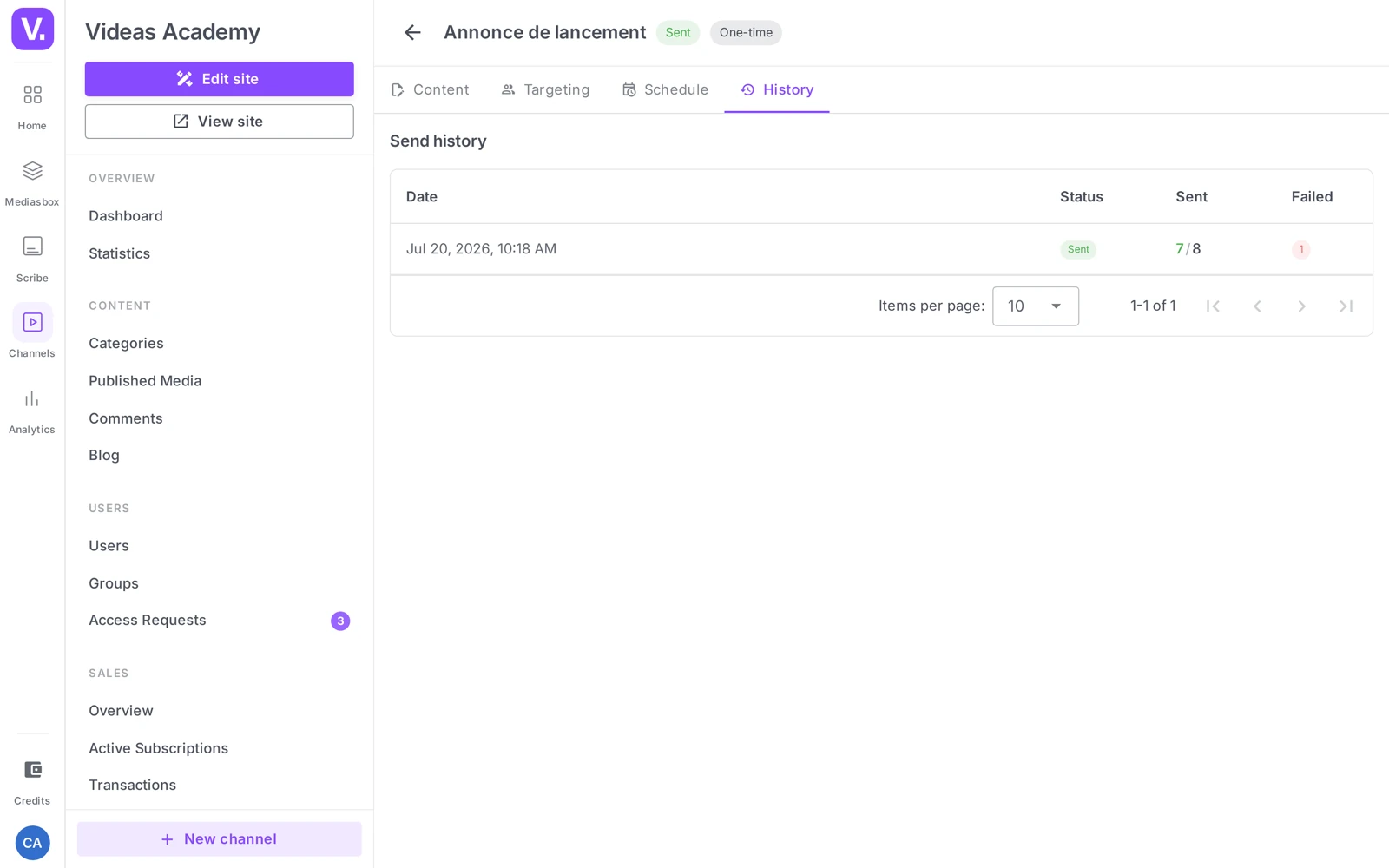
On a campaign, open the History tab: the Send history table lists every dispatch. A one-off campaign has a single row; if no send has happened yet, the tab shows “No sends — This campaign has not been sent yet.”
Reading the columns
The table has four columns:
- Date — date and time of the send (day, month, year, time).
- Status — the state of that send (not to be confused with the campaign’s overall status, see below).
- Sent — in the format
sent / total(e.g. 248 / 250 = 248 emails went out of 250 targeted; the left-hand figure is green). - Failed — the number of failures:
0in gray if everything went through, otherwise a red badge with the count.
Tip: a small gap between sent and total (998 / 1000) is normal — a few addresses in any database are always invalid or expired. A large gap should worry you.
The statuses of a send
Each row carries a colored pill:
- Sent (green) — the send finished, every email accepted.
- Sending (blue) — processing in progress (come back later).
- Partial failure (orange) — some went out, others failed; look at the Failed column.
- Failed (red) — the send could not go through; if it keeps happening, contact support.
- Pending — the send has not started yet.
Good to know: the status at the top of the campaign (its overall state) can differ from the status of a row in the history (one given occurrence).
Why an email fails
A failure almost always comes from the recipient, not from Videas: invalid address, closed account, full mailbox, a domain that filters marketing email, a blacklisted address. When a mailbox returns an error (a “bounce”), Videas receives it server-side, but that information is not broken down per recipient in the interface — you see the aggregate failure counter on the row.
To keep your list healthy: add the failing addresses to the Exclusions field of the Targeting tab — it is there to take out users you name individually — and manage your users to weed out the obviously inactive accounts.
Measuring real impact
Campaign tracking stops at deliverability. To measure the effect of a send (extra visitors, plays of the featured content, new registrations), cross-reference the send date with your channel analytics — that is where your audience’s engagement shows up.
Good to know
- Tracking is aggregated per send (total, sent, failed), with no detailed recipient list.
- After a Partial failure, there is no automatic retry to the failed addresses only: duplicate the campaign and adjust the targeting.
- The history cannot be downloaded from the interface.
- No opens or clicks: Videas measures deliverability, not email engagement.
Does Videas measure opens and clicks?
No. Tracking stops at deliverability: how many emails went out, how many failed. There is no open rate, no click rate and no heat map.
To measure a send’s effect, cross the campaign date with your channel analytics: extra visitors, plays of the featured content, new sign-ups. That is where real engagement is read, rather than in an open rate that mail clients distort anyway.
How do I read the “Sent” column?
In the format sent / total: 248 / 250 means 248 emails went out of 250 targeted, with the left figure shown in green.
A small gap is normal — a few addresses are always invalid or expired in any base. It is a large gap that should raise a flag: at 900 / 1000, there is a data-quality problem, not an inevitability.
What does a “Partial failure” status mean?
That some emails went out and others failed. Look at the Failed column to gauge the scale: a handful out of several hundred is common; a high proportion signals a problem with the base.
Not to be confused with the Failed status (red), where the send could not happen at all. If that one recurs, it is a case for support.
Why does an email fail?
Almost always because of the recipient, not Videas: invalid address, closed account, full mailbox, a domain filtering marketing email, a blacklisted address.
When a mailbox returns an error, Videas receives it server-side, but the per-recipient detail is not exposed in the interface — you see the aggregate counter on the send’s row. To keep the base healthy, add problem addresses to the Exclusions field in the Targeting tab, and weed out clearly inactive accounts.
Can I retry only the failed addresses?
No, there is no automatic retry after a partial failure. The only route is to duplicate the campaign as a draft and adjust the targeting.
Note two other limits of the tracking while you are there: it is aggregated per send, with no detailed recipient list, and the history cannot be downloaded from the interface.
Are the campaign status and a send’s status the same?
No, and the confusion is common. The status at the top of the campaign page describes the campaign’s overall state — Draft, Scheduled, Sending, Sent, Paused, Cancelled. The status on a history row describes one specific occurrence.
On a recurring campaign the gap is visible: the campaign can read Scheduled while last week’s send carries a Partial failure status.
In summary
- The campaign list (Communication → Campaigns) gives you the overview: Status, Type, Recipients, Last/Next send.
- The History tab lists every dispatch: Date, Status, Sent (in the sent / total format), Failed.
- Partial failure = a few problem addresses (normal in small proportions); Failed = a general problem worth reporting.
- Videas tracks deliverability, not opens or clicks — for impact, cross-reference with your channel analytics.
Related articles
Screenshots were taken on Videas Academy, an example channel built for this help center. It belongs to a fictional customer, not to Videas: your own channel carries your name, your branding and your prices.