Group media automatically (smart collection)
A smart collection fills itself from tag rules that you define: when a matching media item appears in Mediasbox (your media library), it joins the collection automatically; when it no longer matches, it leaves. This is the ideal tool for dynamic groupings (the episodes of a podcast, everything tagged training, the month’s best performers) without keeping a list by hand. You need the Editor role (or above).
Creating one is identical to a manual collection — same button, same choice of type (Videos, Audio, Images, Documents); what changes is the mode. This guide focuses on the rules.
Important: in Videas, the rules of a smart collection rely exclusively on tags. Without consistent tags, no rule will return any result. Agree on a clear tag naming scheme beforehand — see Organize your media.
Step 1: Create the collection and choose “Smart”
In Mediasbox, click New → Collection, fill in the Collection name and the Collection type (the type is exclusive: a Videos collection will only ever contain videos, even if audio files carry the same tag). Videas opens the collection’s detail page.
On the Content tab, at the question How do you want to build this collection?, choose the Smart card. The rules form appears, with a live preview of the matching media (empty at first, which is normal).
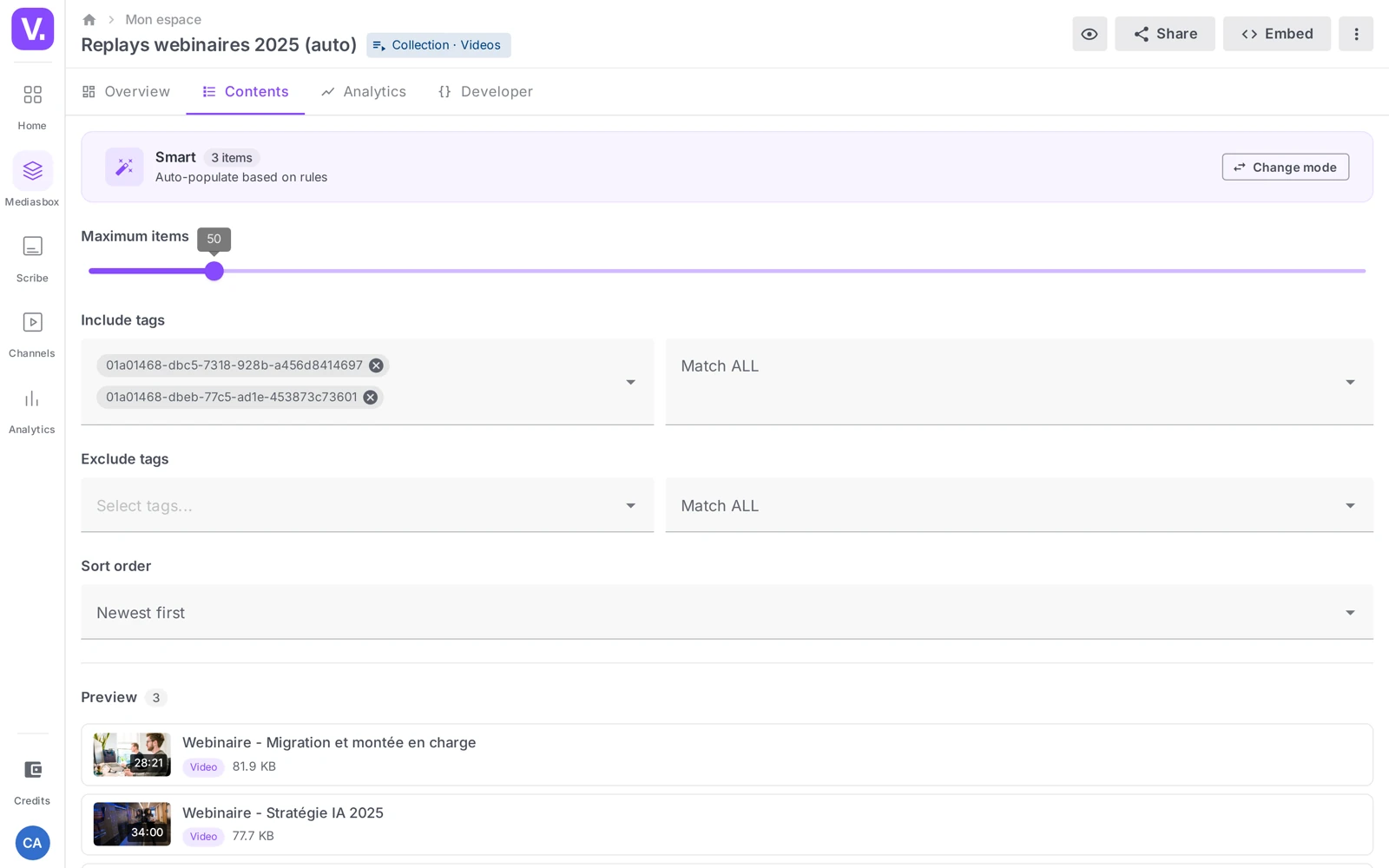
Step 2: Build your rules
Maximum number of items
A slider (1 to 500) caps the size of the collection. Combined with a sort by date, it automatically gives you the latest N media items matching your tags — handy for a Top 10, or to keep a channel page light.
Include tags
Choose one or more tags, with an operator:
- Any (OR): the media item is included if it carries at least one of the tags. E.g.
tutorial+webinar= all tutorials and all webinars. - All (AND): the media item is included if it carries all the tags. E.g.
training+level-1= level 1 training only.
Tip: the All operator is more selective and often returns fewer results than expected. Always check in the preview that media items are actually coming through.
Exclude tags
The mirror image: these tags disqualify media items (with the same Any / All operator). A typical case: include podcast, exclude draft = every episode except the drafts. Very handy for steering what appears publicly.
Sort order
A dropdown: Newest first (the default), Oldest first, Name (A-Z), Name (Z-A), Longest first, Shortest first. The sort applies to the filtered list and determines the order on the viewer’s side.
Step 3: Preview and save
The preview below the form lists the media items matching right now and refreshes automatically with every change (there is no “run” button). When the result looks right, the save bar appears at the bottom: click Save. The collection is then live — any new matching media item joins it automatically, continuously.
To change the rules later, go back to the Content tab, adjust, save.
Filling an empty collection
If the preview is empty, your media items do not carry the right tags yet. Add them from each item’s Overview tab (Tags field): as soon as a media item carries the expected tags, it joins the collection without touching the form. For a large volume, define a team-wide tagging workflow (on upload, on approval, on publication).
Freezing a collection (converting it to manual)
A smart collection that turns out to be too dynamic can be frozen: from the Content tab, switch the mode back to Manual. Videas offers to keep the media items currently in it — the list produced by your rules becomes a manual list, which you can then rearrange by hand. The reverse also works (Videas replaces the frozen list with a new set of rules).
Publishing the collection
Same as a manual collection: the Add to a channel action (adding a new media item is reflected automatically on the channel), or embed (see Embed a collection on your website).
Why tags only?
This is a deliberate choice: a single lever, tags, for clear and predictable rules. Rather than ten criteria to debug, Videas encourages you to invest in a tagging strategy — a convention that also serves search, filters and saved searches. For a grouping that does not lend itself to tags (“every media item longer than 10 minutes”), use filters or a saved search instead (see Search and filter in Mediasbox).
Why do the rules only cover tags?
It is a deliberate choice: one lever, for rules that stay clear and predictable. Rather than ten criteria to debug when an item fails to show up, Videas pushes you to invest in a tag strategy — a convention that also serves search, filters and saved searches.
The practical consequence: without consistent tags, no rule will return anything. And for a grouping that does not lend itself to tags (“everything longer than ten minutes”), the answer lies with filters or a saved search instead.
Should I choose “At least one” or “All”?
At least one (OR) widens: the item joins if it carries any of the tags. tutorial + webinar gathers all tutorials and all webinars. All (AND) narrows: the item must carry every tag. training + level-1 keeps only level 1 training.
The All operator is markedly more selective than it looks, and it is the most common cause of an empty preview. Always check in the preview that items are coming through before you save.
My preview is empty, what is wrong?
In the vast majority of cases, your media do not carry the right tags yet. The preview is not mistaken: it shows exactly what the rule selects at that moment.
Two checks, in this order. First the operator: if you are on All, try At least one to see whether the selection opens up. Then the tags themselves, from a media item’s Overview tab: as soon as an item carries the expected tags, it joins the collection without you touching the form.
How do I keep drafts out of a published collection?
With the Exclude tags field. The typical case: include podcast, exclude draft — every episode shows up except those marked as work in progress.
That is the lever that makes a smart collection publishable without supervision. It does assume tagging discipline: a badly tagged draft will appear publicly, since the collection updates itself on the channel and in embeds.
Can a smart collection be frozen?
Yes. From the Content tab, switch the mode back to Manual: Videas then offers to keep the items currently present. The list your rules produced becomes a manual list, which you can then rearrange by hand.
That is the move to make before a contractual delivery or a locked version, where the content must stop moving. The reverse also exists: switching a manual collection to smart replaces the frozen list with a new set of rules.
What is the maximum number of items for?
To cap the collection’s size, between 1 and 500. Combined with a date sort, it automatically produces the latest N items matching your tags.
That is what allows a Top 10 that renews itself, or a channel page that stays light despite a growing library: new items come in, the oldest drop out, with no intervention.
In summary
- A smart collection fills itself automatically according to tag rules
- The form: Maximum number of items, Include tags, Exclude tags, Sort order
- The All / Any operator combines tags with AND or OR logic
- The preview refreshes live; Save activates the collection
- You can freeze it by switching back to Manual mode (keeping the current media items)
- Publishing (channel, embed) is identical to a manual collection
- Everything rests on a clear tagging strategy; the Editor role (or above) is required
Related articles
Screenshots were taken on Videas Academy, an example channel built for this help center. It belongs to a fictional customer, not to Videas: your own channel carries your name, your branding and your prices.