Embed a collection of videos on your site
To embed a collection (playlist) on your site: open the collection in Videas, click Embed, copy the code and paste it into your page. The visitor gets a single player that runs through every item in the collection, with built-in navigation.
The Embed window is the same as for a single video (Script or iframe method, dimensions, display — see Embed a video on your website); what changes are the playback options, which adapt to the collection type.
The four collection types
A collection’s type depends on the media it holds (or on the rules of a smart collection). It determines the options offered in the Embed window:
| Type | Typical use | Options specific to embedding |
|---|---|---|
| Videos | Online course, series of replays | Autoplay next, playlist Display mode |
| Audio | Podcast, audio playlist | Autoplay, Loop, Shuffle, waveform, playlist |
| Images | Gallery, portfolio | Enable slideshow + Interval, Show titles, zoom, fullscreen, download |
| Documents | Set of PDFs | Thumbnails, outline, search, download, autoplay next |
The window adapts automatically: options that make no sense for the type are not shown.
Open the Embed window
- Open the collection page in your media library
- Click Embed in the action bar
- Set the method (Script by default, iframe if your CMS blocks scripts) and the dimensions (responsive width recommended; a collection opens slightly larger by default to leave room for navigation)
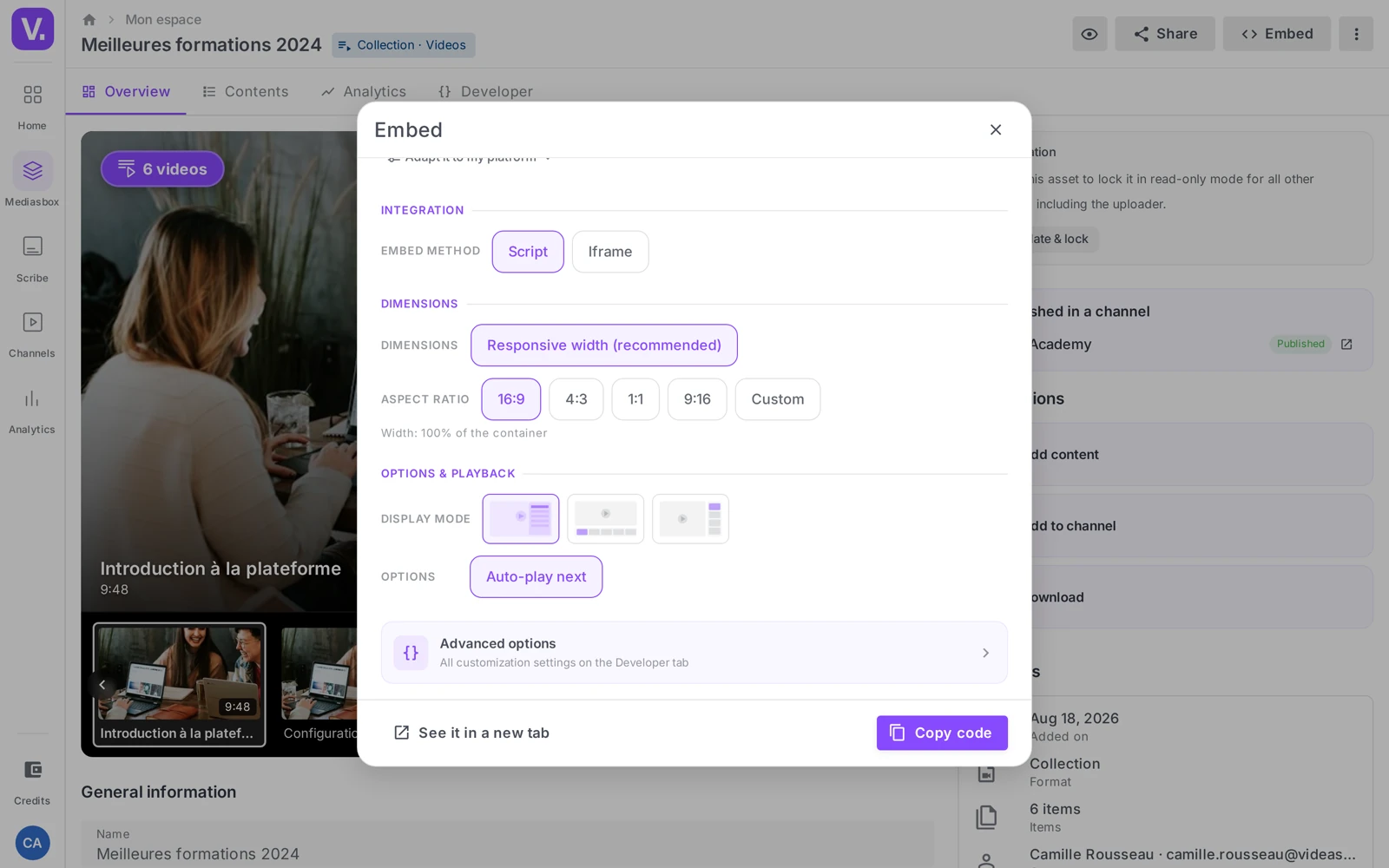
Video collection: display mode and sequencing
A video collection offers two key options.
Autoplay next: when a video ends, the next one starts automatically — turn it on for a course watched end to end, off for a gallery where the visitor picks each video.
Display mode: determines how the video list is presented next to the player.
| Mode | Presentation | When to use it |
|---|---|---|
| Default | The list appears as an overlay when clicked | Clean look, the main video stands out — editorial pages |
| Bottom bar | Horizontal strip of thumbnails under the player | Wide landing page, little vertical room |
| Sidebar | Fixed vertical list to the right of the player | Replay platforms, online courses where the list is central |
Audio collection
For a podcast or an audio playlist: Autoplay (pair it with Muted for a reliable start), Loop (the playlist goes back to the start after the last track) and Shuffle (the order is randomised — ideal for background listening with no set progression). The audio player shows the waveform and the playlist.
Image collection
For a gallery or a portfolio:
- Enable slideshow — the images advance automatically
- Slideshow interval — how long each image is shown, in seconds
- Show titles — displays the title you entered under each image
- Enable zoom, Fullscreen, Allow download
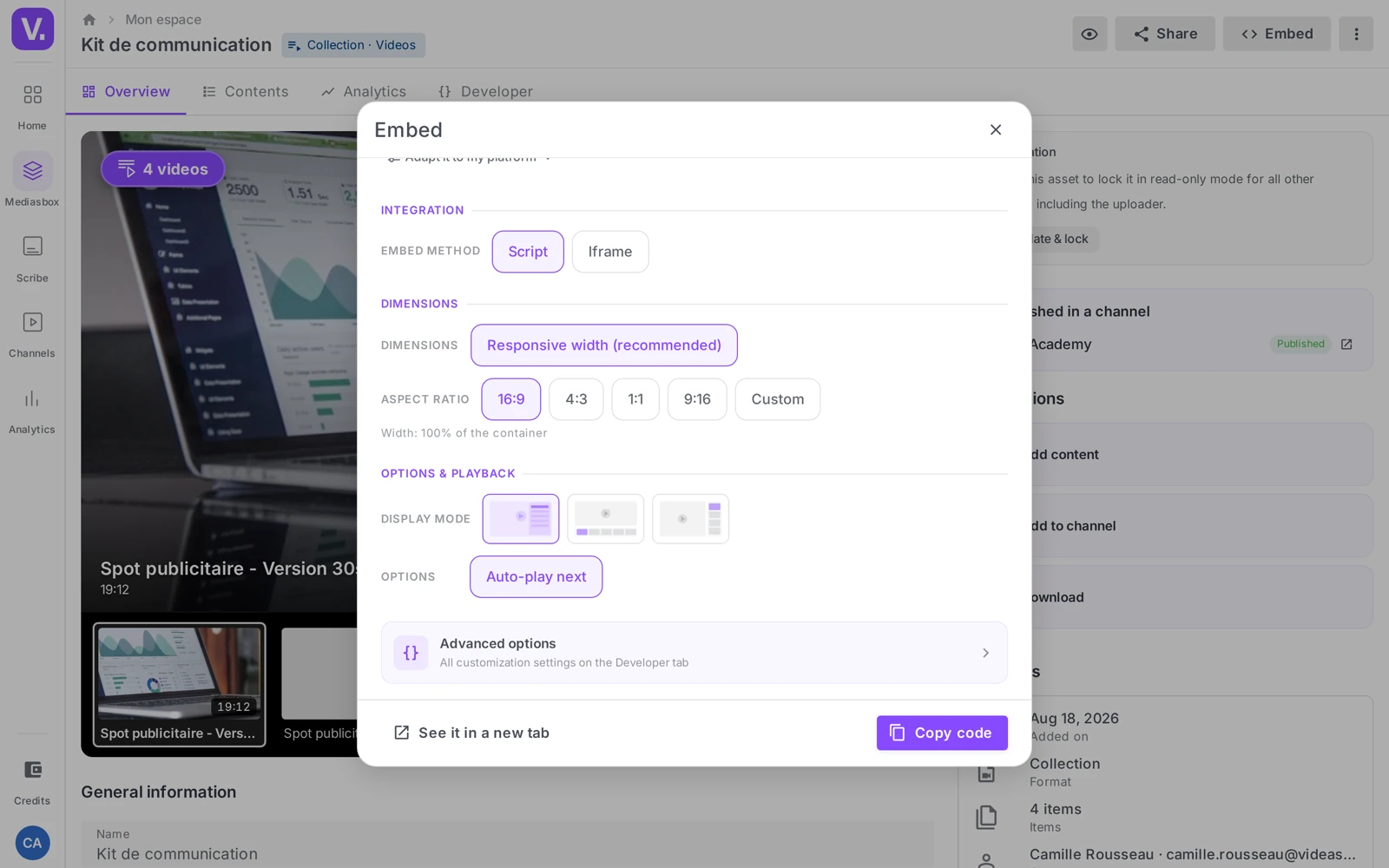
Smart collection: content that keeps changing
A smart collection updates itself automatically according to rules (for example all videos tagged “tutorial”). Its embed always reflects the current content: a video joining the collection appears in every published embed, without touching the code.
- ✅ Upside: your page stays up to date on its own (a living library that keeps growing).
- ⚠️ Watch out: removing a tag or editing a rule can make content disappear from the embeds; a badly tagged draft can show up there before review.
For content that must stay stable (contractual delivery, locked version), go for a manual collection instead. See Group media automatically.
Paste it on your site
The procedure is identical to a single media item: Custom HTML block on WordPress, iframe method on Wix, Embed elements on Webflow or Squarespace. Notion is the exception: it does not accept script tags, so Videas hands it a bare URL — type /embed in your page, paste that address, and Notion builds the player itself. See Embed a video on your website for the per-CMS detail, and test the final page before publishing.
To lock down the display mode, the theme and the options once and for all, save a preset: see Customize the video player. Getting and customizing an embed requires the Editor role on the workspace.
Why do the embed options change from one collection to another?
Because they depend on the collection’s type — videos, audio, images or documents — which follows from the media it holds. The Embed window adapts automatically and hides the options that would make no sense.
In practice: a video collection offers autoplay next and the playlist display mode; an audio collection adds shuffle; an image collection offers the slideshow and its interval; a document collection offers thumbnails, table of contents and search.
Which display mode should I pick for a video playlist?
It depends on how much room the list should take on your page. Default keeps things clean: the list only appears on click, as an overlay, and the main video stands out — the right choice for an editorial page.
Bottom bar puts a horizontal strip of thumbnails under the player: it suits a wide landing page where available height is limited. Sidebar shows a fixed vertical list to the right of the player: that is the mode of replay platforms and online courses, where the list is itself content.
Does a smart collection embed update itself?
Yes, and it cuts both ways. The embed permanently reflects the collection’s current content: a video that matches the rules appears in every published embed, without you touching your pages’ code.
The flip side: removing a tag or changing a rule can make content disappear from your pages, and a badly tagged draft can show up there before review. For content that must stay stable — a contractual delivery, a locked version — prefer a manual collection.
How do I embed a playlist in Notion?
Not with the code: Notion does not accept script tags. Type /embed in your page and paste the bare URL Videas provides in the embed window — Notion then builds the player itself.
The same idea applies to tools that filter JavaScript. On Wix, Confluence or an intranet, switch the embed method to Iframe instead, which gets through where Script is blocked.
Should I turn on autoplay for a playlist?
Rarely, and never without mute. Browsers block autoplay when sound is on: the Autoplay + Muted combination is the only one that starts reliably.
Do not confuse it with autoplay next, which is a different setting: it chains the following video when the previous one ends. Turn it on for a course watched straight through, off for a gallery where the visitor picks each video.
In short
- A collection embed gives you a playlist player; the Embed window is the same as for a video, only the options change with the type
- Videos: Autoplay next + Display mode (Default / Bottom bar / Sidebar)
- Audio: autoplay, loop, shuffle
- Images: slideshow + interval, Show titles, zoom, fullscreen, download
- Documents: thumbnails, outline, search, download
- A smart collection mirrors its content live — go for a manual collection when the content must stay fixed
Related articles
Screenshots were taken on Videas Academy, an example channel built for this help center. It belongs to a fictional customer, not to Videas: your own channel carries your name, your branding and your prices.