Logo, colours and theme of the video player
To match the player to your brand style: open a media item, go to the Developer tab, then set the Appearance section — primary color, light or dark theme, and logo. The preview updates live. Then save that configuration as a preset so it applies automatically to all your embeds.
This article focuses on appearance (the visual side). For the player’s behaviour options and the full mechanics of presets, see Customize the video player.
Open the Appearance section
- Open the media item in your workspace
- Go to the Developer tab
- Click Preview to see the player while you adjust the settings
- Scroll down to the Appearance section, organized in two groups: Theme & color and Logo
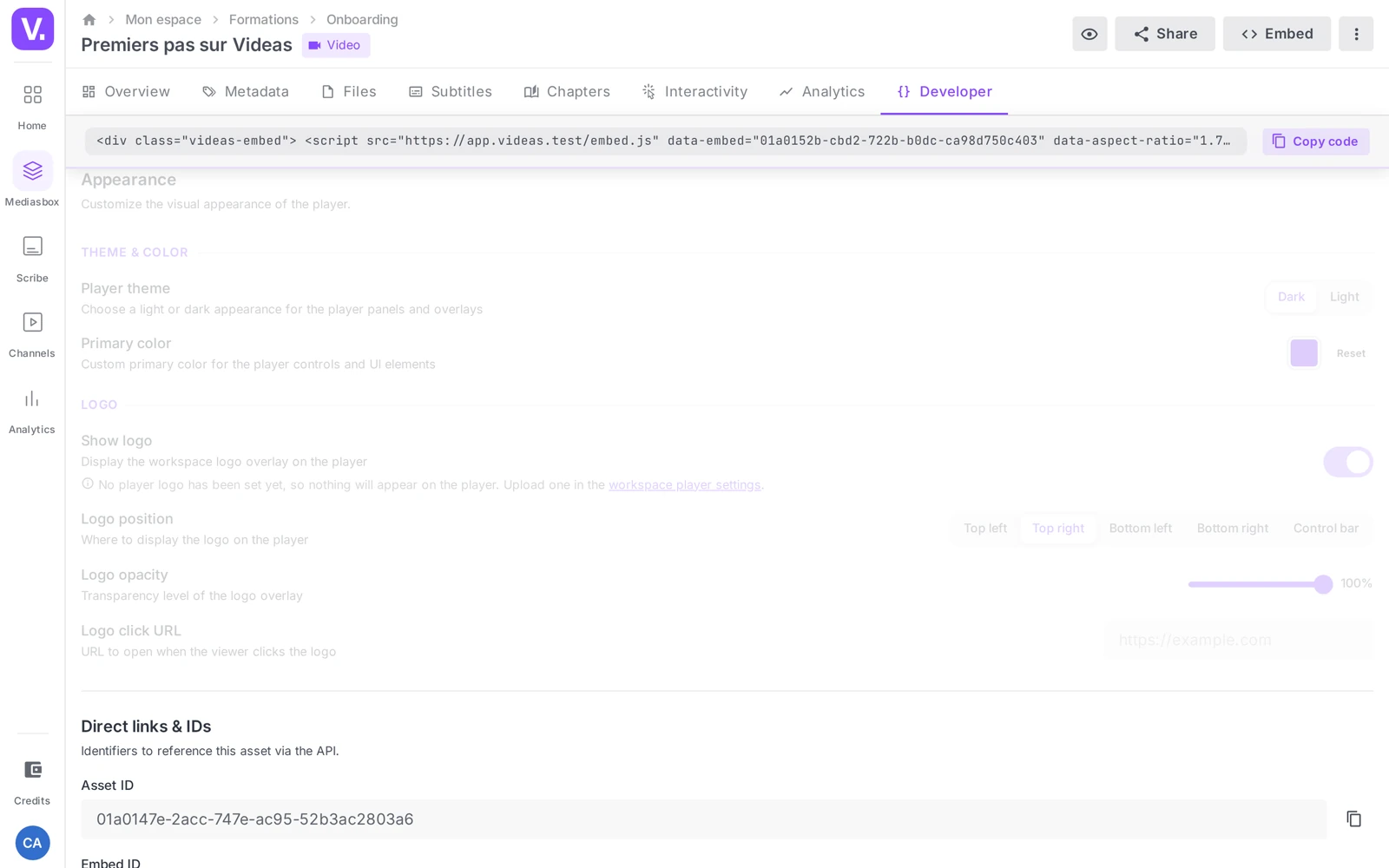
Set the color and the theme
Primary color
The Primary color picker sets the player’s accent color: play buttons, progress bar, active elements. Enter your brand’s code; the Reset button restores the default Videas color.
Note: this color is included in the embed URL — it therefore travels with the code you paste, with no server-side setting.
Watch the contrast with the theme’s background: a light color on a light theme becomes unreadable. Ideally, align the primary color with your site’s accent color (buttons, links) for visual continuity between the page and the player.
Light or dark theme
For videos, collections and documents, the Player theme setting switches between Dark (default) and Light. The theme determines the player’s background and how readable the controls are.
| Choice | Effect | When to use it |
|---|---|---|
| Dark | Dark background | Dark site, cinematic content, immersive viewing |
| Light | Light background | Light site, understated corporate look, embedding on white |
The audio player has a richer choice: Light, Dark or Colored (the background picks up a dominant color from the cover art, like a music player), plus a dedicated Accent color for the waveform.
Add your logo to the player
The logo shown is the workspace logo. You upload it once under Workspace settings → Embedding section → Media players, in the Player logo field (or at organization level so it serves every workspace). Then, on each media item, the Appearance section controls how it is displayed:
- Show logo — turns on the overlay of the workspace logo on the player
- Logo position — Top left, Top right, Bottom left, Bottom right or Control bar
- Logo opacity — a percentage slider (60–80% gives a present but discreet effect)
- Logo click URL — the address opened when the viewer clicks the logo (your site, your product page and so on)

Logo tip: a transparent PNG, ideally monochrome (white on a dark theme, dark on a light theme), stays readable at small sizes. Test it on several videos (light and dark shots) before settling on it.
Save your brand style as a preset
Setting the appearance media item by media item would be tedious and a source of inconsistency. Once the color, theme and logo are to your liking, click Save as preset in the Presets section of the Developer tab. Choose the Scope — This workspace or All workspaces (organization) — and tick Set as default preset so your brand style applies automatically to every new embed.
The detailed procedure (applying, editing, sharing between workspaces, locking) is described in Customize the video player.
Remember: changing the default preset does not modify embeds that are already published (they keep their configuration). Only new embeds take the new default.
Best practices
- One brand style = one default preset. Freeze your color and your logo in a preset marked as default: every new embed follows your brand with no intervention.
- Site / player consistency. The primary color should match your site’s accent color.
- Few presets, well maintained. Three to five clearly named presets (main brand style, event variant, light background and so on) beat a dozen nobody remembers the purpose of.
- Rebranding. When your brand style changes, edit the existing default preset: new embeds follow. Embeds already published have to be re-copied one by one (the Script method updates itself, the iframe needs a fresh copy).
What appearance does not do
- The theme is about the player’s chrome, not the video file: your logo is not burned into the source video. For a mark that survives a download, it has to be burned in before upload (the same principle as burning in subtitles — see Burn subtitles into the video).
- There is no custom CSS exposed: customization is limited to the settings above (color, theme, logo).
Customizing a media item’s appearance requires the Editor role; uploading the workspace’s default logo requires the Admin role.
Where do I upload the logo shown on the player?
Not on the media item’s page. The logo shown is the workspace logo, uploaded once in Workspace settings → Embedding → Media players, in the Player logo field — or at organization level so it serves every workspace.
A media item’s Developer tab only controls its display: the Show logo toggle, its position, its opacity and the URL opened on click. If you turn display on and nothing appears, no logo has been uploaded at workspace level yet. Uploading requires the Admin role.
Which logo format should I use?
A transparent PNG, ideally monochrome: white for a dark theme, dark for a light theme. That is what stays readable at small sizes and across very different shots.
Test it on several videos — a bright shot, a dark shot — before settling on it. Then set the opacity around 60 to 80%: the logo stays present without overwhelming the picture.
Is the logo burned into the video?
No. The theme and the logo apply to the player’s chrome, not to the file. If a viewer downloads the video, or if you distribute it anywhere other than through the Videas player, the logo is not there.
For branding that survives a download, it has to be burned in before upload, into the file itself — the same principle as burning in subtitles.
Can I customise the player with CSS?
No. No custom CSS is exposed: customisation is limited to the primary colour, the theme and the logo.
That is what keeps the player consistent and functional wherever it is embedded. To align the player with your site, the intended route is to use your site’s accent colour as the primary colour, and to pick the theme that matches your pages’ background.
What happens to existing embeds when the brand style changes?
It depends on the setting. The primary colour is included in the embed URL: it travels with the code already pasted, and changing the default preset does not alter it retroactively. The theme, the logo and its position, on the other hand, are resolved at playback from your preset: they follow a brand change with nothing to copy again.
In practice, during a rebrand: edit the existing default preset, and new embeds follow. For embeds already published, the Script method picks up the settings resolved at playback, while an iframe carrying hard-coded parameters needs copying again.
In short
- Appearance is set in the Developer → Appearance tab, with a live preview
- Primary color (included in the embed URL) + Reset; theme Dark/Light (video) or Light/Dark/Colored (audio)
- Logo: an image uploaded under Media players, displayed per embed (Show logo, Position — 5 choices including Control bar —, Opacity, Click URL)
- Save your brand style as a default preset to apply it to all your embeds
- Customizing a media item = Editor; the workspace’s default logo = Admin
Related articles
Screenshots were taken on Videas Academy, an example channel built for this help center. It belongs to a fictional customer, not to Videas: your own channel carries your name, your branding and your prices.