Restrict the domains allowed to embed your videos
To let only your site display your embedded videos: open Workspace settings → Embedding section → Embed settings, turn on Restrict embedding domains, then add the list of allowed domains. Any attempt to display them from another site fails.
When you publish an embed, its HTML code is public: anyone can copy it from your page and paste it elsewhere. Domain restriction is the protection to put in place so your videos stay on your site.
Good to know: Videas does not offer an embed “token” for you to manage yourself. Domain restriction is the only embed protection to configure in the interface — and it is enough in the vast majority of cases.
Turn the restriction on
- Open the Workspace settings
- In the Embedding section, open Embed settings
- Turn on the Restrict embedding domains setting
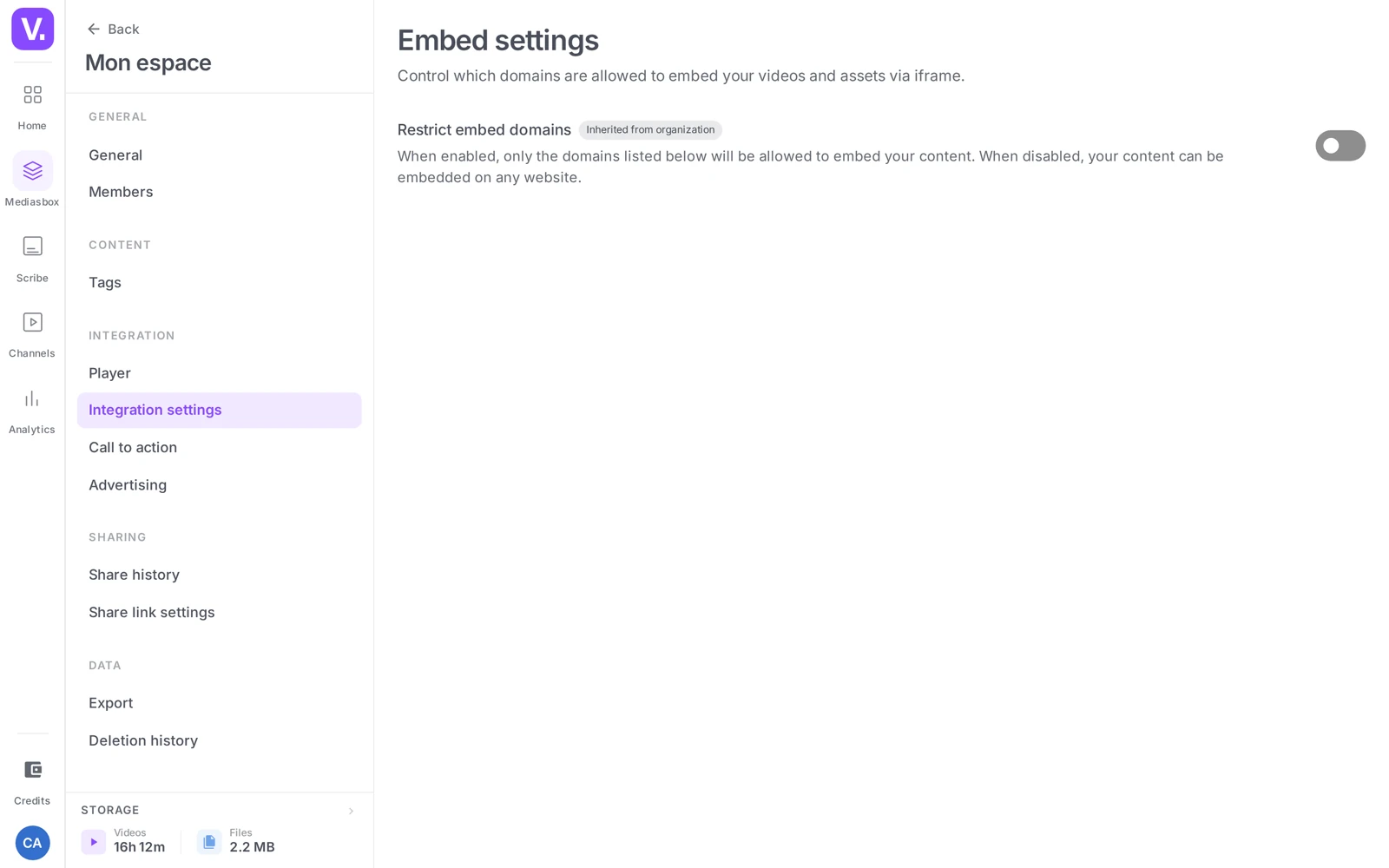
Important: turn the restriction on, then add your domains immediately. As long as the list is empty, the restriction blocks your embeds everywhere. The interface does warn you: “Add at least one allowed domain, or turn the restriction off — otherwise embedding would be blocked everywhere.”
Add allowed domains
Under the setting, type a domain into the field provided, then click Add domain. The domain appears in the list, with a delete button. A counter shows how many domains are declared.
Type the domain without protocol, path or port:
| Format | Valid |
|---|---|
www.example.com |
✅ |
blog.example.fr |
✅ |
*.example.com |
✅ (subdomain wildcard) |
https://www.example.com |
❌ (drop https://) |
www.example.com/page |
❌ (drop the path) |
The form validates your entry: it rejects an incorrect format (“Please enter a valid domain name”) and duplicates (“This domain is already in the list”).
Subdomain wildcards
A wildcard such as *.example.com allows every subdomain of the same root domain (www.example.com, blog.example.com, app.example.com and so on). Handy when you manage a lot of subdomains, but it widens the allowed surface: prefer an explicit list when you know which subdomains to allow.
List all your domains
When you turn the restriction on, take stock of every site where your embeds appear (or will appear):
- your production site (with and without
www) - your staging site, so you do not break your reviews
- sub-brands or subsidiaries that reuse your content
- your intranet or internal training platform
Organization → workspace inheritance
Allowed domains propagate from the organization down to each workspace. Two indicators show where a setting comes from:
- Inherited from organization — the value comes from the organization, with no workspace-level override;
- Customized — you have changed this setting in the workspace; it now differs from the organization value.
To go back to the organization’s configuration, use Reset to organization values: the workspace override is cleared and the workspace inherits again.
Best practice: set the shared domains at organization level (the ones every workspace has in common), and keep workspace overrides for local cases — an event microsite, a one-off partnership.
What the restriction does, and does not do
The restriction stops another site from displaying your player. It works by checking the site trying to display the video: effective under normal browsing conditions, but a determined user can get around it from their own machine. So it is not a protection against a committed adversary.
It does not protect against:
- a screen capture by a visitor on your own legitimate site;
- access through a share link you have sent out (the restriction covers embedding, not link sharing).
For genuinely confidential content, do not rely on embedding: use secure link sharing instead (password, short expiry, open limit, private channel), which controls individual access. See How to share a video with a link and Protect a video with a password.
Domain restriction suits content with controlled but non-secret delivery: marketing videos, client replays, training delivered on the intranet.
Who can configure the restriction
These settings live in the workspace settings and require the Admin role (workspace management permission). A plain editor can create embeds, but cannot change the list of allowed domains.
Do I need to manage a token to secure an embed?
No. Videas offers no embed token to generate or rotate yourself: domain restriction is the only embed protection to configure, and it is enough in the vast majority of cases.
It is set in Workspace settings → Embedding → Embed settings, and requires the Admin role: an editor can create embeds but cannot change the list of allowed domains.
Why are all my embeds broken since I turned the restriction on?
Because the list of allowed domains is empty. As long as no domain is listed, the restriction blocks your embeds everywhere, including on your own site — the interface warns you of this at the moment you turn it on.
Add your domains straight after enabling the setting, or turn it off while you prepare your list. And do the full round: production with and without www, staging, sub-brands, intranet or internal training platform.
Should I use a *.example.com wildcard?
Only when you run many subdomains and cannot list them all. The wildcard authorises every subdomain of a root domain — www, blog, app, but also every one that will exist tomorrow.
It is convenient, and it widens the authorised surface. When you know which subdomains to allow, an explicit list remains preferable. Note that the domain is entered with no protocol, no path and no port: www.example.com, not https://www.example.com/page.
What does “Inherited from the organization” mean on this setting?
That the value comes from the organization level and has not been customised in this workspace. As soon as you change it here, the indicator switches to Custom: the workspace then diverges from the organization and stops following its changes.
The Reset to organization values button clears that customisation and restores inheritance. Good practice is to set the shared domains at organization level, and keep workspace customisation for local cases — an event microsite, a one-off partnership.
Does domain restriction protect confidential content?
No. It stops another site from displaying your player under normal browsing conditions, but a determined user can work around it from their own machine. Nor does it prevent screen capture, or access through a share link you circulated — the restriction covers the embed, not sharing.
For genuinely confidential content, go through secure link sharing: password, short expiry, open limit, private channel. Domain restriction suits content with controlled but not secret distribution — marketing videos, client replays, training delivered on an intranet.
In short
- Domain restriction (Workspace settings → Embedding → Embed settings) is the Videas embed protection — there is no token to manage
- Turn the restriction on then add your domains immediately, otherwise your embeds break everywhere
- Format without protocol or path; the
*.example.comwildcards cover every subdomain, to be used with care - Organization → workspace inheritance: Inherited from organization / Customized indicators, and Reset to organization values
- The restriction prevents display on an unauthorized site, but not screen capture or access through a share link
- For confidential content, use secure link sharing instead
- Configuration is limited to the Admin role
Related articles
Screenshots were taken on Videas Academy, an example channel built for this help center. It belongs to a fictional customer, not to Videas: your own channel carries your name, your branding and your prices.