Create audiences to target your campaigns
An audience is a segment of users you target in your email campaigns. Open Communication → Audiences: four audiences already exist — All users, Newsletter subscribers, Active subscribers, Free users — and can be targeted as they are. For a cut of your own, click New audience, tick the Dynamic type and define a set of rules: Videas works out the list of matching users and keeps it up to date.
This guide covers how to create a dynamic audience (calculated from rules) and how to use it in a campaign. The Communication section appears as soon as your channel has users (authentication enabled).
Open the audiences screen
In your channel menu, open Communication → Audiences (“Manage your audiences and mailing lists”). The list shows your audiences with their Name, Type (Static / Dynamic), Members and Created on. At the top: a search box and the New audience button.
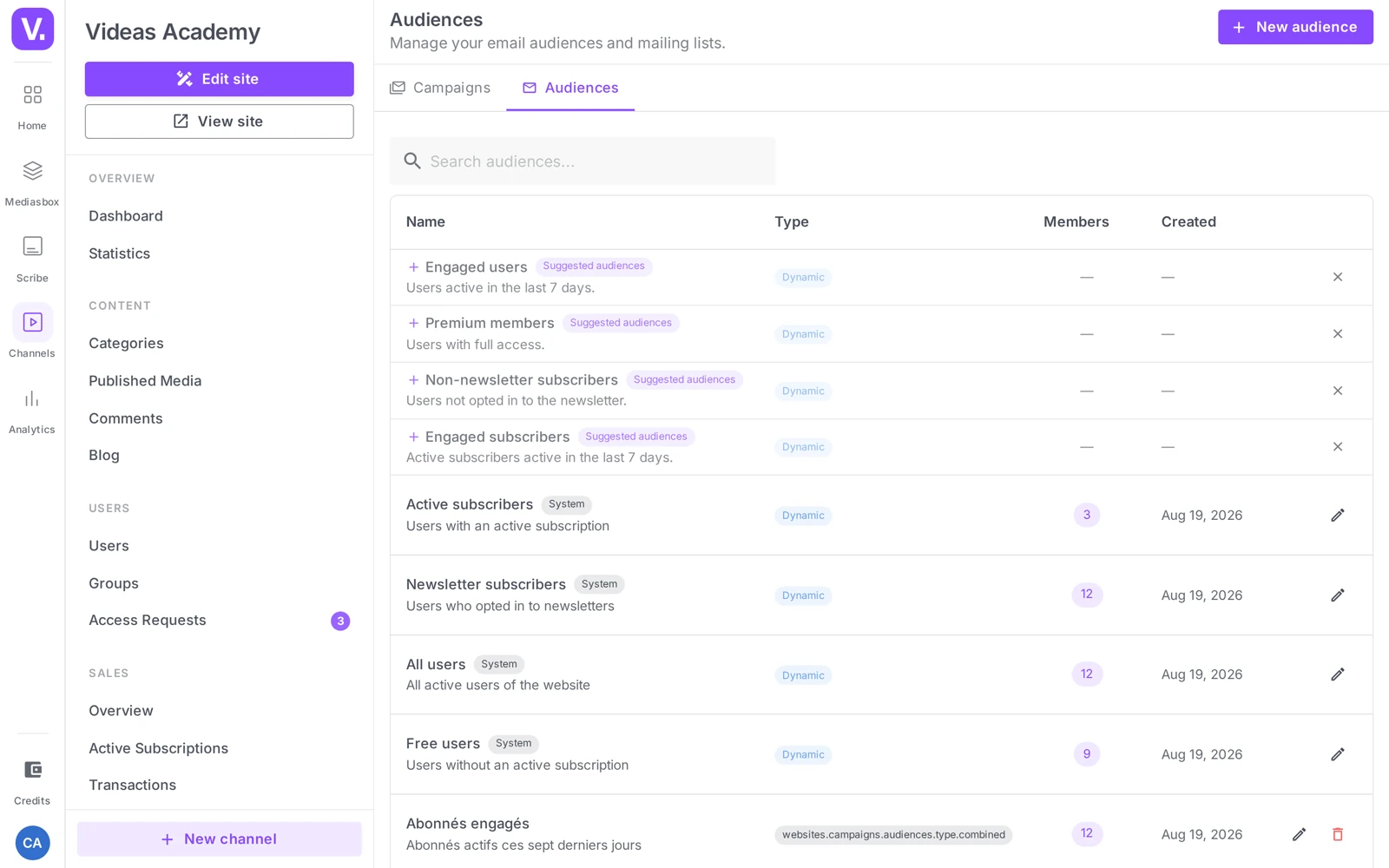
Suggested audiences: as long as you have no audience yet, Videas offers templates at the top of the list — Engaged users, Premium members, Not subscribed to newsletter, Engaged subscribers. Clicking one opens the creation form pre-filled with the right rules (they are not ready-made audiences). You can hide them.
The four audiences Videas creates for you
Before you create anything, the list already holds four “System” audiences, all dynamic and kept up to date automatically:
| Audience | Who it holds |
|---|---|
| All users | All active users of the website |
| Newsletter subscribers | Users who opted in to newsletters |
| Active subscribers | Users with an active subscription |
| Free users | Users without an active subscription |
They carry a System badge, are targeted like any other audience in a campaign, and cannot be deleted. They already cover the four most common cuts: before creating an audience, check that one of them does not do the job.
Not to be confused with the suggested audiences. System audiences exist and have a member count. Suggested ones are only form templates.
Create a dynamic audience
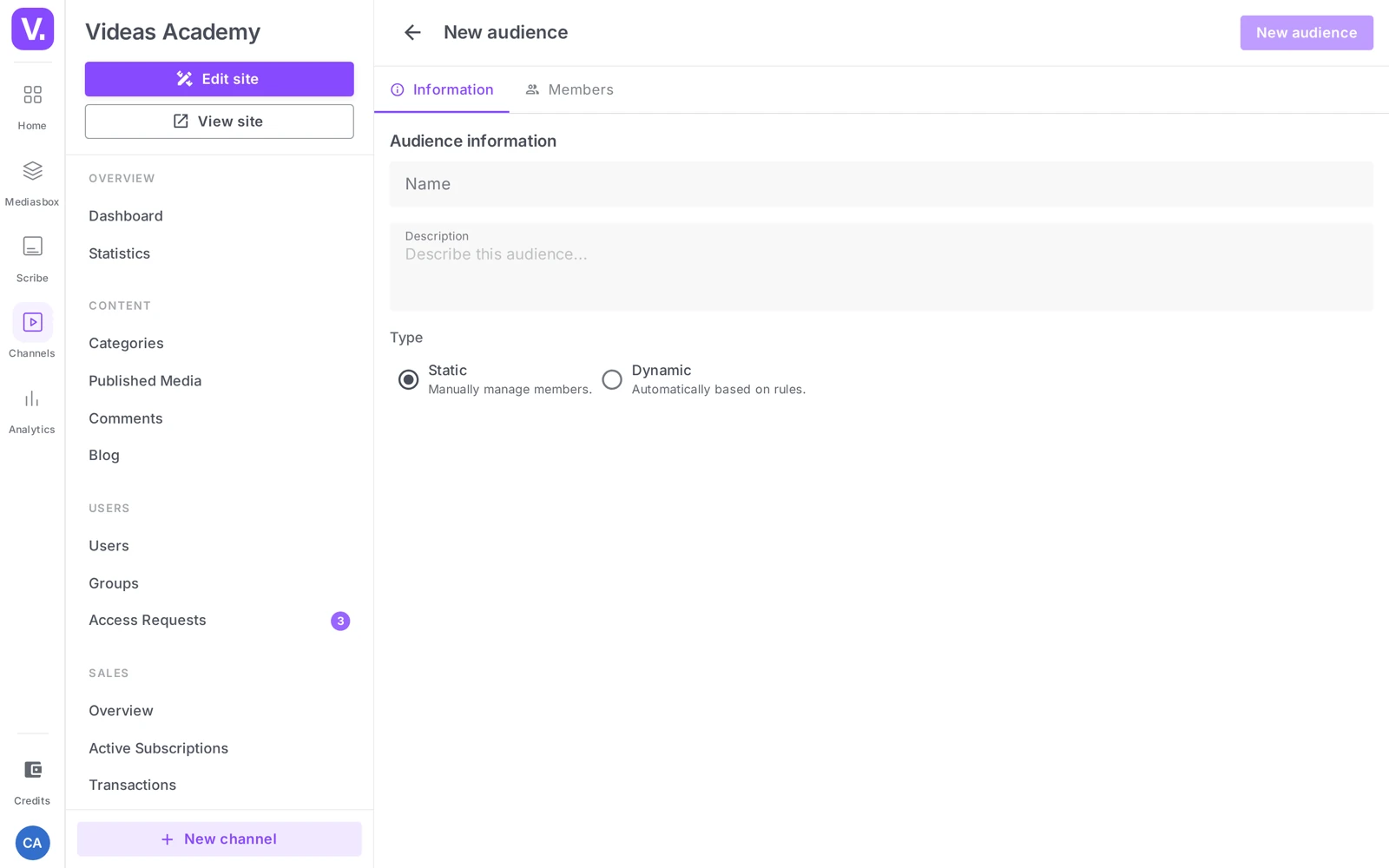
Click New audience. In the Information tab (“Audience information”):
- Name (required) — a clear label (placeholder “e.g. Premium subscribers”).
- Description (optional).
- Type — two options: Static (“Manage members manually”) or Dynamic (“Automatically, based on rules”).
The form opens on Static: remember to tick Dynamic if that is what you want. A dynamic audience is calculated on the fly and updates itself — every user matching the rules joins, and anyone who stops matching drops out. It is the mode to favour whenever a rule describes your segment.
Segmentation rules
The Dynamic rules section states: “Users matching ALL of these rules will be included” — so the criteria combine with a logical AND. The available criteria:
| Criterion | What it does |
|---|---|
| Subscription status | A dropdown with two values: Active subscription or No active subscription |
| Groups | Multi-select of your access groups — the user has to belong to the groups you tick |
| Newsletter subscribers only | Keeps only users who opted in to the newsletter |
| Has full access | Keeps only users with unlimited access to the catalog (typically premium) |
| Registered after | Keeps only users who registered after this date |
| Registered before | Keeps only users who registered before this date |
| Active within (days) | Keeps only users active in the last N days |
Newsletter: a registered user is not subscribed to the newsletter by default — they have to opt in. The Newsletter subscribers only criterion therefore keeps only those who did.
A few useful examples:
- Active subscribers → Subscription status = Active subscription. Loyalty campaign.
- Non-subscribers → Subscription status = No active subscription. Conversion campaign.
- New registrations → Registered after = 7 days ago. Welcome campaign.
- Premium → Has full access = enabled.
For an “OR”: the rules inside one audience are combined with AND. To target “Premium OR new users”, create two audiences and tick both in the campaign targeting (the Targeting tab combines audiences with OR).
Save: the Members counter in the list reflects the number of matching users.
Static type: the Static option exists too. Its page carries a Members tab — “Add or remove members manually” — with a user search, an Add members button and the paginated list of members. It is the right choice for a list you settle yourself; everywhere else, a Dynamic audience needs less upkeep.
Use an audience in a campaign
In an email campaign, open the Targeting tab → Audiences section and select your audience. You can tick several (union), and add groups or individual users on top, minus any exclusions. It is the state of the audience at the time of sending that determines the recipients.
Best practices
- Name your audiences explicitly (“Premium inactive 30 d”, “April registrations”) — not “test”.
- Check the member count before sending: 3 people instead of 300 means a criterion is too restrictive.
- Do not over-solicit the same audience: several sends close together push unsubscribes up.
How do I target “Premium OR new sign-ups”?
By creating two audiences and ticking both in the campaign’s targeting. An audience’s rules combine with AND — “Users matching ALL these rules will be included” — so an OR cannot be expressed within a single audience.
The campaign’s targeting, however, combines audiences as a union. That is where the OR happens; upstream there are only ANDs.
Static or dynamic: which one?
Dynamic, without hesitation. The audience is calculated from rules and updates itself: every user who matches joins, everyone who stops matching drops out — so new sign-ups are included automatically.
The Static option works, and its Members tab lets you add and remove people one by one. It earns its place when the list follows from no rule — a review committee, a panel of testers, a handful of partners. But it does not fill itself: nobody joins it after the fact, and keeping it current is on you.
Why is my “newsletter” audience almost empty?
Because a registered user is not subscribed to the newsletter by default: they have to have opted in explicitly. The Newsletter subscribers only criterion keeps only those who did.
That is expected behaviour, and it has a consequence: if you want a well-stocked newsletter base, the place to act is the sign-up flow, not the audience definition.
What are the suggested audiences for?
To give you a starting point. Until you have any audience, Videas offers templates at the top of the list — Engaged users, Premium members, Not subscribed to newsletter, Engaged subscribers.
Note the nuance: these are not ready-made audiences. Clicking one opens the creation form pre-filled with the right rules, which you then name and save yourself. You can also hide them.
Which rules for a conversion campaign?
Subscription status = No active subscription. It is the most direct rule for reaching those who have not yet taken the step.
Three other cuts come up often. Active subscribers (Active subscription) for retention. New sign-ups (Registered after = seven days ago) for a welcome message. And premium (Has full access enabled) for a members-only communication.
How do I check an audience is well built?
Through the Members counter in the list, to be looked at before sending. Three people instead of three hundred almost always signals a criterion that is too restrictive — often one rule more than necessary, since they stack with AND.
Name your audiences explicitly too: “Premium inactive 30d” or “April sign-ups” read effortlessly, where “test” means nothing by the following week.
Can I target the same audience several times in a row?
Technically yes, but it is the surest way to drive unsubscribes up. A narrow audience quickly feels over-solicited, all the more so as the content is identical for everyone — there is no per-recipient personalisation to vary the message.
Alternate segments rather than repeating sends to the same one, and keep a reasonable frequency: weekly or fortnightly goes down well; beyond that, departures rise.
In summary
- Audiences are managed in Communication → Audiences; use the New audience button.
- Two types: Static (a Members tab, added and removed by hand) and Dynamic (rule-based, preferred whenever a rule will do).
- A dynamic audience is defined by rules combined with AND: Subscription status (Active subscription / No active subscription), Groups, Newsletter, Full access, Registered before/after, Active within N days.
- For an OR, create several audiences and tick them together in the campaign targeting.
- The audience is recalculated continuously; a send uses its state at the moment of dispatch.
Related articles
Screenshots were taken on Videas Academy, an example channel built for this help center. It belongs to a fictional customer, not to Videas: your own channel carries your name, your branding and your prices.