Schedule emails that send themselves
A recurring campaign sends itself, at the frequency you set — daily, weekly, every 2 weeks or monthly — without you writing a new email every time. Create it from Campaigns on your channel, pick the Recurring type, set the frequency.
Combined with the Latest published content mode, it becomes a newsletter that fills itself in: each send picks up whatever was published since the last one.
What you need
- An active Videas channel (see Create your video channel on Videas)
- At least a few items published on your channel so you have something to send (see Publish content on your channel)
- A target audience — ideally a dynamic audience rather than a frozen list, so new registrations are included automatically (see Create and manage audiences)
- A grasp of the basics of building a campaign (see Create and send an email campaign)
Typical use cases
A recurring campaign answers a different need from a one-off: keeping up a regular rhythm of communication without starting from scratch every time. A few concrete scenarios you can set up in Videas:
- Weekly newsletter of new releases: “Every Thursday at 10am, send the 5 latest published items to my subscriber audience”
- Monthly digest by category: “On the 1st of each month, send the 10 most recent videos in the Training category to all registered users”
- Daily reminder: “Every day at 8am, send an email with the content of the day to an audience of active subscribers”
- Fortnightly round-up: “Every 2 weeks, send the top 5 most recent items to my free users to bring them back”
In all these cases, you configure the email once. The content can stay the same from one send to the next (manual mode) or refresh itself automatically from your media library (dynamic mode).
Step 1: Create the campaign and choose the Recurring type
In Videas, open Communication > Campaigns from the left-hand menu, then click New campaign. Give it a name (visible only to you) and open the campaign.
The campaign has four tabs: Content, Targeting, Scheduling, History.
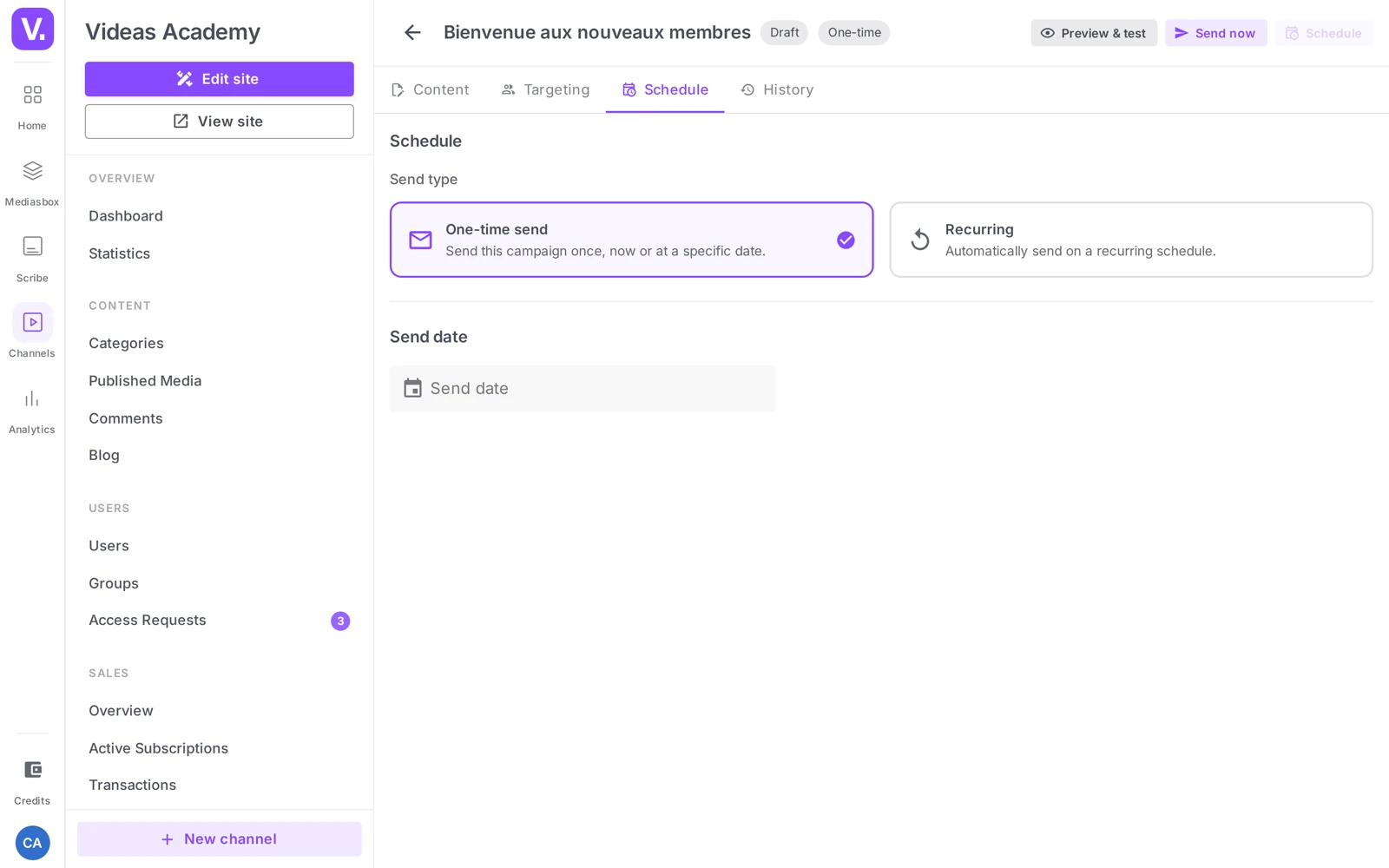
Open the Scheduling tab. Under Send type, two cards appear:
- One-off send: send this campaign once, now or on a specific date
- Recurring: send automatically on a recurring schedule
Click the Recurring card. The frequency options appear below.
Good to know. You can switch between One-off and Recurring for as long as the campaign is a Draft. Once it is scheduled, changing the type may require putting it back into draft.
Step 2: Set the frequency
Four frequencies are available in the Frequency dropdown:
- Daily
- Weekly
- Every 2 weeks
- Monthly
Depending on the frequency you choose, extra fields appear.
For Weekly and Every 2 weeks: a Day of the week selector appears. Choose Monday, Tuesday, Wednesday, Thursday, Friday, Saturday or Sunday. That day is used for every occurrence.
For Daily: no day to select, the send happens every day.
For Monthly: no day to select explicitly. Videas uses the day of the month on which the campaign was set to Scheduled. For example, if you schedule it on 15 March, the following sends happen on 15 April, 15 May, and so on. If a month is shorter (there is no 31 February), Videas automatically falls back to the last day of the month.
Time and time zone: below the frequency, enter the exact send time (for example 10:00) and the matching time zone. The available zones are:
- Europe/Paris (default)
- Europe/London
- America/New_York
- America/Los_Angeles
- Asia/Tokyo
- UTC
The time is interpreted in the zone you pick: 10:00 in Europe/Paris is 09:00 UTC in winter. If your audience is mostly French, keep Europe/Paris.
Step 3: Choose the content — manual or dynamic
The Content tab is what really sets recurring campaigns apart from one-off ones. Under Content type, two options:
Custom content (manual)
You pick the items to include in the email yourself, using the Add content button. The same media will be sent with every occurrence of the recurrence.
This mode suits a message whose content is not meant to change (a reminder about a flagship course, a spotlight on a key module, and so on). It is less common in a recurring setup.
Latest published content (dynamic)
This is the most powerful mode for a recurring campaign. Videas automatically pulls the latest published content at the time of sending.
Two settings:
- Number of items to include: between 1 and 20
- Filter by category: optional. If you leave it on All categories, the email uses the latest published media of every type. If you choose a category, only content in that category is included
In practice, if you set up a weekly campaign with Latest published content = 5 and you publish 3 new videos during the week, the following Thursday’s send will include those 3 new items plus the 2 most recent ones before them.
You can then write the email body (an introduction, a sign-off) in the editor, and set the Subject, Sender name and Reply-to email in the section at the top. Those fields stay the same for every send.
Good to know. The block of latest content is inserted into the email automatically, alongside your text. You write the introduction and the closing message; Videas adds the thumbnails and links for the content with every send.
Step 4: Target an audience that changes
In the Targeting tab, you choose the recipients: audiences, groups or individual users. For a recurring campaign, the choice of audience matters: recipients are recalculated with every send.
- A dynamic audience (for example All active subscribers) automatically includes new registrations that match the criteria. Ideal for a newsletter that has to reach every current user.
- A static audience (a frozen list of users) stays as it is: nobody new joins it, even if they register after the campaign was created.
For a recurring newsletter, favor a dynamic audience. For more detail, see Create and manage audiences.
The Exclusions field, below the selectors, is just as useful for a recurrence: it is where you name the users to take out of every send, even when they belong to the targeted audience. There is no automatic filter on inactive accounts — exclusions are always manual.
Step 5: Schedule the campaign and follow the sends
Once Content, Targeting and Scheduling are configured, go back to the top of the campaign and click Schedule (or Save and schedule). The campaign moves from Draft to Scheduled.
In the campaign list (Communication > Campaigns), a Next send column shows the date and time of the next occurrence. A Type column distinguishes One-off from Recurring campaigns. You can also filter the list with Filter by type.
At each due date, Videas:
- Recalculates the recipient list (up-to-date audience, exclusions applied)
- Builds the email (with the latest content if you are in dynamic mode)
- Triggers the send in the background
- Creates a new row in the campaign’s History tab
- Automatically calculates the next occurrence
The History tab lists every past send with its date, its status (Sent, Partial failure…) and the sent / failed counts. Videas tracks deliverability, not opens or clicks — see Track your campaign sends.
Note. The automatic trigger runs every five minutes. A send set for
10:00may therefore go out between10:00and10:05, the time it takes for the schedule to be processed. That is normal.
Step 6: Pause, edit or stop a recurrence
You stay in control of a recurring campaign at all times.
Pause: from the campaign, the Pause action moves it to the Paused status. No new send happens while it is paused. Resume it later to pick the recurrence back up.
Edit: as long as the campaign is paused or in draft, you can adjust the content, the targeting, the frequency or the time. Changes apply from the next send onwards.
Stop for good: use the Cancel action to move the campaign to the Cancelled status. No new send will be triggered. The history of past sends remains available.
Limitations to know about
- No end date and no maximum number of occurrences: a recurring campaign carries on indefinitely for as long as it is Scheduled. It is up to you to pause or cancel it when the time comes.
- Time zones limited to six options (Europe/Paris, Europe/London, America/New_York, America/Los_Angeles, Asia/Tokyo, UTC). If your audience is in another zone, pick the closest one or use UTC as your reference.
- Monthly = same day of the month: if you schedule a campaign on the 31st, it will go out on the 30th in April and the 28th (or 29th) in February. For perfect regularity, pick a day between the 1st and the 28th.
- No preview of the email for each send: in Latest published content mode, you only see the exact content after the send (in the history). Keep an eye on the first few sends to check that the result matches your expectations.
- Up to five minutes of delay: the trigger is not accurate to the second, and that is expected.
Does a recurring campaign stop on its own?
No. There is no end date and no maximum number of occurrences: as long as it sits at Scheduled, the recurrence continues indefinitely.
Stopping it is up to you, through Pause — reversible, with no send while paused — or through Cancel, which closes it permanently while keeping the history of past sends.
Should I use a dynamic or a static audience?
Dynamic, without hesitation. Recipients are recalculated at each send: a dynamic audience automatically takes in new sign-ups who match the criteria, which is exactly what a newsletter needs.
A static audience stays frozen: nobody will ever join it, even if they register after the campaign was created. On a recurrence, it slowly empties as people leave, and never renews.
What happens if I schedule a monthly send on the 31st?
Videas adjusts to the last day of the month when the 31st does not exist: the campaign goes out on the 30th in April, the 28th or 29th in February.
Monthly sends anchor to the day of the month the campaign was set to Scheduled — scheduled on 15 March, it goes out on 15 April, 15 May, and so on. For perfect regularity, pick a day between the 1st and the 28th.
Why did my 10 send go out at 10?
Because the trigger runs every five minutes: a send configured for 10:00 may go out between 10:00 and 10:05, while the schedule is processed. That is normal behaviour, not an incident.
The time zone matters too when reading the hour: 10:00 in Europe/Paris is 09:00 UTC in winter. Six zones are offered — Paris, London, New York, Los Angeles, Tokyo and UTC — and if your audience is elsewhere, take the nearest or work in UTC.
How do I check what my recipients received?
Through the campaign’s History tab, after the fact. In Latest published content mode there is no preview of the exact content before sending: the content block is composed at send time.
Hence the advice: watch the first few sends closely, until the result matches your expectations. After that, the recurrence is steered from the Next send column in the list.
Manual or dynamic content on a recurrence?
Dynamic in most cases — it is what makes a recurrence worthwhile. Videas pulls the latest published content at each send, with a count adjustable from 1 to 20 and an optional category filter.
Custom content sends the same items at every occurrence. It is defensible for a reminder whose message is not meant to evolve — a flagship course, a key module — but it rarely holds up over time.
Can I edit a running recurring campaign?
Yes, as long as it is paused or in draft. You can then adjust the content, the targeting, the frequency or the time, and the changes apply from the next send onwards.
Switching between One-off and Recurring follows the same logic: free while the campaign is a draft, it may require putting it back into draft once it is scheduled.
In summary
- A Recurring campaign goes out automatically at a regular frequency (day, week, 2 weeks, month)
- The Latest published content mode dynamically pulls in new releases with every send — ideal for a newsletter
- Choose a dynamic audience so new registrations are included automatically
- A recurring campaign has no end date: pause or cancel it explicitly
- Track every send in the campaign’s History tab
Related articles
Screenshots were taken on Videas Academy, an example channel built for this help center. It belongs to a fictional customer, not to Videas: your own channel carries your name, your branding and your prices.