Digital accessibility
Make a video accessible to every one of your viewers
Captions, transcript, chapters, audio description and keyboard control.
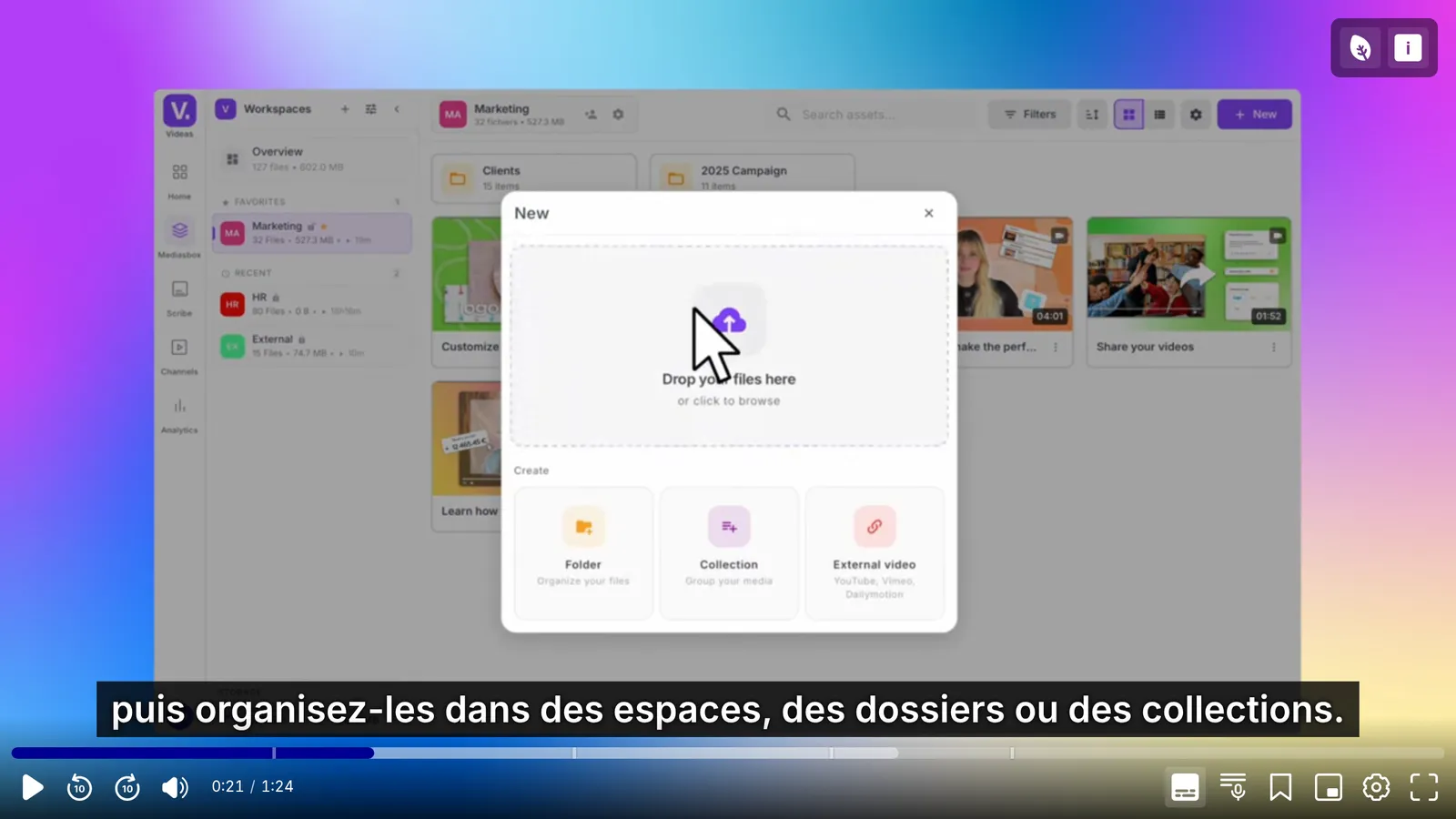









To make a video accessible, the Videas player gives it captions and a timestamped transcript from Scribe, proofread by your team, plus chapters, adjustable caption size, eco mode and full keyboard control. An audio description is an extra audio track you supply and the viewer picks. The player is designed following RGAA good practice.
This one invents nothing: the screens below are our own player, on one of our own tutorials.
An accessible video player, not just captions
Viewers do not all need the same thing: some cannot hear, some cannot see the screen, some are watching without sound or on a weak connection.
The player is built to RGAA good practice. It has not been audited, so we call it neither compliant nor certified, and that is a distinction worth making precisely in a tender.
Captions and an audio description on the same video
Captions and transcript come from Scribe and are then proofread. Automatic output is a base to correct, not a finished text, and Scribe will translate it into more than a hundred languages afterwards.
The audio description is a track you supply, recorded by you or by a supplier. Videas distributes it and lets the viewer choose it; it does not produce it.
The rest needs no preparation at all: chapters, caption size, eco mode and keyboard control come with the player.
How it works, step by step
The captions
The video starts with its captions, set on a dark band so they stay readable whatever the image. The chapter markers are visible along the bar.
The viewer's settings
Everything in one place: playback speed, quality, eco mode, audio track, language and caption size, keyboard shortcuts.
The transcript
The full text of the video, timestamped, in a panel beside the image. The passage playing is highlighted, and clicking a sentence takes the video there.
The chapters
The video is cut into named parts, so you go straight to what interests you instead of hunting along the scrub bar.
Eco mode
A button caps automatic quality at 720p. It saves bandwidth on weak connections and lightens the footprint of delivery. The viewer keeps the choice.
Multiple audio tracks
The viewer picks their track. One video can carry several: an audio description, another language, or a version with the voices brought forward for hard-of-hearing viewers.
Caption size
The viewer enlarges them from the same panel, here at Large, without asking anyone.
Keyboard shortcuts
The whole player is driven from the keyboard: play, ten-second skips, volume, mute, full screen, speed, position. The list is consultable in the player.
What our customers say about us
Videas provides exactly what we needed: uncompromising security for our premium content, native GDPR compliance, and an integration simplicity that saves our educational teams valuable time.
Videas enabled us to structure our video communications at the national level while giving each region the tools to operate independently. GDPR compliance and accessibility were non-negotiable prerequisites, and Videas delivers them natively.
Videas enabled us to centralize the management of thousands of educational videos while simplifying interactions with our partners. The ONISEP TV platform has become an essential tool for distributing our content to millions of students and families.
Videas enabled us to create a genuine connection between our French and Canadian teams. The platform has become the go-to hub for our internal communications: every employee can access content in their language, react, and get involved, wherever they are.
The Videas Web TV has become a must-attend event for our teams. The weekly live streams with the CEO have transformed our internal communications: employees ask questions live, react, and get involved. We've gone from one-way communication to a genuine dialogue.
Frequently asked questions
How do you add an audio description to a video?
You record it, or have it recorded, and add it as another audio track on the same video. The viewer then picks it in the player. Videas distributes that track and lets people choose it; it does not produce it.
Is the video player compliant with accessibility standards?
It is **built to RGAA good practice**: captions, transcript, chapters, adjustable caption size and full keyboard control. It has not been audited, so we call it neither compliant nor certified. That distinction matters in a tender.
Are captions and the transcript produced automatically?
Scribe produces both, and they are a first draft to correct, not a finished text. On clean audio most of the words come through, and your team fixes the proper nouns and the trade vocabulary. Scribe then translates into more than a hundred languages.
What is the player's eco mode for?
A button caps automatic quality at 720p. It saves bandwidth on weak connections and lightens the footprint of delivery. The viewer keeps the choice, and can turn it off.
Can the player be driven entirely from the keyboard?
Yes: play, ten-second skips forward and back, volume, mute, full screen, speed and position in the video. The list of shortcuts is consultable in the player itself, which matters for anyone who does not use a mouse.
How do you offer a version for hard-of-hearing viewers?
As another audio track, with the voices brought forward against the background. The same video can carry several: an audio description, another language, or that enhanced-voice version. The viewer picks one.
Can viewers enlarge the captions?
Yes, from the same settings panel, without asking anyone. Caption size is a viewer setting, not something you decide for them when you publish.
Can you navigate the video from the transcript?
Yes: the transcript is timestamped, the passage playing is highlighted, and clicking a sentence takes the video there. For a two-hour recording it is the difference between a file and something you can actually use.
What are chapters for, from a viewer's side?
They cut the video into named parts, so somebody goes straight to what concerns them instead of hunting along the scrub bar. On a long recording that is often what decides whether it gets watched at all.
Where does the viewer find all these settings?
In one place, the player's settings panel: playback speed, quality, eco mode, audio track, language, caption size and keyboard shortcuts. Nothing is buried, and nothing has to be asked for.
More scenarios
All scenarios →Private companies
Sell your conference recordings all year round
Recorded talks become a catalogue that keeps selling all year.
Private companies
Take your local TV station online, on a channel of its own
The live stream, the shows on replay and fifteen years of archive together.
Private companies
Run a shared video library across your whole network
A workspace per location, a shared library head office moderates.