SRT file: what it is and how to open, create and edit one
An SRT file is a text file that holds a video’s subtitles: each subtitle carries a number, a time range and the text to display. It holds no picture and no sound, which is why nearly every video player, editor and platform can read it.
The format comes from SubRip, a subtitle extraction program; the .srt extension stuck. This guide shows what is inside the file, how to open, create and edit it, and how to avoid the errors that make it unreadable. The glossary gives the short definition.
What an SRT file contains
Here are three subtitles, as you see them when you open an SRT file:
1
00:00:01,000 --> 00:00:04,000
Hello everyone,
and welcome to this tutorial.

2
00:00:04,500 --> 00:00:07,200
Today we learn how to read an SRT file.

3
00:00:07,800 --> 00:00:10,000
It is simpler than it looks.
Every block always has four parts, in this order:
- The number of the subtitle, starting at 1, in display order.
- The time range: the start and the end, separated by
-->. The format ishours:minutes:seconds,milliseconds, with a comma before the milliseconds. - The text, on one or two lines. Beyond that, the subtitle gets hard to read.
- A blank line, which closes the block. Without it, the player glues two subtitles together.
Many players also accept a few tags in the text, such as <i> for italics or <b> for bold. The rest of the formatting (font, colour, position) does not exist in SRT: the player decides.
How to open an SRT file
An SRT file opens in two ways, depending on what you want to do with it:
- To read or fix the text: any text editor, such as Notepad on Windows or TextEdit on macOS (in plain text mode). You see the blocks as they are written.
- To see the subtitles on the video: a video player such as VLC. Put the SRT file in the same folder as the video, with the same name (
interview.mp4andinterview.srt): most players load it on their own. Otherwise, add it from the subtitles menu.
Double-clicking an .srt sometimes opens an unexpected program, because the system does not always know what it is for. Right-click, then “Open with” to pick the text editor.
How to create an SRT file
By hand
You can write an SRT in a text editor, block by block, noting the times while replaying the video. It is doable for a one-minute video. For a one-hour interview, count several hours of typing and timing.
Automatically, from the video
An automatic subtitling tool listens to the sound track, writes the text and splits it into subtitles already timed. With Videas Scribe, you drop in the video, the spoken language is detected, and the subtitles arrive within minutes, in more than 100 languages. You review them in the editor, then export them as SRT, VTT, ASS, JSON or TXT. Generation costs €0.10 per minute of video and per language, with no subscription, and €5 in credits is free every month.
If you need the full text rather than subtitles, the guide convert an MP4 video to text shows the Word and TXT export.
How to edit an SRT file
To fix a typo or a proper noun, a text editor is enough: change the text, leave the numbers and times alone, and save as UTF-8.
As soon as you need to move times, split a subtitle that is too long or merge two, the text editor becomes tedious: every change shifts the numbering and means recalculating milliseconds. A subtitle editor does that work for you. In Videas, you can import an existing SRT or VTT file onto a video, correct it in the editor while replaying each line, translate it, then export it again. The import takes files up to 10 MB.
SRT or VTT: what is the difference
VTT (WebVTT) is SRT’s cousin designed for the web. The VTT glossary entry defines it; here is what sets them apart in practice:
| SRT | VTT | |
|---|---|---|
| Millisecond separator | Comma: 00:00:01,000 |
Dot: 00:00:01.000 |
| Header | None | The first line is WEBVTT |
| Subtitle numbers | Required | Optional |
| Position and style | No (italics and bold depending on the player) | Yes: on-screen position, alignment, styles |
| Where it is used | YouTube, editing software, players such as VLC, most platforms | Video players on web pages (HTML5), which expect it |
In practice: keep SRT to send to a platform or an editor, and VTT for a player embedded on a website. Videas exports both from the same track, without running the generation again.
The errors that make an SRT unreadable
Most SRT files a platform rejects fail for one of these reasons:
- Accented letters show up garbled (“é” instead of “é”): the file is not UTF-8. Open it in a text editor and save it again, choosing UTF-8 encoding.
- A time is written wrong: a dot instead of the comma, or milliseconds on two digits. The expected format is exactly
00:00:01,000. - Two subtitles overlap: the end of one runs past the start of the next. Some players show both at once, others skip the second. Shorten the first.
- The numbering skips or repeats after an edit by hand. Renumber from 1 to the last block.
- The blank line is missing between two blocks: the subtitles stick together. Add it.
- The file kept a word processor’s extension (
.srt.txt,.docx): save it as plain text, with the.srtextension alone.
An SRT generated and then exported by a subtitle editor avoids these errors from the start, since nobody retypes the times.
How to add an SRT file to a video
There are two ways, and they do not serve the same places:
- Attach the file to the video: the video and the SRT stay separate, and the player displays the subtitles. Viewers can turn them on, off or switch language. This is what YouTube does when you upload an SRT file to it (the tutorial on adding SRT subtitles to YouTube walks through the upload), and what the Videas player does with its subtitle tracks.
- Burn the subtitles into the picture: the text becomes part of the video and shows everywhere, but it can no longer be turned off or corrected without exporting again. It is the choice for social networks where video starts muted. The help article export subtitles, or burn them into the video shows both outputs in Videas.
FAQ
What is an SRT file?
A plain text subtitle file in the SubRip format. Each subtitle takes up a block of four parts: a number, a time range in the format 00:00:01,000 --> 00:00:04,000, the text, then a blank line.
What program opens an SRT file?
A text editor to read or fix the text, such as Notepad or TextEdit. A video player such as VLC to see the subtitles on the video: just give the SRT file the same name as the video.
How do I create an SRT file for free?
By hand in a text editor, or automatically with a subtitling tool. With Videas, you create a free account, €5 in credits is free every month, and generation then costs €0.10 per minute of video: a 10-minute video comes to €1.
What is the difference between an SRT and a VTT file?
VTT starts with the line WEBVTT, separates milliseconds with a dot instead of a comma, and lets you position and style the text. Players on web pages expect VTT; YouTube and most software take SRT.
Why do the accents in my SRT file show up wrong?
Because the file is not encoded in UTF-8. Open it in a text editor, choose “Save as”, then UTF-8 encoding: the “é” turn back into “é”.
Can an SRT file be translated?
Yes. In Videas, you import the SRT onto the video, then translate it into one or more of the 100+ available languages, keeping the same times. Each language then exports to its own SRT file.
Does an SRT file contain the video?
No. It holds only text and times, and usually weighs a few kilobytes. The video and the SRT file live separately, unless the subtitles are burned into the picture.
An SRT file is a simple format; what matters is the text inside it and how well its times are set. The fastest way is to have AI write it, then review it.
Related articles
Artificial Intelligence
How to convert an MP4 video to text: step-by-step guide (2026)
An MP4 video turns into text within minutes with AI transcription. The five steps, the right export format for what you will do with the text, and the other ways to do it.
Artificial Intelligence
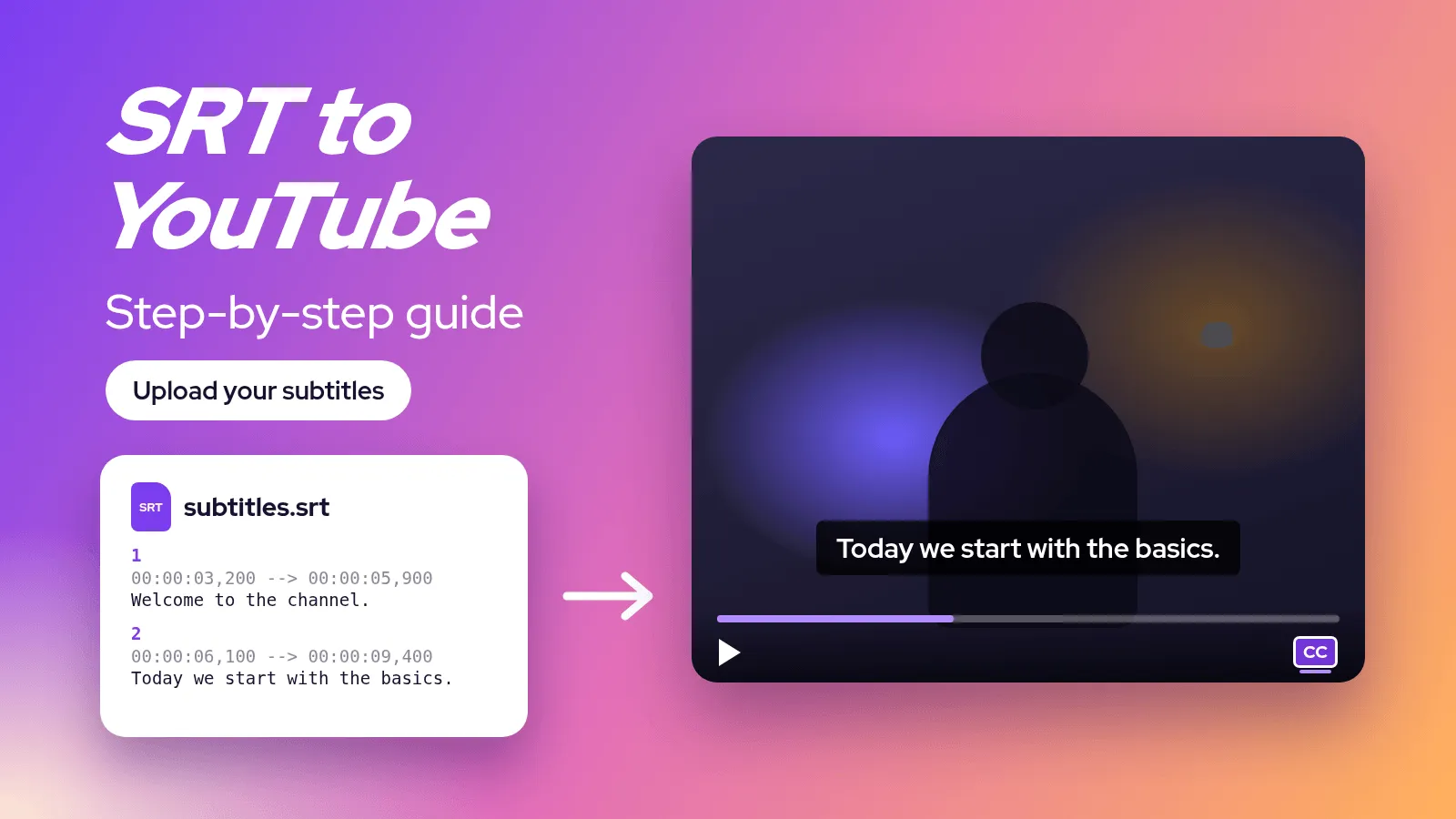
How to add SRT subtitles to a YouTube video, step by step (2026)
An SRT file goes into YouTube Studio in a few clicks. The full tutorial: generate the file, upload it, add other languages and fix the most common upload errors.
Artificial Intelligence
Translating your video subtitles: 4 tips to know
Translating subtitles with AI is fast, but a few habits make the difference between a clean track and a messy one: review order, glossary, text length, dubbing.