How to add SRT subtitles to a YouTube video, step by step (2026)
To add subtitles to a YouTube video, you upload an SRT file in YouTube Studio, from the video’s Subtitles menu: YouTube reads the timings in the file and shows each line at the right moment. So you first need a reviewed SRT file, which an automatic subtitling tool produces within minutes.
This tutorial covers both halves of the job: getting the file, then uploading it. It then explains how to add other languages and how to fix the most common upload errors.
Step 1: generate the SRT file
An SRT file is a plain text file: each subtitle carries a number, a start time, an end time and its text. You can write one by hand, but for a video longer than a few minutes, automatic subtitling saves most of the time.
With Videas Scribe:
- Create a free account: €5 in credits is free every month, and subtitling then costs €0.10 per minute of video, with no subscription.
- Upload the video you publish on YouTube (MP4, MOV or WebM).
- Run the automatic subtitles: the spoken language is detected on its own, and the cost shows before you start. The help article on automatic subtitles walks through that screen.
A few minutes later the subtitle track is ready, split into short lines and timed to the speech.
Step 2: review the subtitles
Automatic subtitles are reviewed before they are published: a mistake in a proper noun or an acronym stays on screen for the whole line. In Scribe’s editor every line jumps to its passage in the video; you correct the text, adjust a timecode if needed, and global replace fixes a misheard term across the whole track at once.
Mind readability too: two lines of 42 characters at most per subtitle, and a pace that leaves time to read.
Step 3: export the SRT file
In the editor, click Export, then the Subtitles card, and choose the SRT format. The file downloads to your computer, ready for YouTube. Exporting takes the Export content permission, which the workspace Administrator role holds by default.
To generate the file outside a team account, the page on how to generate SRT subtitles for free presents the tool and its formats.
Step 4: upload the SRT to YouTube Studio
The path, as YouTube’s official help describes it:
- Sign in to YouTube Studio.
- In the left menu, select Subtitles.
- Click the video you want to subtitle.
- Click Add language and choose the language of your file.
- Under Subtitles, click Add.
- Select Upload file, choose With timing — an SRT file carries its own timings — then click Continue.
- Select your
.srtfile, then click Save.
The subtitles then appear in the YouTube player: viewers turn them on with the CC button and pick their language in the settings. YouTube Studio’s interface changes regularly; if a label has moved, the official help remains the reference.
Add subtitles in several languages
YouTube expects one file per language: you repeat the upload for each language, choosing the right one each time in Add language.
To get those files, Scribe translates the reviewed track into 100+ languages, keeping the same timecodes: you review each language, then export one SRT per language. The video translation page explains how it works, at the same €0.10 per minute and per language.
Translating from a track that has already been corrected keeps the same mistakes out of every language: review the original language first.
The most common upload errors
| What you see | Likely cause | Fix |
|---|---|---|
| Garbled characters instead of accents (« é » instead of « é ») | The file is not encoded in UTF-8 | Save it again as UTF-8; YouTube asks for UTF-8 plain text for an SRT |
| The file is rejected | A malformed timecode, or a missing subtitle number | Check the format 00:01:02,500 --> 00:01:04,000, with a comma before the milliseconds |
| Every subtitle is shifted | The file was made on another version of the video, or uploaded “without timing” | Upload again with With timing, or retime the track to the published version |
| One long line shows up | The uploaded file is plain text, not an SRT | Export to SRT, not TXT |
A file exported by Scribe is already UTF-8 with the right timecode format: these errors mostly come from files edited by hand in a word processor.
YouTube’s automatic captions or your own SRT?
YouTube generates automatic captions itself for many languages, for free. They give a video a first level of accessibility with nothing to prepare.
Uploading your own SRT file serves other needs:
- A reviewed text: proper nouns, acronyms and your trade’s vocabulary are spelled the way you want.
- The same subtitles everywhere: the file also works on your website, your training platform or another network, without doing the work again.
- Other languages: translating the reviewed track gives one file per language, uploaded next to the original.
What about Shorts and social media?
An SRT file shows when the viewer turns subtitles on. On short formats, often watched with the sound off, many creators prefer subtitles burned into the picture, visible from the start. Scribe also exports the video with burned-in subtitles: the help article Export subtitles, or burn them into the video explains both outputs.
FAQ
How do I add subtitles to a YouTube video?
From YouTube Studio: Subtitles, the video, Add language, then Add under Subtitles and Upload file. You choose With timing and your SRT file, then save. Allow about a minute per language once the file is ready.
Which subtitle formats does YouTube accept?
About twenty formats, including SRT (SubRip) and VTT (WebVTT). SRT is the most widespread: almost every player and editing tool reads it, so the same file can be reused elsewhere.
How do I create an SRT file for free?
With the €5 in credits free every month on a free Videas account. Automatic subtitling costs €0.10 per minute of video: those credits cover a short video at no cost, and exporting the SRT does not run the processing again.
Why are my subtitles out of sync on YouTube?
Most often because the file was made on another version of the video, with an extra intro or cut, or because it was uploaded “without timing”. Upload it again with With timing, or retime the track to the published version.
Can a YouTube video have subtitles in several languages?
Yes, as many languages as you like, with one SRT file per language. Scribe translates the reviewed track into 100+ languages, keeping the same timecodes, for €0.10 per minute and per language.
Why do accented characters look wrong in my subtitles?
Because the file is not encoded in UTF-8, the encoding YouTube expects for an SRT. Save it again as UTF-8 in a text editor, then upload it again.
Are SRT subtitles visible on Shorts?
They show when the viewer turns subtitles on. To have them visible from the start, export the video with the subtitles burned into the picture instead, and publish that version.
Adding subtitles to YouTube takes a minute once the file is ready; the quality of the SRT is what makes the difference. With Videas Scribe you generate the track, review it, translate it if needed and export one SRT per language, ready to upload.
Related articles
Artificial Intelligence
How to convert an MP4 video to text: step-by-step guide (2026)
An MP4 video turns into text within minutes with AI transcription. The five steps, the right export format for what you will do with the text, and the other ways to do it.
Artificial Intelligence
Translating your video subtitles: 4 tips to know
Translating subtitles with AI is fast, but a few habits make the difference between a clean track and a messy one: review order, glossary, text length, dubbing.
Artificial Intelligence
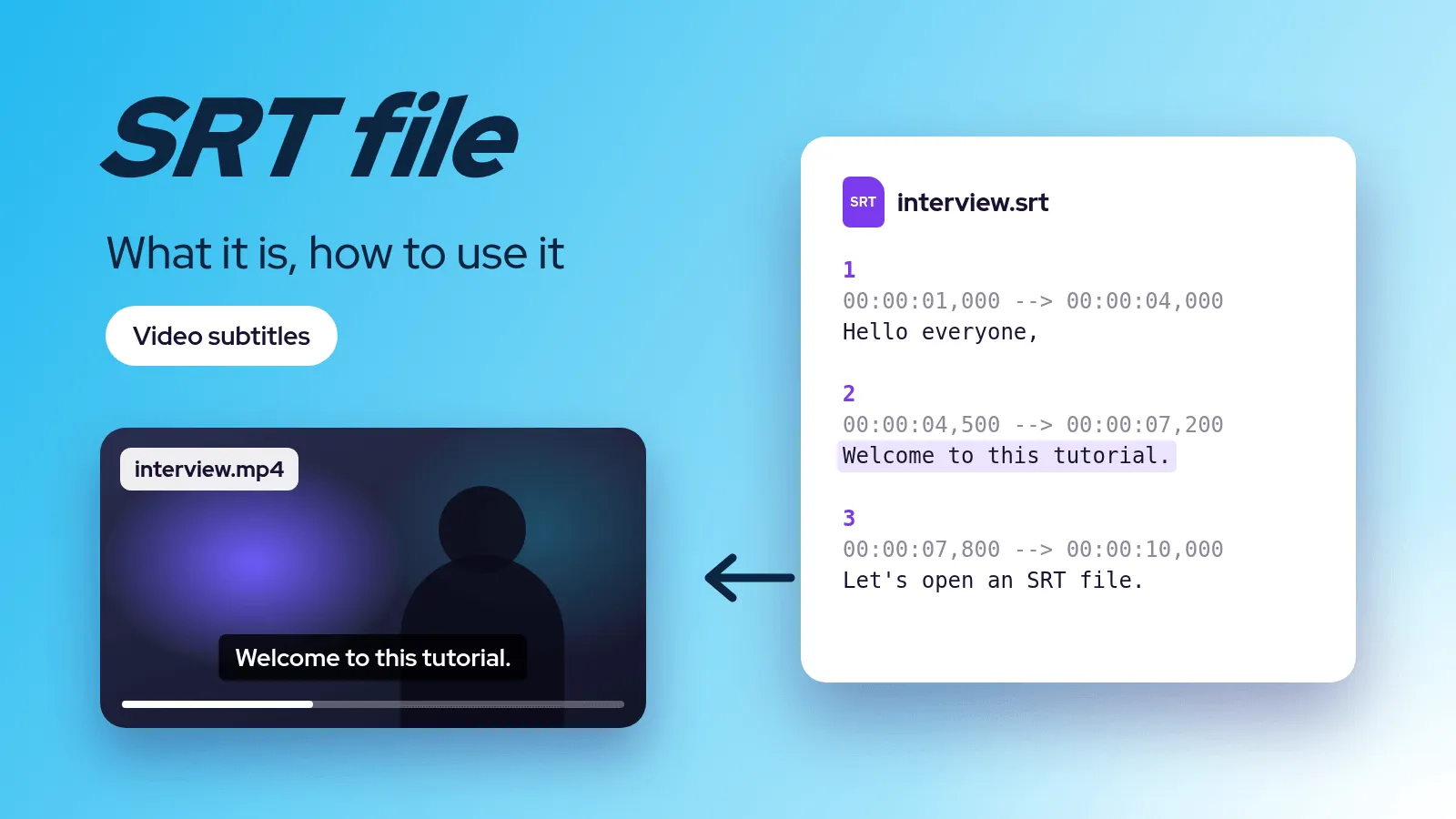
SRT file: what it is and how to open, create and edit one
An SRT file is a plain text subtitle file. Its structure line by line, how to open it, create it by hand or automatically, fix it, and how it differs from VTT.