Subtitles
Multi-track subtitles with auto-start and language preference.
Preview
Try it in the player
Subtitle shortcut
Click the subtitle icon in the control bar to quickly enable or disable subtitles.
Language selection
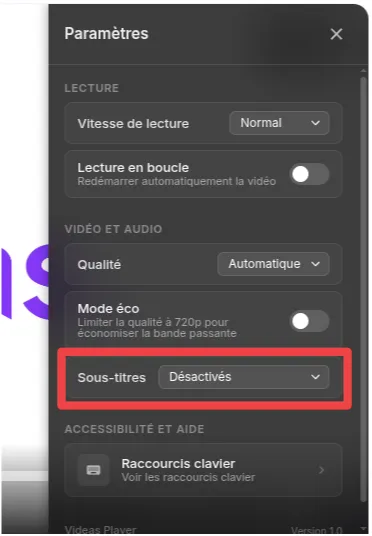
Open the settings panel to choose between available subtitle languages or disable them entirely.
Documentation
When a video includes subtitle tracks (embedded in the HLS manifest), the player displays a subtitle button in the control bar for quick toggle, and a selector in the settings panel to choose between available languages. Subtitles can be enabled by default, auto-started on load, and the preferred language can be configured via embed parameters. A notification popup briefly confirms which track has been activated.

Code
<div style="padding:56.25% 0 0 0;position:relative;">
  <iframe
    src="https://app.videas.com/embed/019dcf5b-0c22-731c-8e3c-d24264812bd5/?show_chapters=0"
    width="100%" height="100%"
    frameborder="0" allowfullscreen
    allow="autoplay; fullscreen; picture-in-picture"
    style="position:absolute;top:0;left:0"
  ></iframe>
</div>
Frequently asked questions
Which subtitle formats does the player accept?
The player consumes WebVTT tracks multiplexed in the HLS manifest (EXT-X-MEDIA TYPE=SUBTITLES). If you upload SRT files to Videas, they are converted to WebVTT automatically before packaging, so you don't need to convert them yourself.
Can subtitles start automatically in the viewer's language?
Yes. Add subtitles=1 to enable them on load, and subtitle_lang=fr (for example) to select a specific language. Without subtitle_lang, the player falls back to the browser's Accept-Language preference.
Are subtitles indexed for SEO?
Videas exposes the full transcript and subtitle text on the public video page (when enabled), making every spoken word searchable by Google. For private embeds, subtitles remain available inside the player but are not published on external SERPs.