Meeting transcription: turn a Teams, Zoom or Meet recording into text
Meeting transcription starts from the recording: the video or audio file produced by Teams, Zoom or Google Meet is uploaded to an automatic transcription tool, which returns timestamped text, split by speaker, within minutes. What remains is to review it before sharing.
This guide explains where to find the recording in each video-conferencing tool, how to transcribe it with Videas Scribe, and what to check before turning it into minutes. Videas Scribe works on a recorded file: it does not join the meeting live.
Where to find the meeting recording
Each tool stores the recording in a different place:
| Tool | Where the file is | Format |
|---|---|---|
| Microsoft Teams | In OneDrive or SharePoint, and in the meeting chat | MP4 |
| Zoom | On the host’s computer (local recording) or in Zoom’s cloud space | MP4, with a separate M4A audio file |
| Google Meet | In the organizer’s Google Drive, “Meet Recordings” folder | MP4 |
| In-person meeting | On the phone or recorder placed on the table | M4A, MP3, WAV |
Download the file as it is: there is nothing to convert. If Zoom gives you a separate audio file, it is the lighter one to upload, and the result is the same.
Tell the participants
A meeting recording holds voices and statements that can be attributed to people. Announce the recording at the start of the meeting, say what the transcript is for, and share it only with those who need it. Teams, Zoom and Meet show a banner of their own when recording starts.
Step 1: upload the recording
From a Videas account, import the file. Length is not capped: a two-hour committee goes through in one pass. The spoken language is detected automatically.
Step 2: start the transcription
The cost is shown before you start: €0.10 per minute, so €6 for a one-hour meeting. The €5 in credits offered every month on a free account covers nearly 50 minutes. Allow a few minutes of processing for ten minutes of recording; you can close the page meanwhile.
Step 3: name the participants
Videas Scribe separates the voices. You name each one once, and every turn then carries that person’s name. That is what turns a block of text into a document where you can find who said what.
In a meeting, voices overlap more than in an interview: beyond three or four participants, check the speaker changes during review.
Step 4: review what matters
Nobody reviews a one-hour meeting word by word, and there is no need to. Review first:
- Decisions and figures. A misheard amount, date or percentage changes the meaning of the minutes. Click the line: the audio restarts there.
- Proper nouns and acronyms. Global replace fixes them across the whole text at once, and the vocabulary glossary remembers them for the following meetings.
- Passages where several people speak at once.
Step 5: export and share
The Word (DOCX) export gives one paragraph per turn, with the timecode and the speaker’s name: the basis for minutes or a formal record. The article export a transcript to Word covers the screen in detail.
If the meeting was filmed, the same text becomes subtitles for the replay, and AI writing draws a summary from it. The recording can then be shared through a private link, and the player shows the transcript next to the video.
Meeting transcript or minutes: the difference
The transcript keeps everything that was said, in order. The minutes keep only the decisions, the actions and who owns them. One does not replace the other: the reviewed transcript is the source you draw on to write the minutes, and the record you go back to when a decision is disputed.
FAQ
How do I transcribe a Teams meeting?
Download the MP4 recording from OneDrive, SharePoint or the meeting chat, upload it to Videas Scribe and start the transcription. The text arrives within minutes, split by speaker.
Can a meeting that was not recorded be transcribed?
No. Transcription starts from an audio or video file. For an upcoming meeting, start the recording in your video-conferencing tool, or place a phone in voice-memo mode at the center of the table.
How much does meeting transcription cost?
€0.10 per minute, so €6 for an hour. A free account receives €5 in credits every month, which covers nearly 50 minutes, with no subscription.
Does the transcript identify who is speaking?
It separates the voices automatically; you give each one a name, once. The Word export puts that name in front of every turn.
Where are my meeting recordings processed?
On Videas servers, in France. Files are used only for the transcription you asked for, are not used to train an AI, and can be deleted at any time.
A recorded meeting becomes usable text within minutes; reviewing the decisions does the rest. With Videas Scribe, transcription, speakers, correction and export happen in the same place.
Related articles
Artificial Intelligence
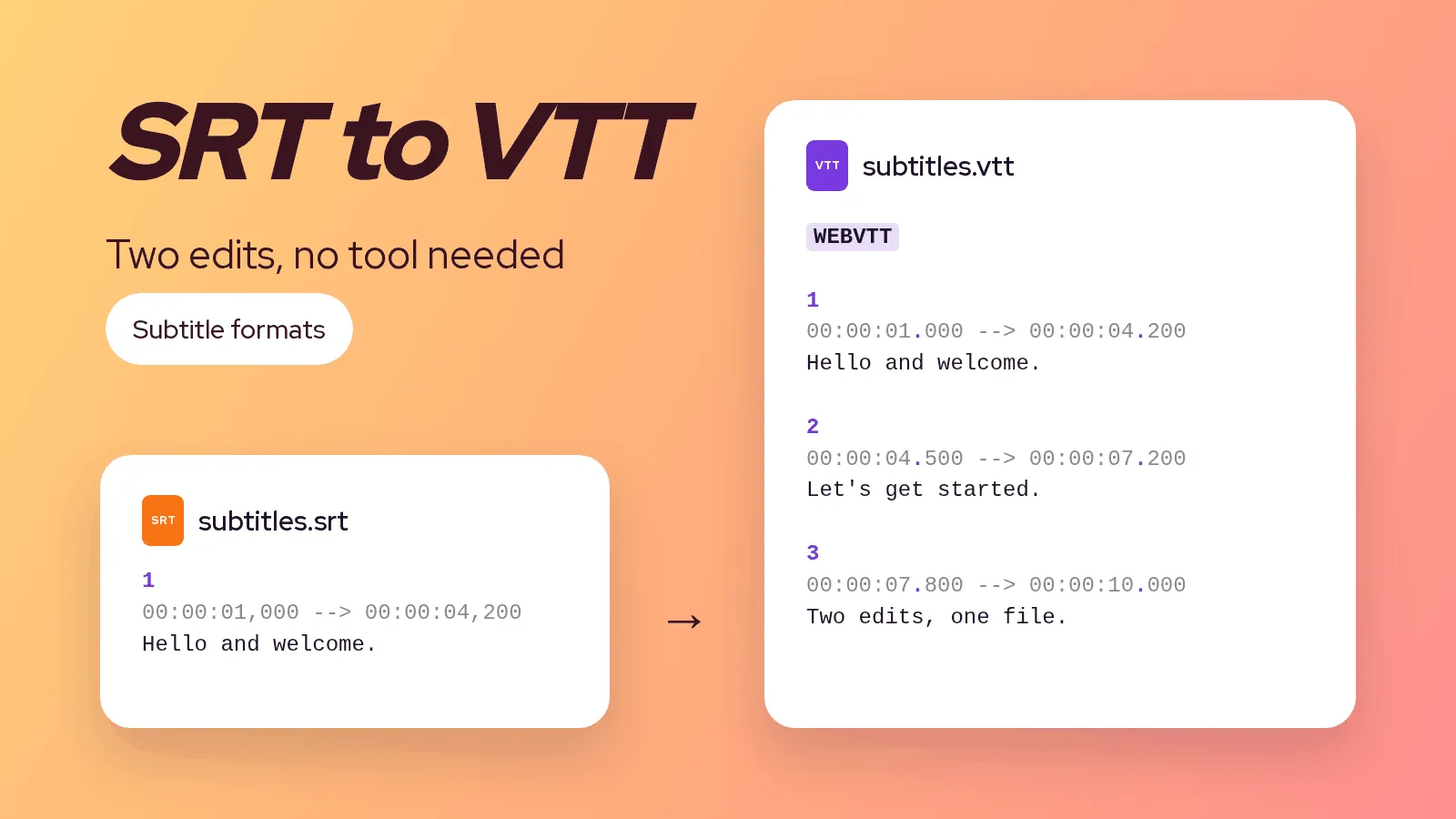
SRT to VTT: how to convert a subtitle file, by hand and safely
An SRT file becomes a VTT in two edits: a header line and the punctuation of the timecodes. The method by hand, on the command line, and the errors that stop a player from showing the subtitles.
Artificial Intelligence
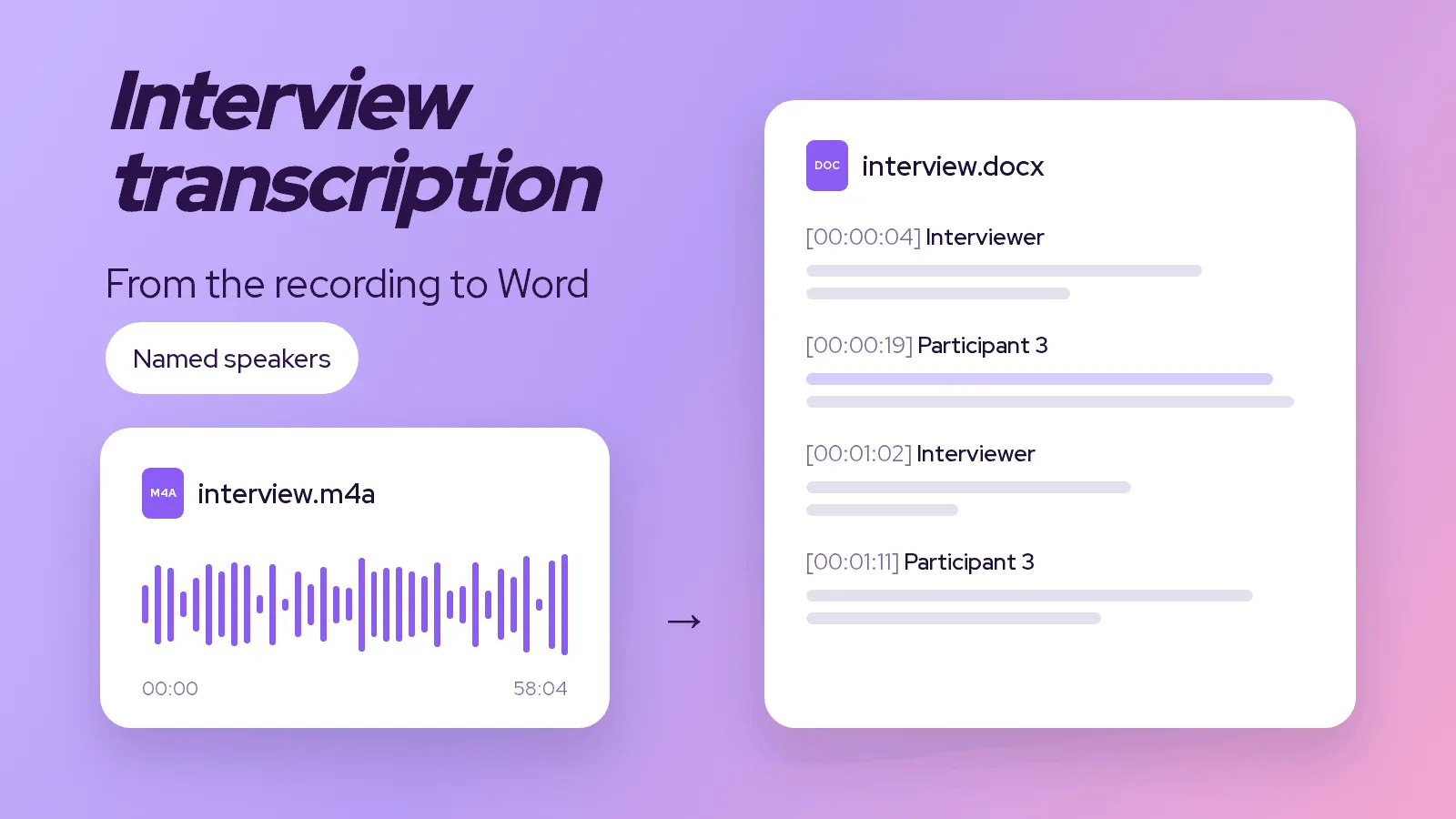
Interview transcription: the method, from audio to Word
Transcribing an interview by hand takes several hours per hour of recording. The method to do it in minutes, choose between verbatim and clean text, and hand over a tidy document.
Artificial Intelligence
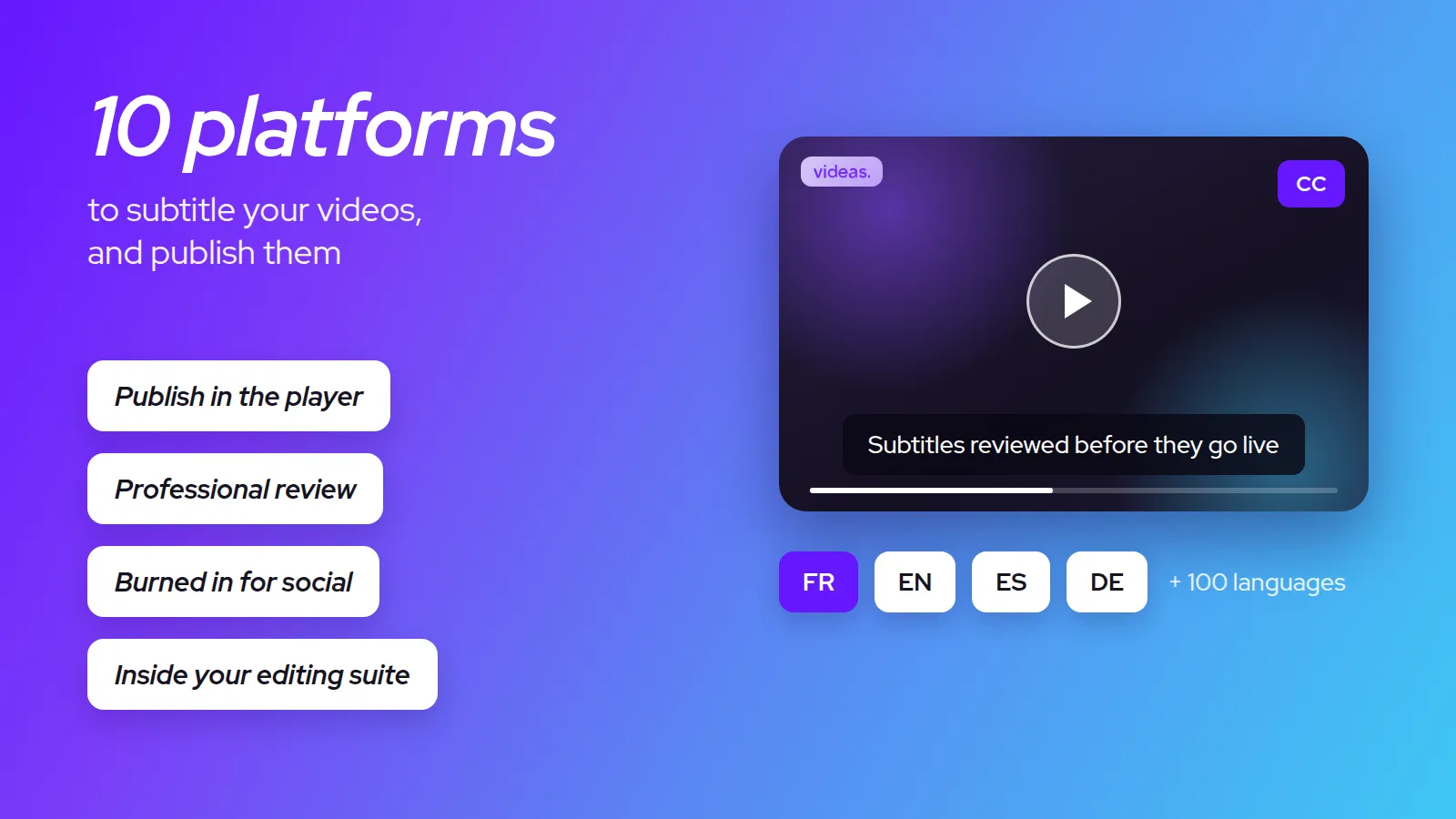
The 10 best video subtitling platforms in 2026
There's no single best subtitling software, only the best one for your use case. Our 2026 comparison, profile by profile, to help you find yours.