SRT to VTT: how to convert a subtitle file, by hand and safely
To convert SRT to VTT, two edits in the file are enough: add the line WEBVTT at the very top, and replace the comma before the milliseconds with a period in every timecode. The subtitle text does not change. You do it by hand on a short file, with one command on a long one, or by import then export when you want to fix the text along the way.
VTT (WebVTT) is the format web video players expect: the HTML5 <track> element does not accept SRT. That is the most common reason for this conversion.
What changes between an SRT and a VTT
The same subtitle, in both formats:
1
00:00:01,000 --> 00:00:04,200
Hello and welcome.
WEBVTT
1
00:00:01.000 --> 00:00:04.200
Hello and welcome.| SRT | VTT | |
|---|---|---|
| First line | None | WEBVTT, followed by a blank line |
| Millisecond separator | Comma: 00:00:01,000 |
Period: 00:00:01.000 |
| Subtitle number | Required | Optional |
| Encoding | Depends on the tool | UTF-8 required |
The SRT file guide covers the structure of the source format, and the VTT glossary entry that of the target format.
Method 1: by hand, in a text editor
For a file of a few dozen subtitles:
- Open the
.srtfile in a text editor (Notepad, TextEdit in plain-text mode, VS Code). - Add
WEBVTTon the first line, then a blank line. - With Find and replace, replace the comma in the timecodes with a period. Do not replace every comma in the file: those in the text must stay. In an editor that accepts regular expressions, search for
(\d{2}:\d{2}:\d{2}),(\d{3})and replace with$1.$2. - Save under a new name, with the
.vttextension, in UTF-8.
The subtitle numbers can stay: VTT accepts them as identifiers.
Method 2: on the command line, with ffmpeg
On a long file or a series of files, ffmpeg converts in one command:
ffmpeg -i subtitles.srt subtitles.vttffmpeg reads the SRT, writes the header and fixes the timecodes. It installs on Windows, macOS and Linux, and fits in a loop over a whole folder.
Method 3: import, fix, export
When the file also needs correcting, it is better not to multiply round trips. In Videas, you import the SRT file onto the video, review it in the editor while listening, then export it as VTT: the conversion is done for you. The same track also exports as SRT, with nothing to run again. The article export or burn in subtitles covers the export.
And if the video is played through the Videas player, there is nothing to convert: the track shows directly, in the format the player expects.
The errors that stop a VTT from showing
A web player ignores a malformed VTT file without any message. When subtitles do not appear, check in this order:
- The first line. It must be exactly
WEBVTT, with no space before it, and followed by a blank line. - A comma left in a timecode. That subtitle is skipped, sometimes every one after it.
- The encoding. A file saved in Windows-1252 or ISO-8859-1 shows broken accented characters, or nothing. Save it again in UTF-8.
- Color tags. SRT tolerates
<font color="...">, which VTT does not know. The<i>,<b>and<u>tags work in both formats. - The file type on the server. A
.vttfile must be served with thetext/vtttype.
The other way round: VTT to SRT
The reverse path takes a little more care: remove the WEBVTT line and any note or style lines, number each subtitle if it is not numbered, replace the period before the milliseconds with a comma, and strip the position settings placed after the timecodes. The command ffmpeg -i subtitles.vtt subtitles.srt does all of that.
FAQ
How do I convert an SRT file to VTT for free?
By hand: add WEBVTT and a blank line at the top of the file, replace the comma in the timecodes with a period, and save as .vtt, in UTF-8. No tool is needed, and the command ffmpeg -i file.srt file.vtt does the same on a long file.
Is renaming the .srt file to .vtt enough?
No. Without the WEBVTT line and with commas in the timecodes, a web player rejects the file. Its content has to change, not just its extension.
Why convert SRT to VTT?
Because web video players, through the HTML5 <track> element, accept only VTT. SRT remains the format to send to an editor, to YouTube or to a social network.
Does the conversion change the text or the timing?
No. The timecodes keep the same values, only their punctuation changes, and the text is carried over as it is.
Can VTT do more than SRT?
Yes: it can position a subtitle on screen and style it with CSS, which SRT does not provide for. A converted SRT does not use these options, but you can add them afterwards.
Converting SRT to VTT comes down to two edits; the longest part is checking nothing was missed. With Videas Scribe, subtitles are generated, corrected and exported in both formats from the same track.
Related articles
Artificial Intelligence
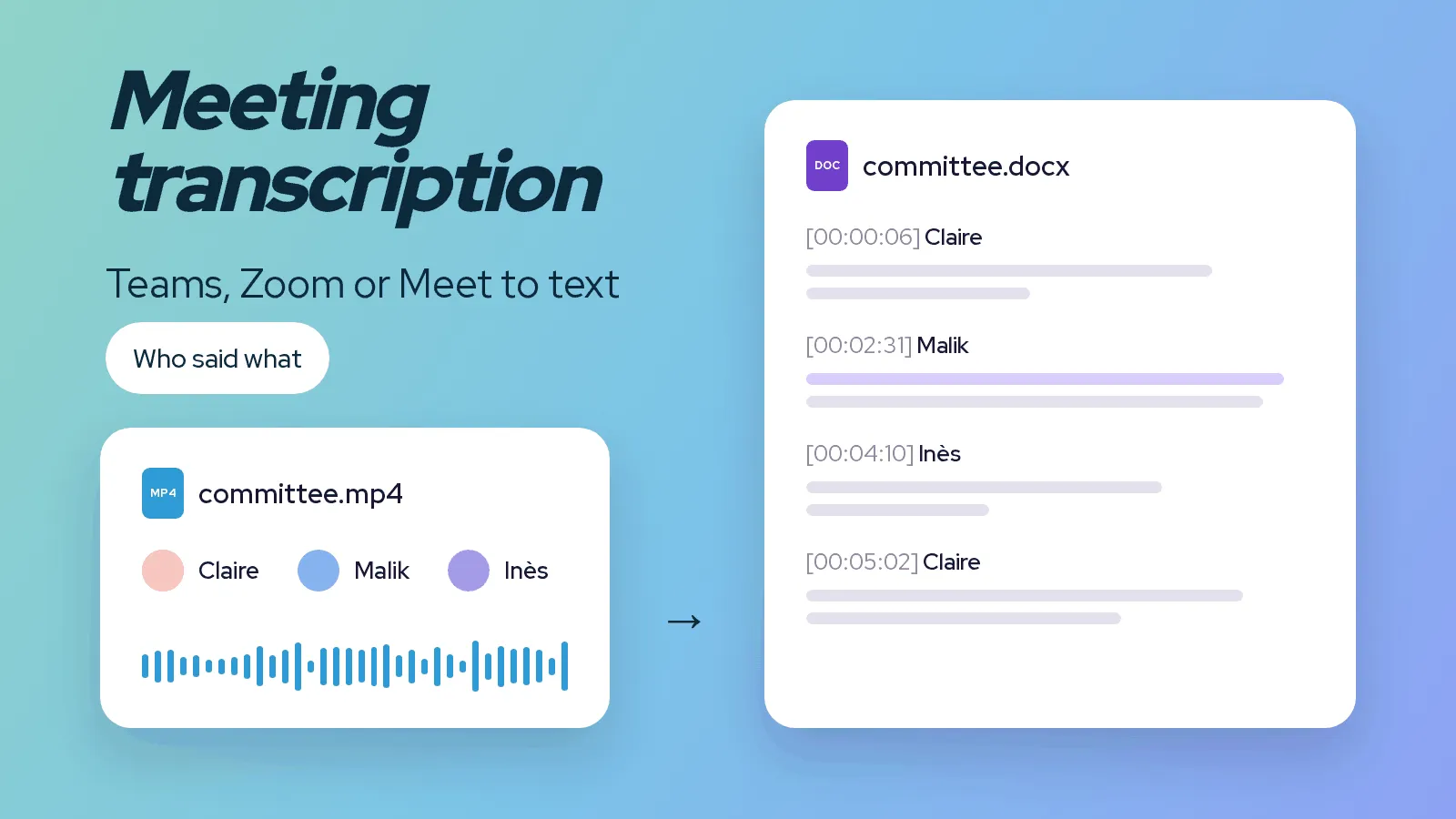
Meeting transcription: turn a Teams, Zoom or Meet recording into text
A meeting recorded on Teams, Zoom or Google Meet is transcribed within minutes. Where to find the file, how to get text split by speaker, and what to review before sharing the minutes.
Artificial Intelligence
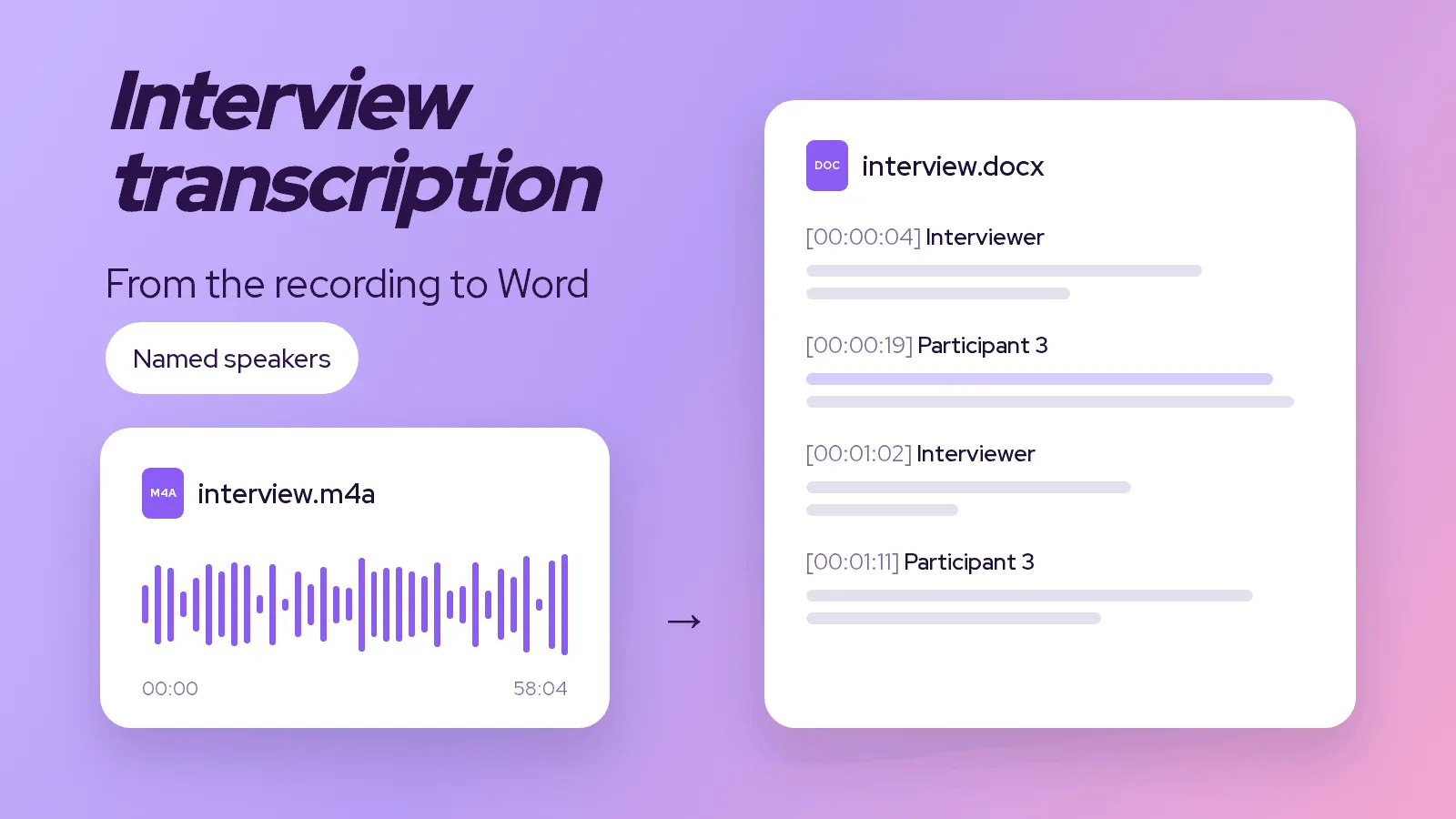
Interview transcription: the method, from audio to Word
Transcribing an interview by hand takes several hours per hour of recording. The method to do it in minutes, choose between verbatim and clean text, and hand over a tidy document.
Artificial Intelligence
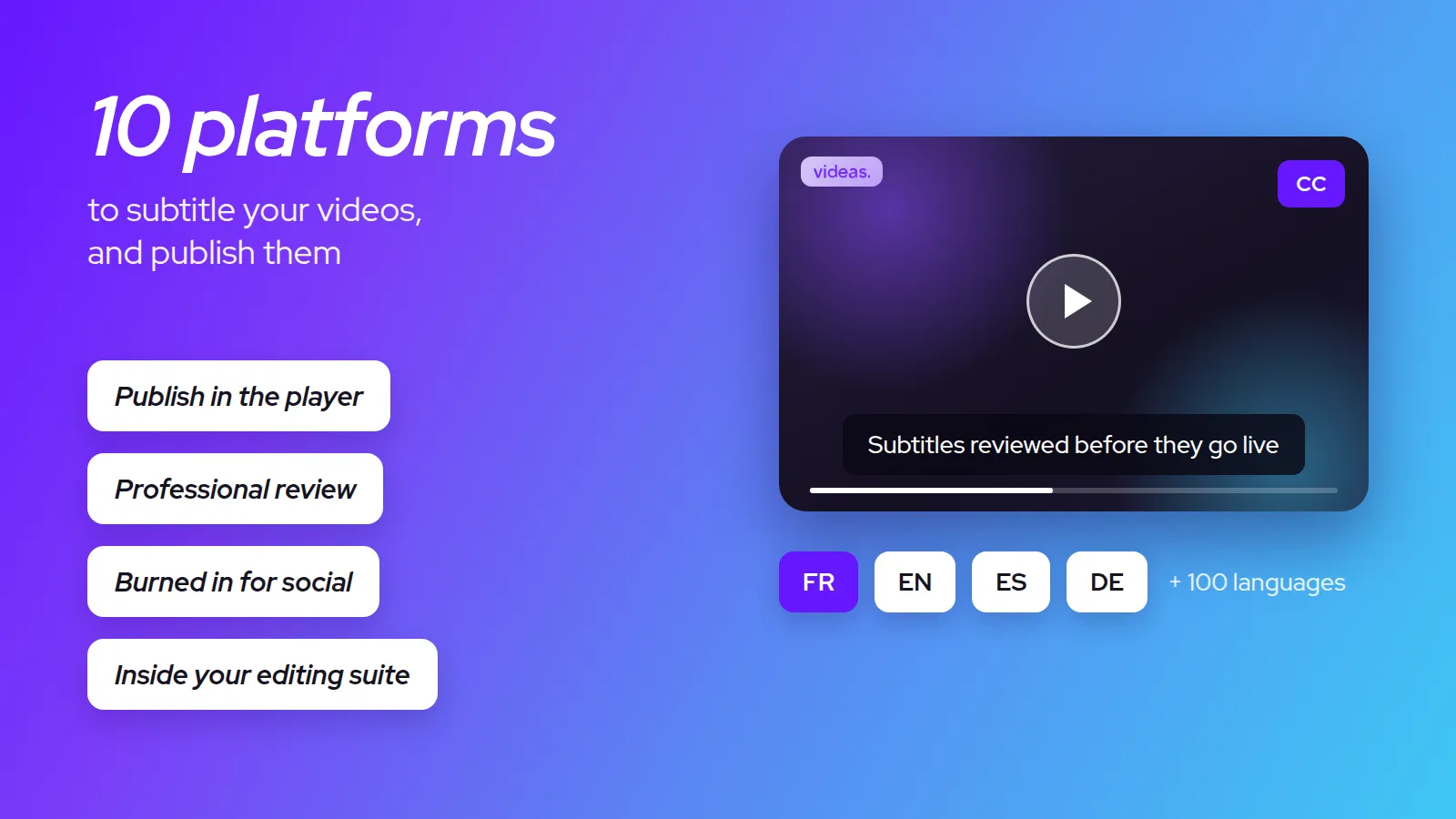
The 10 best video subtitling platforms in 2026
There's no single best subtitling software, only the best one for your use case. Our 2026 comparison, profile by profile, to help you find yours.