How to compress a video without losing quality
How to compress a video: re-encode it with a more efficient codec, a lower bitrate, or a smaller resolution. Those three levers reduce video file size, and nothing else does. The loss only shows when you squeeze a file that was already squeezed, so work from the original and encode at constant quality instead of a fixed bitrate. On Videas you can skip the whole exercise: every upload is transcoded into several qualities, in H.264 and VP9, so send the master and let the platform do the rest.
Three levers that reduce video file size
The codec compresses and decompresses the picture. It takes a minute of 1080p from more than 10 GB down to 50 or 150 MB. A newer codec gets you a smaller file at the same quality, but fewer devices can read it.
The bitrate is the lever that sets file size directly. The arithmetic is one line: size in megabytes ≈ bitrate in Mbps × duration in seconds ÷ 8. Ten minutes of 1080p at 8 Mbps weigh 600 MB. At 4 Mbps, 300 MB.
The resolution decides how much there is to describe. Going from 1080p to 720p drops 55 % of the pixels. Nobody sees it on a phone. Everybody sees it on a projector.
Which codec to choose: H.264, HEVC, VP9 or AV1
H.264 (AVC) is still the safe default. Everything plays it, from an old smart TV to a browser nobody has updated. A heavier file that plays everywhere beats a lighter one that opens on a black screen.
HEVC (H.265) and VP9 save around 40 % at the same quality. HEVC is held back by its licensing and by patchy browser support. VP9 is royalty-free and plays natively on the web, which is why Videas produces it alongside H.264.
AV1 is the most efficient codec available, roughly 50 % lighter than H.264. Encoding is slow, and hardware decoding only exists on recent devices. It pays off when millions of streams are involved, not on a file you are sending to three people.
One mix-up worth clearing: MP4 is a container, not a codec. It carries a video track, an audio track and sometimes subtitles. Two MP4 files of the same length can differ tenfold in size, which is why “export to MP4” tells you nothing.
What a platform does to your file
Upload to YouTube, LinkedIn or any video host and the file is re-encoded on arrival, with settings you do not control. Compressing it first does not spare you that pass. It just means the platform re-encodes a file that has already lost information, and that loss is permanent.
It works the same way on Videas, with one difference that matters: every upload is transcoded into quality rungs delivered over adaptive streaming, and those rungs derive from your source. No resolution is ever invented above the original. Upload a file you have already shrunk and the best rung available to your viewers is capped for good. The encoding profile is identical for every video, so there is nothing to configure: the detail is in the help article on encoding, the mechanism in our article on adaptive bitrate streaming.
Three rules when you do compress
Encode at constant quality, not constant bitrate. Quality mode, CRF in FFmpeg and in most editing software, spends bitrate where the scene needs it and saves it on a static shot.
Never re-compress an already compressed file. The flaws of the first encode become the material the second one has to describe. That is generation loss, and two or three rounds are enough to see it.
Keep the master. The day the video gets re-cut, subtitled or shown on a bigger screen, the light file will not give back what it threw away.
Compress or not, depending on where it goes
Going on a website or an intranet: do not compress. Upload the master and let the host build the rungs. Anything you do first only lowers the ceiling.
Going to a client or an editor: send it untouched. The large file transfer tool sends the master whole, with no re-compression, and the recipient downloads it from a link without creating an account.
Going by email: do not attach it. Mail providers cap around 25 MB. A video squeezed that far is unwatchable long before it fits. Send a link instead.
Going to social platforms: export in H.264, 1080p, around 8 Mbps. They will re-encode it anyway. Your job is to hand over a clean, compatible source.
Going to the archive: leave it alone. Delivery adapts. The original is shaved down once, and once is final.
FAQ
What is the best software to compress a video?
HandBrake covers most needs with a simple interface and is open source. FFmpeg does the same job from the command line with far more control. Any editing software already compresses on export through its quality setting. If the video is going online, none of them is needed: the host re-encodes anyway, and Videas builds the quality rungs itself from the file you upload.
Does compressing a video always lose quality?
Information is discarded every time, but below a certain threshold the eye cannot tell. What people notice is rarely the first encode: it is the second one, run on a file that had already been compressed. Start from the original, encode at constant quality, and the loss stays invisible.
How do I compress a video for email?
You do not. Mail providers cap attachments around 25 MB, and a video compressed down to that size is barely watchable. Upload the file and send a link: the recipient opens it in a browser, the picture survives, and you can see whether it was watched.
What bitrate should I use for 1080p?
Around 8 Mbps in H.264 for a reference export, 4 to 5 Mbps for comfortable web delivery. Below 2 Mbps, busy scenes start to block up. Those figures assume 25 or 30 frames per second: double the frame rate and the bitrate you need climbs by about a third.
Should I compress a video before uploading it to Videas?
No, and it works against you. The quality rungs derive from the file received, and no resolution is invented above the original, so an upload that is already compressed caps itself for good. Send the best version you have. Encoding starts on its own, and the video is playable before it finishes.
Before touching a setting, ask who is going to watch the file, and on what screen. For a transfer, the right compression is usually none. For a video going online, it is not your call to make: the platform rebuilds the qualities, and the player picks the one that fits.
Related articles
Video Technology
Adaptive bitrate streaming, or why a video stalls
Segments, rungs, manifest, arbitration: how a video adapts to each viewer's connection, what Videas produces on upload, and what it would take to run the same chain yourself.
Video Platform
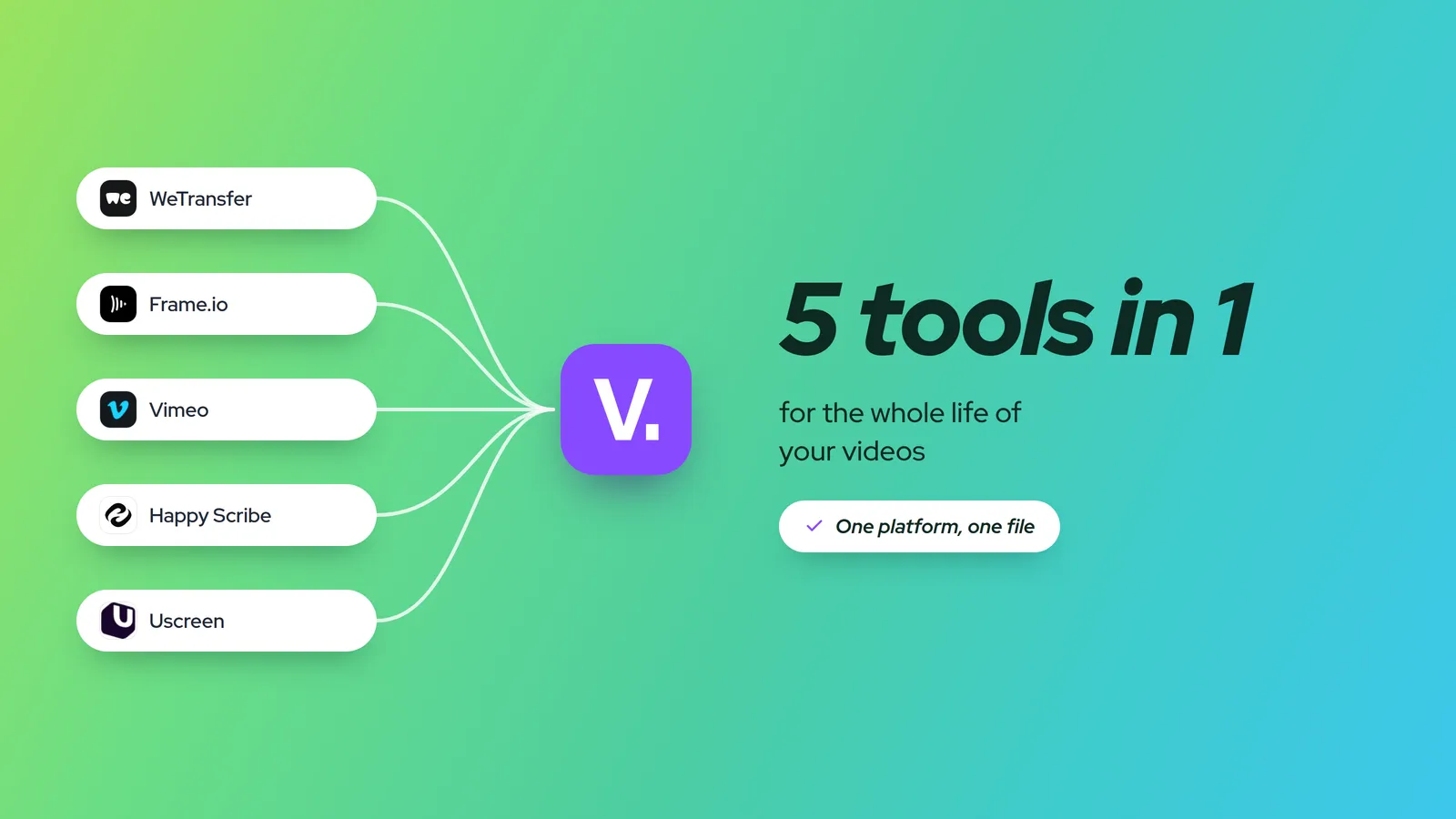
5 tools in 1: your whole video workflow in one place
Sending, review, hosting, subtitles, sales: a single video still travels through five platforms before anyone watches it. How the whole chain fits into one.

Video Platform
Create your own VOD platform in 5 steps
Creating a VOD platform takes 5 steps and, with Videas Channels, a single day if your videos are ready: open your channel, sort your catalogue, compose the storefront, decide who sees what, then set your prices.