Get a video reviewed and approved by a client
To get a video reviewed by a client in Videas: open the media item, click Share, then choose Share for review. Add your reviewers’ addresses and send: each one gets a personal link, opens the video without creating an account, leaves comments pinned to an exact moment, draws on the paused frame, then gives their word — I approve this version or I request changes. You follow everything from the Reviews entry of your workspace.
Choosing a review tool? The video feedback tool page shows what review brings to a team. This article walks through the steps in the app.
A review is not a share link. A share link is for distributing: the recipient watches, nothing more. A review is for getting sign-off: the recipient comments, and their decision comes back to you, version after version.
Send a video for review
- Open the media item in your workspace
- Click Share, at the top of the screen: a menu offers Share link and Share for review
- Choose Share for review — the dialog of the same name opens
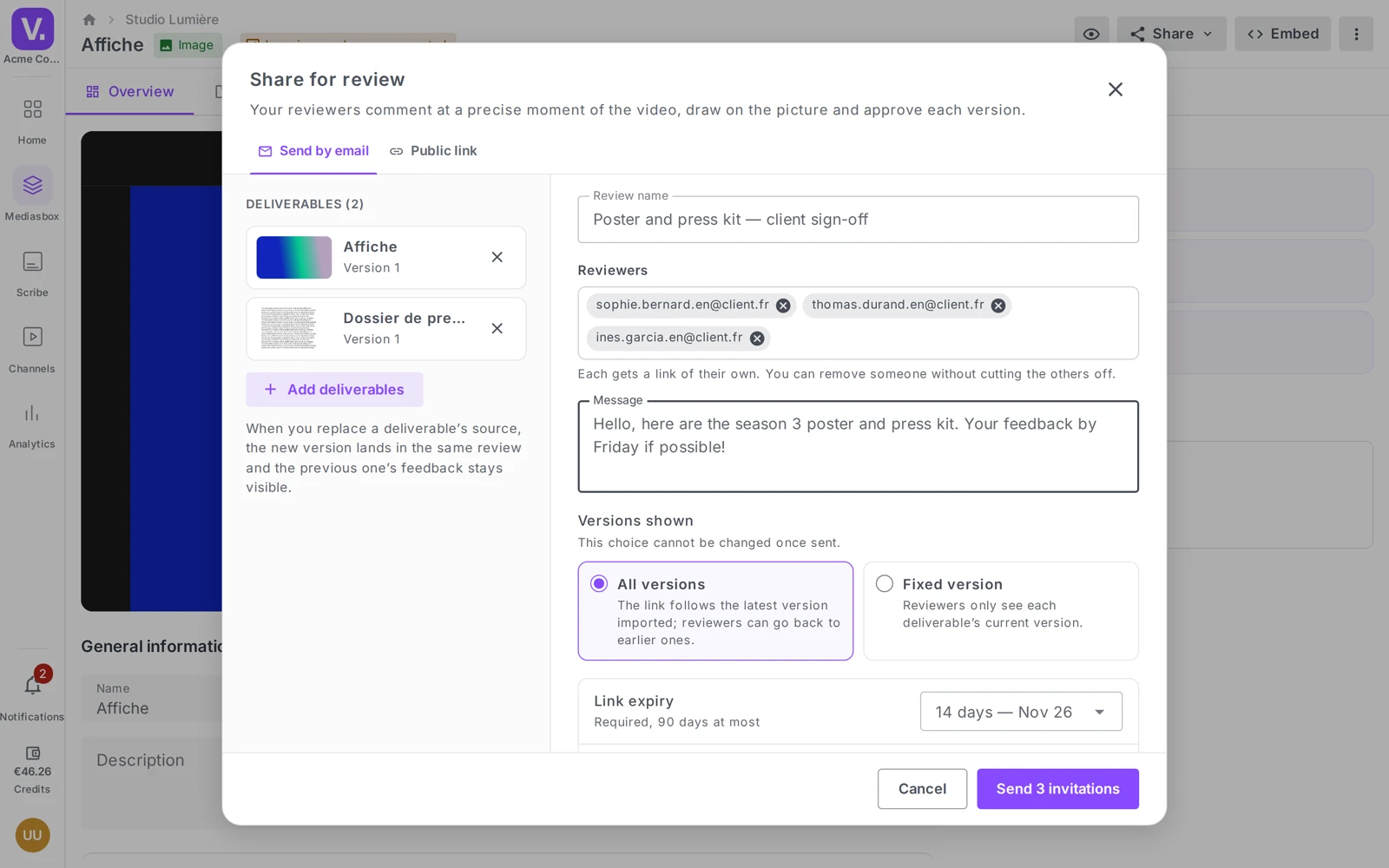
- Choose how your reviewers get the review: Send by email or Public link (see below)
- Give a Review name — required, it is the name you will find the review under
- Add your Reviewers, one email at a time, and a Message if you wish
- Set the options, then click Send N invitations (or Create the link in public link mode)
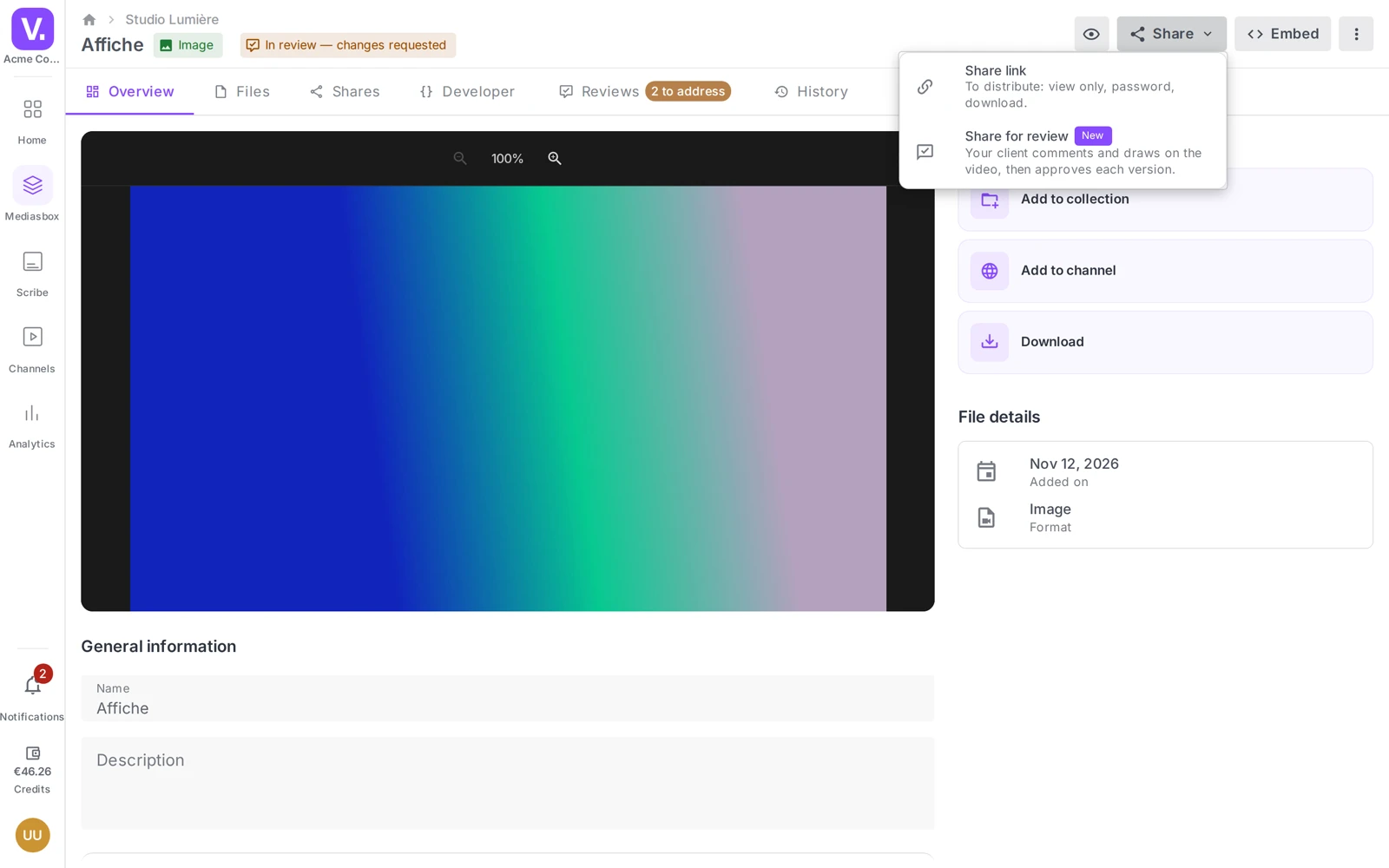
A review can cover several media items at once: the Deliverables section of the dialog lists the item you started from, and Add deliverables adds others from the same workspace. Folders cannot be added, and the menu does not exist on a folder or a collection — reviews work media item by media item.
Good to know: reviews are designed for video. An image or a document can be added as a deliverable too: it is reviewed on its still preview, which the reviewer can draw on.
Send by email or by public link?
The choice is made at the top of the dialog, under How reviewers get the review. It cannot be changed after creation.
- Send by email — you type the addresses and Videas sends each one an invitation, up to 100 reviewers. Each reviewer has their own link: you can remove one without cutting off the others, and you know who opened what.
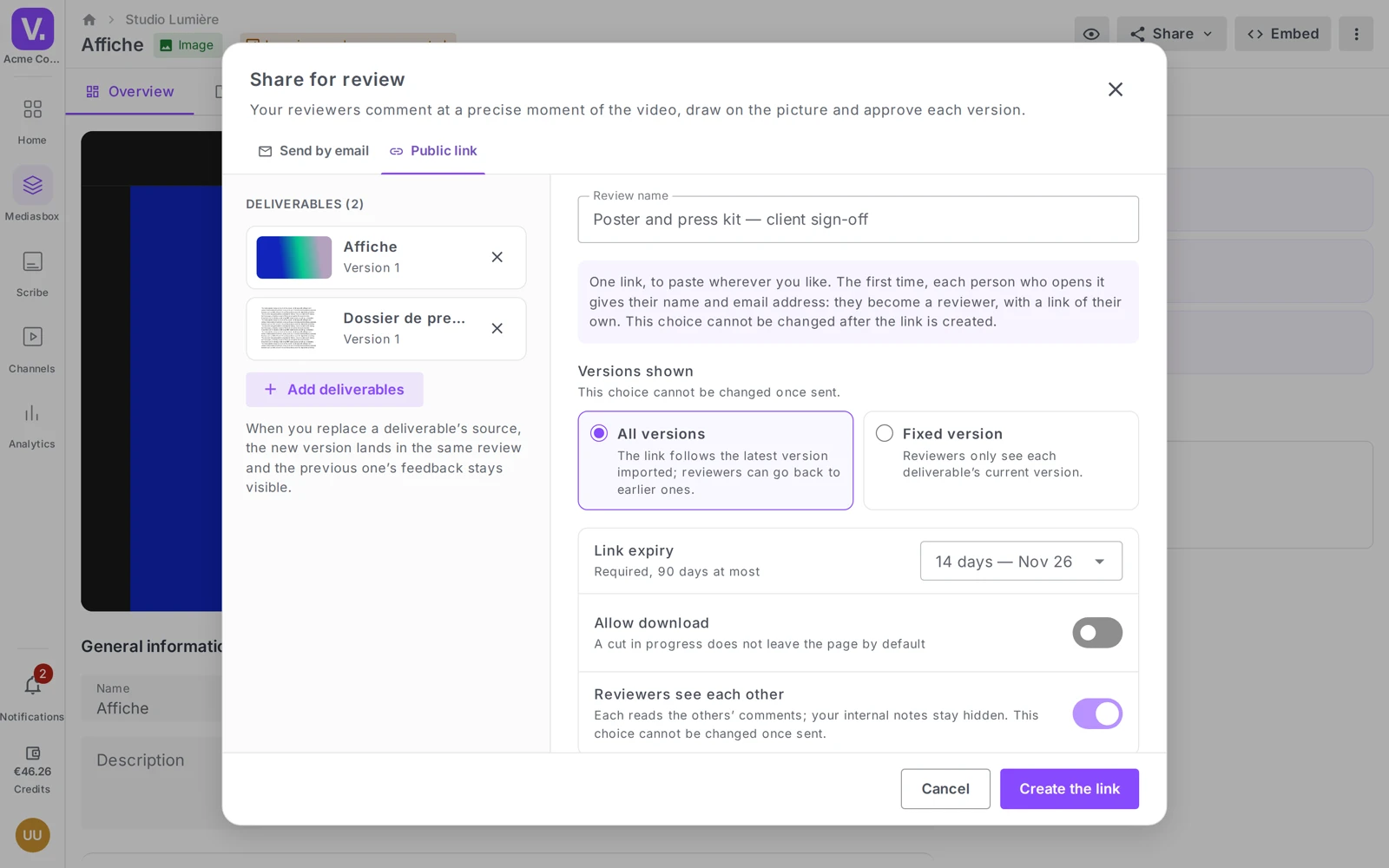
- Public link — a single link to paste wherever you like (a chat, a project management tool). The first time, each person who opens it gives their name and email address: they become a reviewer, with their own personal link sent by email. Handy when you do not know in advance everyone who will review.
Either way, the reviewer has no account to create.
Which options to set before sending?
| Option | Default | Can be changed after sending? |
|---|---|---|
| Versions shown — All versions or Fixed version | All versions | No |
| Link expiry — 14, 30 or 90 days | 14 days | Yes, up to 90 days after sending |
| Allow download | Off | Yes |
| Reviewers see each other | On | No |
Versions shown is the setting to get right:
- All versions — the link follows the latest version imported, and reviewers can look back at the earlier ones. It is the right choice for an edit that will go through a V2, a V3: one review from start to finish, and the feedback on each version stays visible.
- Fixed version — reviewers only see the current version of each deliverable. Versions imported afterwards never reach them: to show them, you send a new review.
The expiry is required, 90 days at most. Download is off by default: an edit in progress does not leave the page. Reviewers see each other: each one reads the others’ comments — your internal notes always stay hidden. Turn this option off if the same video is reviewed by people who must not read each other’s feedback.
What your reviewer does
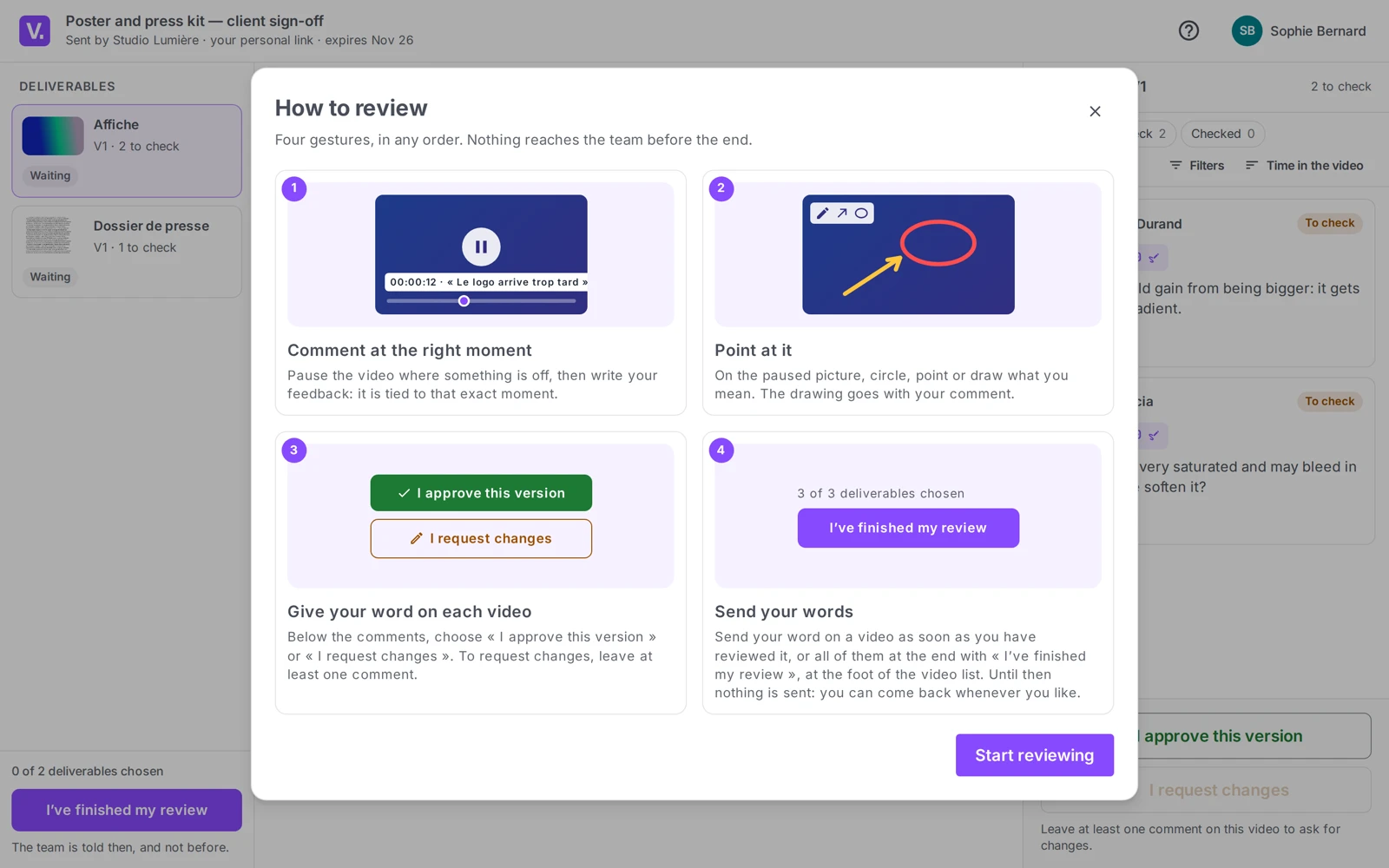
The reviewer opens their link and lands on the How to review guide, which comes down to four gestures: Comment at the right moment, Point at it, Give your word on each video, Send your words. They close it with Start reviewing. In public link mode, they first give their name and email address.
Comment on a moment or a range
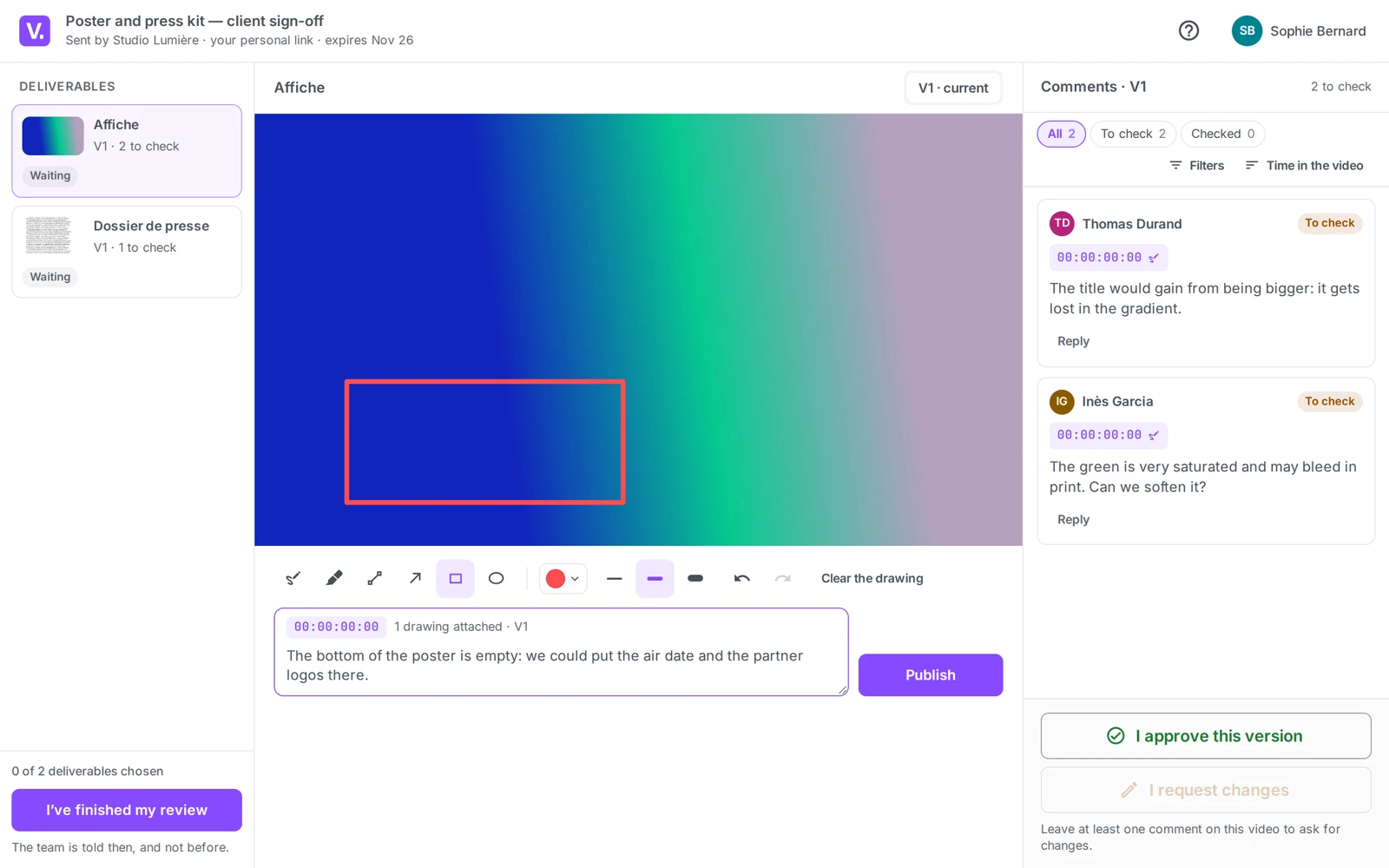
The reviewer pauses the video where something is off, types their feedback in the Write feedback on this moment… field and clicks Publish. The comment is pinned to that moment, and its marker appears on the playback bar. The Range option makes it cover a span — a whole shot, a sequence — rather than a single frame.
Draw on the frame
On the paused frame, the reviewer circles, points at or highlights what they mean: Stroke, Highlighter, Line, Arrow, Rectangle, Ellipse, in three widths and several colours. Picking a tool pauses the video. The drawing goes with the comment published next, 20 drawings at most per comment.
Give their word and send it
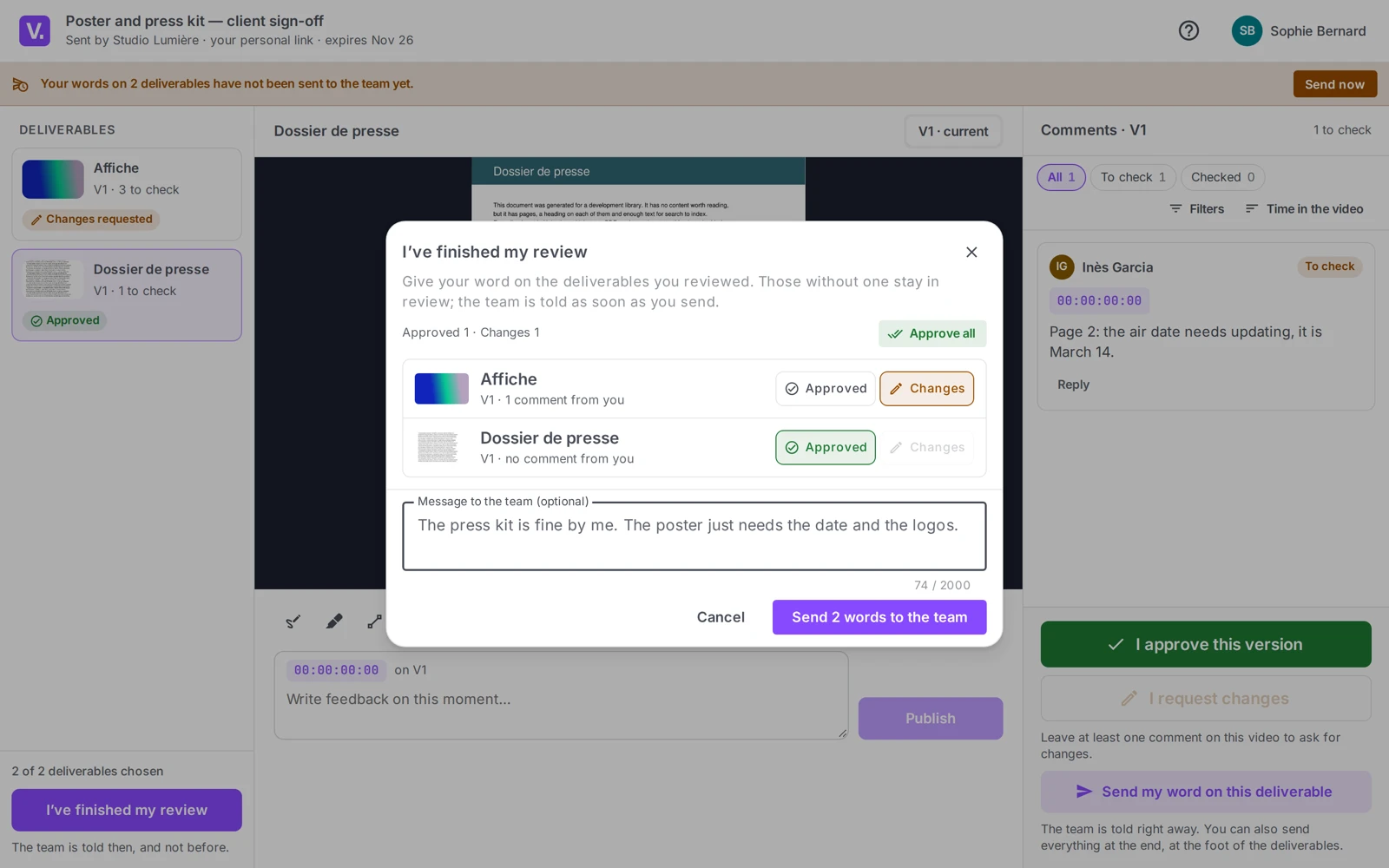
Under the comments of each deliverable, the reviewer chooses I approve this version or I request changes — requesting changes requires at least one comment on that video. Then they send:
- deliverable by deliverable, with Send my word on this deliverable — the team is told straight away;
- or all at the end, with I’ve finished my review, at the bottom of the list of deliverables. The dialog sums up each deliverable and offers Approve all and a Message to the team (optional).
Nothing reaches the team before that send: the reviewer can close the page and come back later through their link. To change their mind afterwards, they use Resume my review.
For each deliverable, the reviewer sees where they stand: Reviewing, Waiting for the next version (they requested changes) or Version approved.
Follow your reviewers’ feedback
Three places, from the widest to the most precise:
- The Reviews entry of your workspace navigation, next to Shares. Its counter adds up the comments to check and the finished reviews you have not read yet. It leads to the Review links list: each review, its deliverables, what is left To check and its Status (Open, Expired, Disabled).
- The Reviews tab of a media item, with an N to address badge. Under the item’s title, a chip sums up its state: In review — 1 of 2 approved, Approved in review or In review — changes requested.
- A review’s page, opened from either. The Review of V{n} panel gives each reviewer’s decision: Version approved, Changes requested or Reviewing.
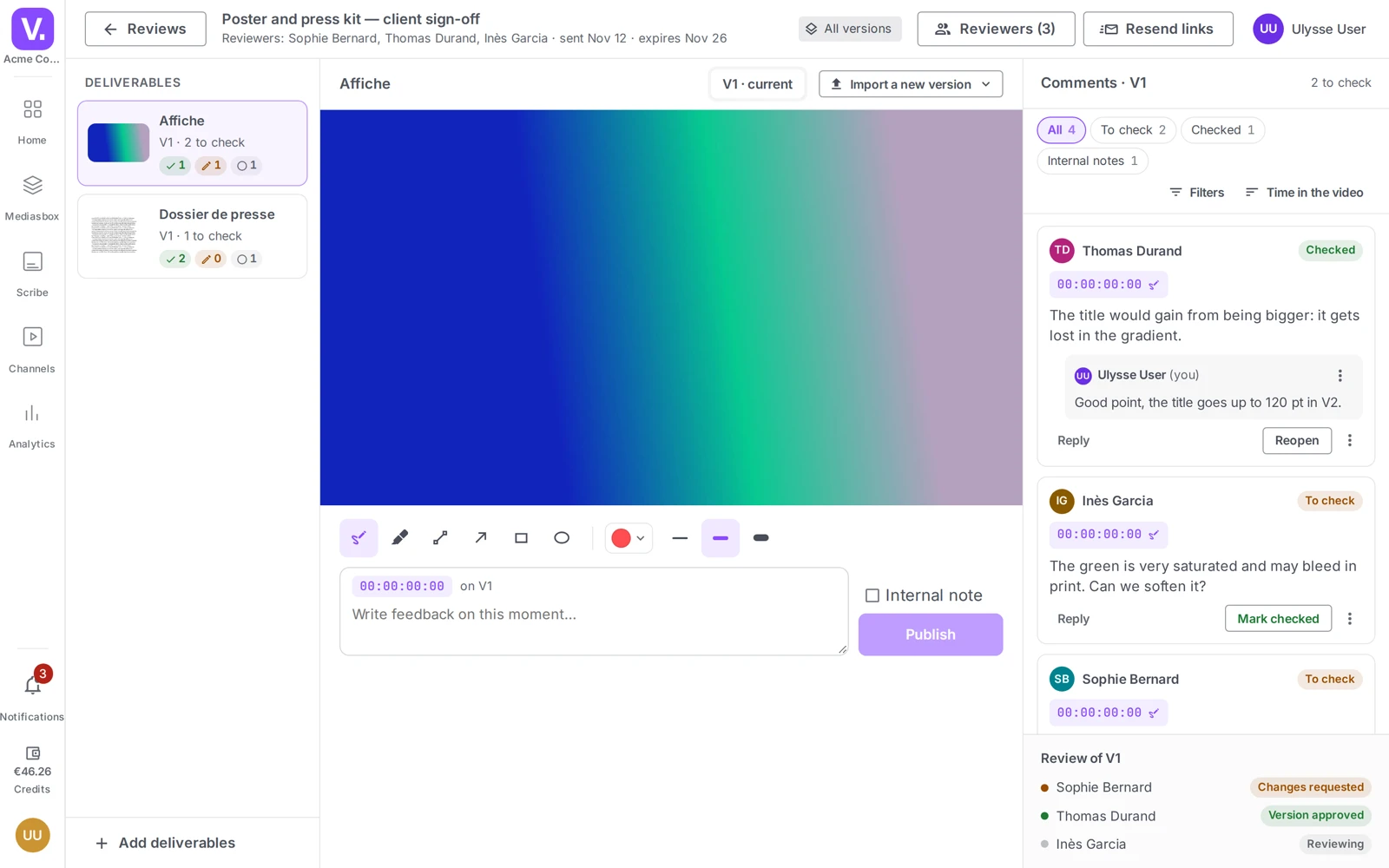
On each comment, the team can Reply, Mark checked (then Reopen), or write an Internal note that reviewers never see. The All / To check / Checked / Internal notes filters, plus the filters by author, by version, and “with a drawing” or “over a range”, help when feedback piles up.
When a reviewer sends their words, the team is told in the bell and by email — adjustable in your notification preferences, Finished reviews row. A comment alone tells no one: only sending a word does.
Send a new version to your reviewers
On the review’s page, Import a new version offers two sources: From my computer or From the Mediabox. The Tell the reviewers box, ticked by default, sends each reviewer an email with their link as soon as the new version is ready to play. The same box appears when you replace a media item’s file from its Files tab — see Replace a video without breaking its links.
Feedback on the previous version stays visible, and the decision starts afresh on the new version. With a Fixed version, the new version is shown to no one and tells no one.
Also from the review’s page:
- Add deliverables, at the bottom of the list of deliverables, adds other media items; the same box tells the reviewers, and several additions within a few minutes go out in a single email;
- Reviewers lets you Add reviewers, copy a person’s link, see how many times they opened it, or Remove them — their link is cut, their comments stay;
- Resend links, at the top of the page, sends each reviewer the same link as in the invitation, with a message if you want to nudge them.
From the Review links list, Edit the review changes its name, its expiry date and whether downloads are allowed, and Delete the review cuts every link.
Which emails do your reviewers get?
- The invitation, when you send or when you add a reviewer;
- Their personal link, when someone joins a review through a public link;
- The reminder, when you click Resend links;
- The announcement of a new version or of new deliverables, if Tell the reviewers was ticked;
- A digest of the replies to their own comments.
Every email after the invitation offers to stop these emails for that review. The review link stays valid, and their comments stay visible.
Who can send a review?
Sending a review requires the right to share in the workspace: the Editor and Admin workspace roles have it, the Viewer role does not — it sees “Your role in this workspace does not allow sharing.” Adding deliverables, removing a reviewer or resending the links requires the same right. Importing a new version requires the right to edit the media item.
Reading a review is open to every member of the workspace. To reply, write an internal note or mark a comment checked, you need two permissions: Answer review links, a permission of the organization role, and Share assets in the workspace. By default the organization’s Owner, Administrator and Member hold the first, a Guest does not: they read the review without being able to write. An administrator can add it to a role or remove it from Settings → Roles & Permissions. Roles in detail: Decide who can do what in your organization.
Review or share link: which one to choose?
The share link when you deliver or distribute: the recipient watches, maybe downloads, and you want a password or an open limit. The review as soon as you expect feedback: each remark arrives pinned to its moment, with the drawing that makes it precise, and the client’s decision comes back to you formally, version by version — instead of an email saying “around 1, the logo is too small”.
A review has neither a password nor an open limit: its protection is each reviewer’s personal link, which you can remove at any time, and its expiry.
Does the client need a Videas account?
No. In email mode, they open the link they received and comment straight away; Videas only asks, at their first comment, for the name to show next to their feedback. In public link mode, they give their name and email address on arrival, and receive their personal link by email to come back from any device.
What happens to the review when the link expires?
The reviewers’ links no longer open anything, and the review shows as Expired in the list. Everything stays readable on your side: comments, drawings, decisions — and you can still mark feedback checked. To extend it, push its date back with Edit the review, up to 90 days after sending; beyond that, send a new review.
Not to be confused with: Videas Scribe also has a Share for review, to have subtitles corrected line by line. It is a different feature, described in Get your subtitles reviewed.
In short
- Share → Share for review, from a media item’s page
- The reviewer needs no account: they comment at the exact moment, draw on the frame and give their word per deliverable
- Send by email (up to 100 reviewers, one link each) or Public link (everyone identifies on arrival) — a final choice
- All versions: one review follows V1, V2, V3… Fixed version: only the version sent is shown
- Expiry required, 14 days by default, 90 days at most; download off by default
- You follow everything from the workspace’s Reviews entry, and the team is told when a reviewer sends their words
Related articles
Screenshots were taken on Videas Academy, an example channel built for this help center. It belongs to a fictional customer, not to Videas: your own channel carries your name, your branding and your prices.