Embed a video on your site without slowing the page, in 5 steps
Embedding a video without slowing down the page comes down to 5 steps: put the video on a platform instead of your own server, keep the thumbnail light, copy the embed code, load every other player on click, then run the speed test again. Only one of them involves touching code, and on Videas the first happens on its own, at import.
The story never changes. The homepage used to load in a second, marketing drops the brand film onto it, and by Monday the speed report has turned red. None of this gets fixed in the edit suite: it is decided by how the video is placed.
Step 1. Get the video off your own server
This is the step the others depend on. A file sitting on your server goes out whole, in a single quality, to everyone: the phone on a train gets exactly what the office fibre gets. Worse, the browser starts downloading it before anyone has pressed play.
A video platform does the opposite. At import it builds several versions of the file and cuts them into chunks of a few seconds; the player then asks only for the next chunk, in the version the connection can actually carry. That is adaptive streaming, and on Videas it runs on its own, with no format and no codec to pick. If you are tempted to compress the file yourself before uploading, read why that usually backfires first.
Your video’s file size stops being your page’s problem. An hour-long film and a two-minute demo now cost the same on load.
Step 2. Keep the thumbnail light
The poster frame shows before anyone clicks, which makes it the one file every single visitor really downloads. Save it as a JPEG rather than a PNG. A still exported straight out of the edit easily runs to two megabytes, where the same frame as a JPEG is ten times smaller with no visible difference.
Step 3. Copy the embed code
Open the video in Videas, click Embed, copy the block and paste it into your page. The full walkthrough is in the help centre, at embed a video on your website.
Two settings are already right by default and are worth leaving alone. The responsive embed makes the player fill the width of wherever you drop it, on every screen. And the Script method resizes itself, updates itself, and is the only one that allows the click-to-load of the next step.
Keep it unless your platform strips JavaScript: that is the case with Wix, Confluence and most internal wikis, where the iframe takes over, frozen at the dimensions you copied.
Step 4. Load the other players on click
In the Embed window, the Adapt to my platform link opens a Display row with two options:
- Inline, the default: the player loads at the same time as the page.
- Button: nothing loads until the visitor clicks. The video then opens over the page, full size, with a button or a thumbnail as the trigger.
Keep the first for the video visible above the fold, switch all the others to the second. On a page lined with six customer testimonials, you have just cut the weight by six.
Step 5. Run the speed test again
Run it once before you apply the steps and once after: it is the only way to know what you gained, and the gap is widest right after the secondary players move to button mode.
On the video side, the Traffic sources tab of your analytics lists the pages where your videos actually get played. Which answers the next question: the one you just put on a diet, is anyone watching it.
What Google measures on a page with video
Two of the three Core Web Vitals are decided by the video, and since they are ranking signals, the stakes go beyond visitor comfort.
Largest Contentful Paint times how long the biggest visible element takes to appear. On a page carrying a video, the biggest element is the video: steps 1 and 2 take care of it.
Cumulative Layout Shift counts the times content moves on its own, the moment the paragraph you were reading drops because something has just settled above it. That one is already handled by the Videas code, which declares the player’s proportions before anything loads.
What a player brings along with it
An embed code never brings just a player. The one from a consumer platform also installs its scripts, its calls to ad domains and its trackers, plus thumbnails of other people’s videos at the end of yours. That is weight, and one more line in your consent banner.
The Videas player calls no ad network, sets no advertising cookie and no third-party tracker, and leaves the end screen to whatever you put there. The embed the player page covers the rest, and the player demos show it setting by setting.
If the site is a big one
When pages come out of a CMS, the Videas API returns a video’s embed code as the page is built, and everything a technical team needs sits on the developers and integrators page or in the glossary under API. And since an embed code is public by nature, declare the domains allowed to display your videos: playback is refused anywhere else.
FAQ
How do you embed a video without slowing down the page?
In five steps: put the video on a platform rather than on your own server, keep the thumbnail light, copy the embed code, load every other player on click, then run the speed test again. On Videas the first step happens on its own, at import.
Is self-hosting a video faster than using a video platform?
Almost never. An MP4 sitting on your server goes out in a single quality, and the browser starts pulling it before anyone has pressed play. A video platform builds several versions of the file, cuts them into short chunks, and sends only what is actually being watched.
How do you put several videos on one page without killing it?
Switch every player but one to the Button display. Nothing loads until the visitor clicks the trigger, a button or a thumbnail as you prefer, and the video then opens over the page. Keep the inline display for the one video visible above the fold.
Which video player should you use on a website?
An HTML5 video player, which plays without a plugin, with adaptive streaming, a responsive embed, subtitles, and no ads or suggested videos at the end of yours. For a branded site, add customisation: colours, logo, end screen. The Videas player ticks those six boxes.
Does an embedded video hurt your Core Web Vitals?
Not if it is placed properly. Largest Contentful Paint depends on what downloads before playback, so on adaptive streaming and on the weight of the thumbnail. Layout shift depends on the space reserved for the player, and the responsive width in the Videas code reserves it up front.
A fast page with video on it comes down to three decisions, taken once: let the platform stream the video instead of serving a file, keep the thumbnail light, and load only one player on open. What is left is the decision nothing automates: working out which of your videos deserves to be the first thing a visitor receives.
Related articles

Video Hosting
How to choose a professional video host in 2026
How do you choose a professional video host in 2026? The criteria to compare: privacy, security, adaptive streaming, GDPR compliance, migration and cost.
Artificial Intelligence
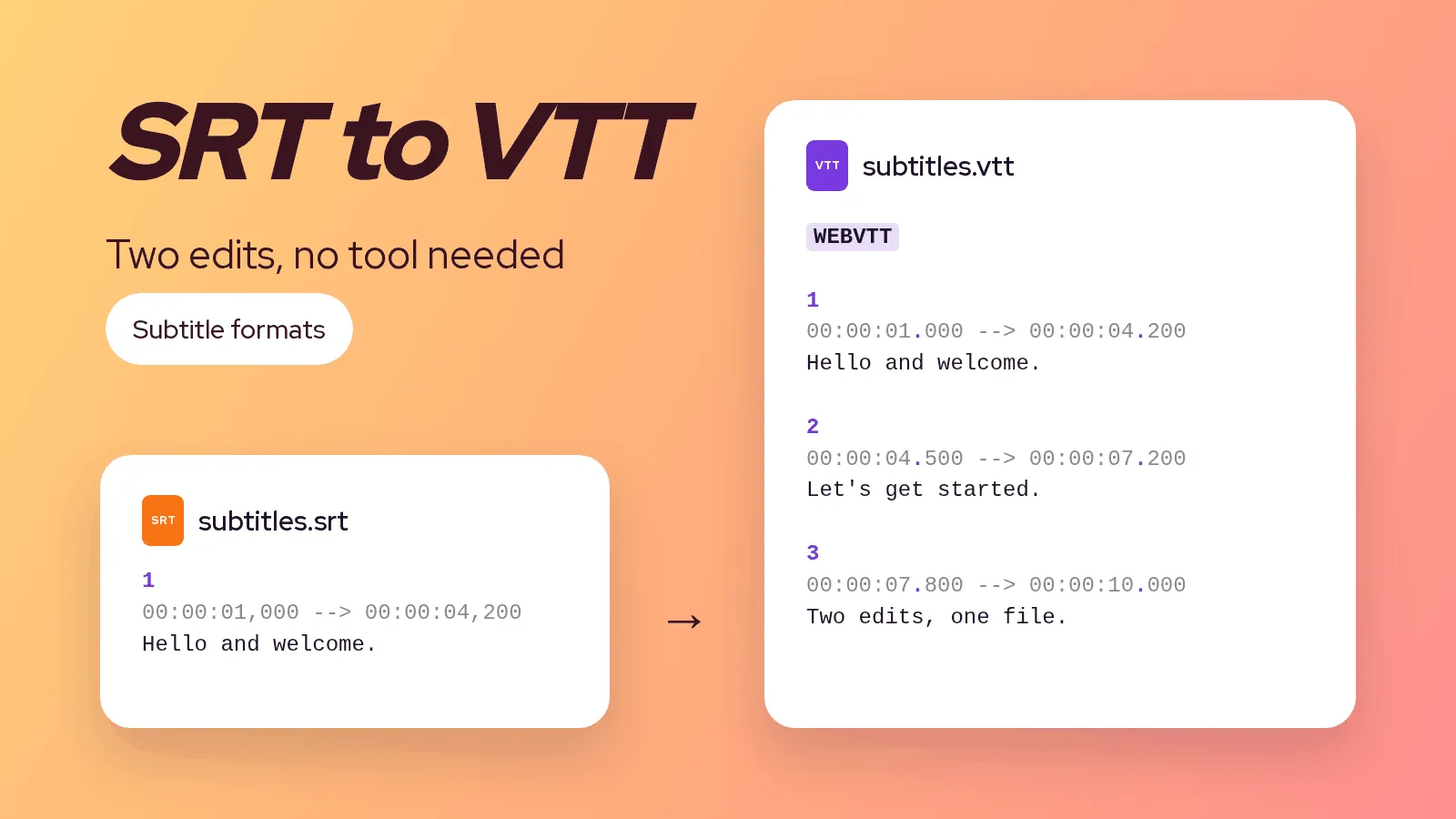
SRT to VTT: how to convert a subtitle file, by hand and safely
An SRT file becomes a VTT in two edits: a header line and the punctuation of the timecodes. The method by hand, on the command line, and the errors that stop a player from showing the subtitles.
Video Sharing
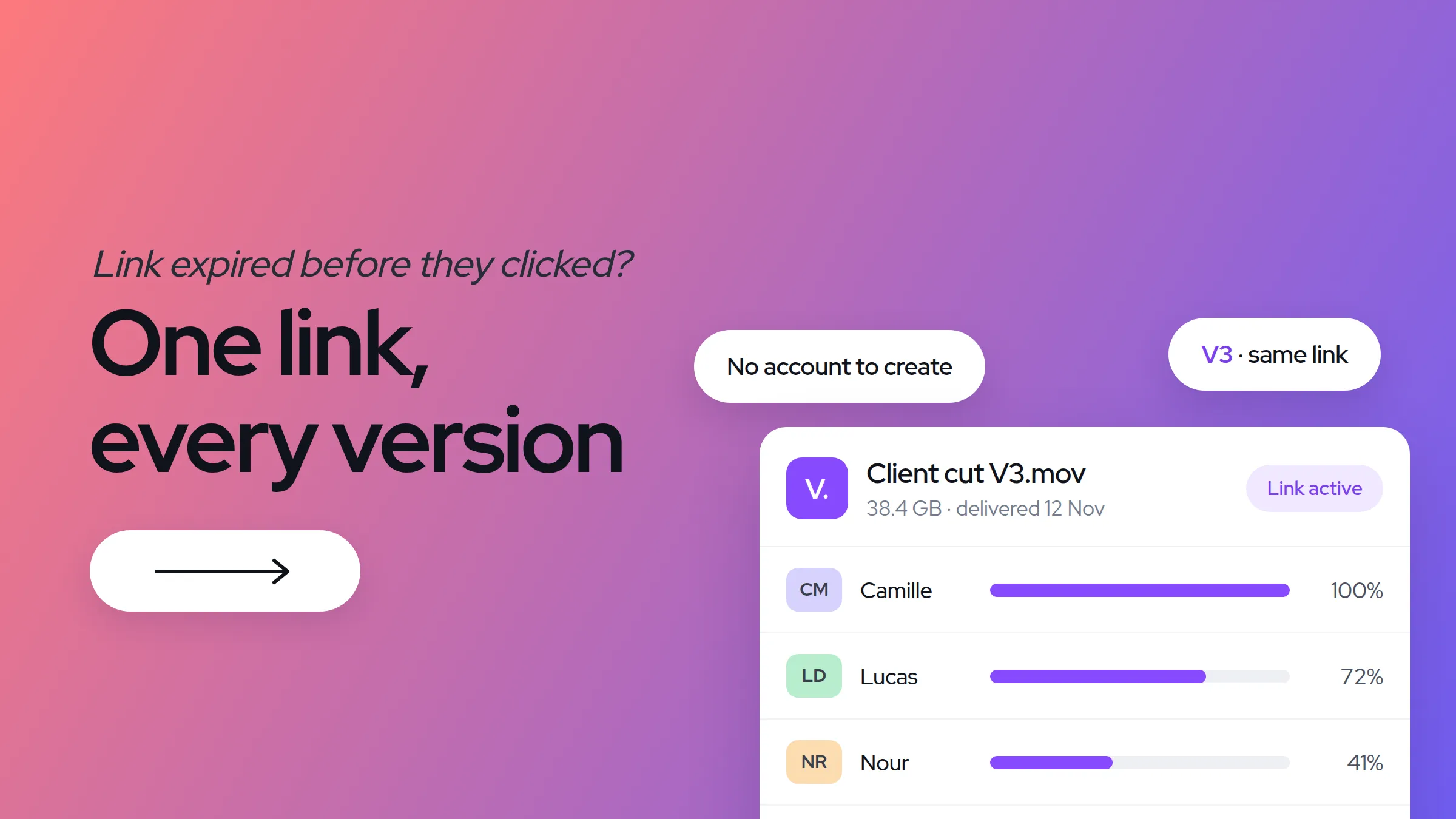
Client video delivery: one link that doesn't expire in 7 days
A link that expired, a V3 that spawns a second URL, a master someone asks for two years later. The delivery workflow that holds, step by step.